
Why can't a visitor access my restricted help centre?
Updated 4 months ago
Browse All
A visitor is stuck at the sign-in page or never received their link. Restricted help centres only let in work emails from domains you've approved — here's how to spot what's blocking them and fix it.
Checks and fixes
Check whether their email domain is on your allowed list
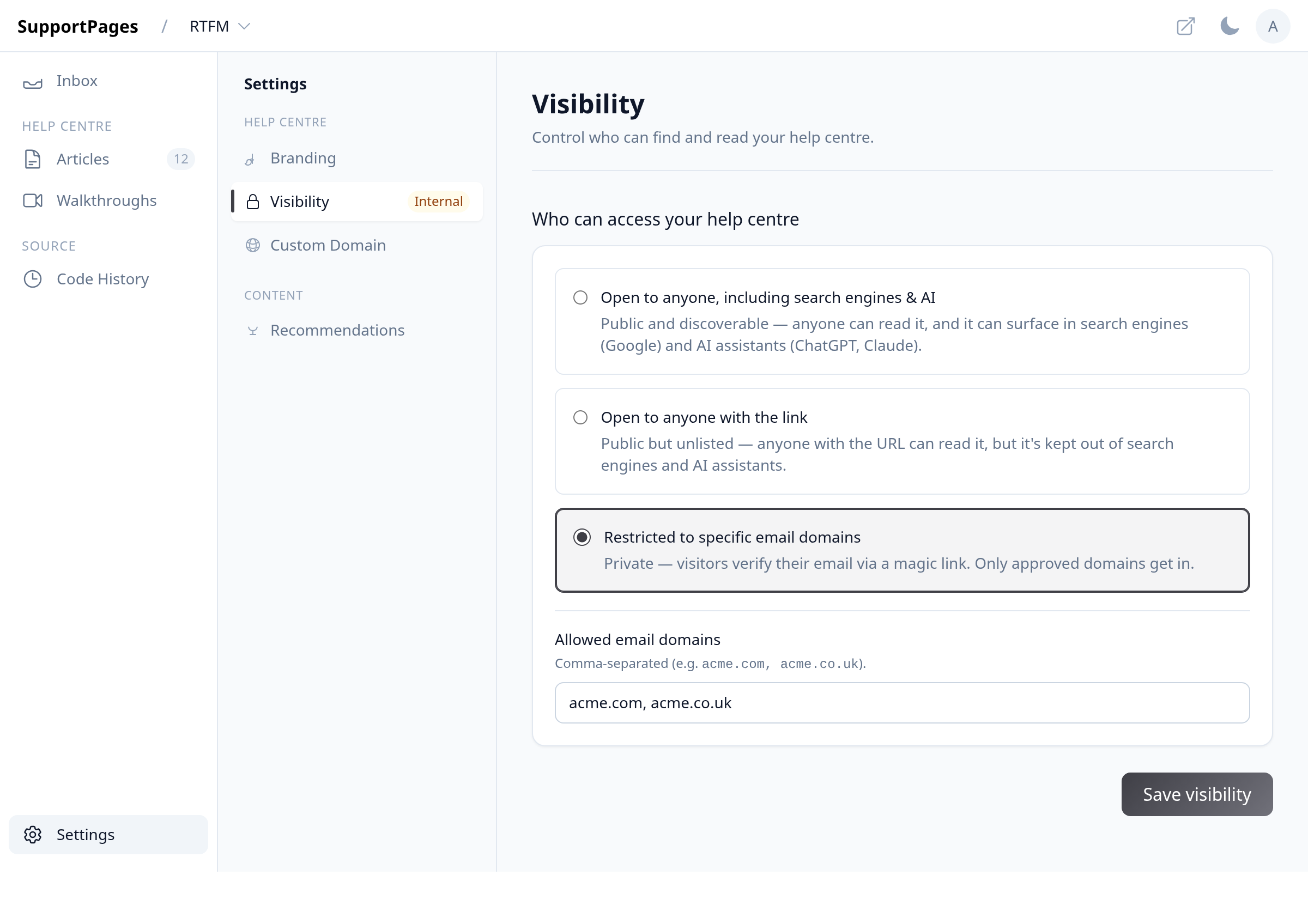
Open Settings and select Visibility. If Restricted to specific email domains is selected, look at Allowed email domains and confirm the visitor's domain is listed (for example, acme.com). Domains are matched exactly — acme.com does not cover acme.co.uk.
Add their domain if it's missing
Type the missing domain into Allowed email domains (comma-separated if you need several), then click Save visibility. Ask the visitor to try again with their work email.
See if they're hitting a domain rejection
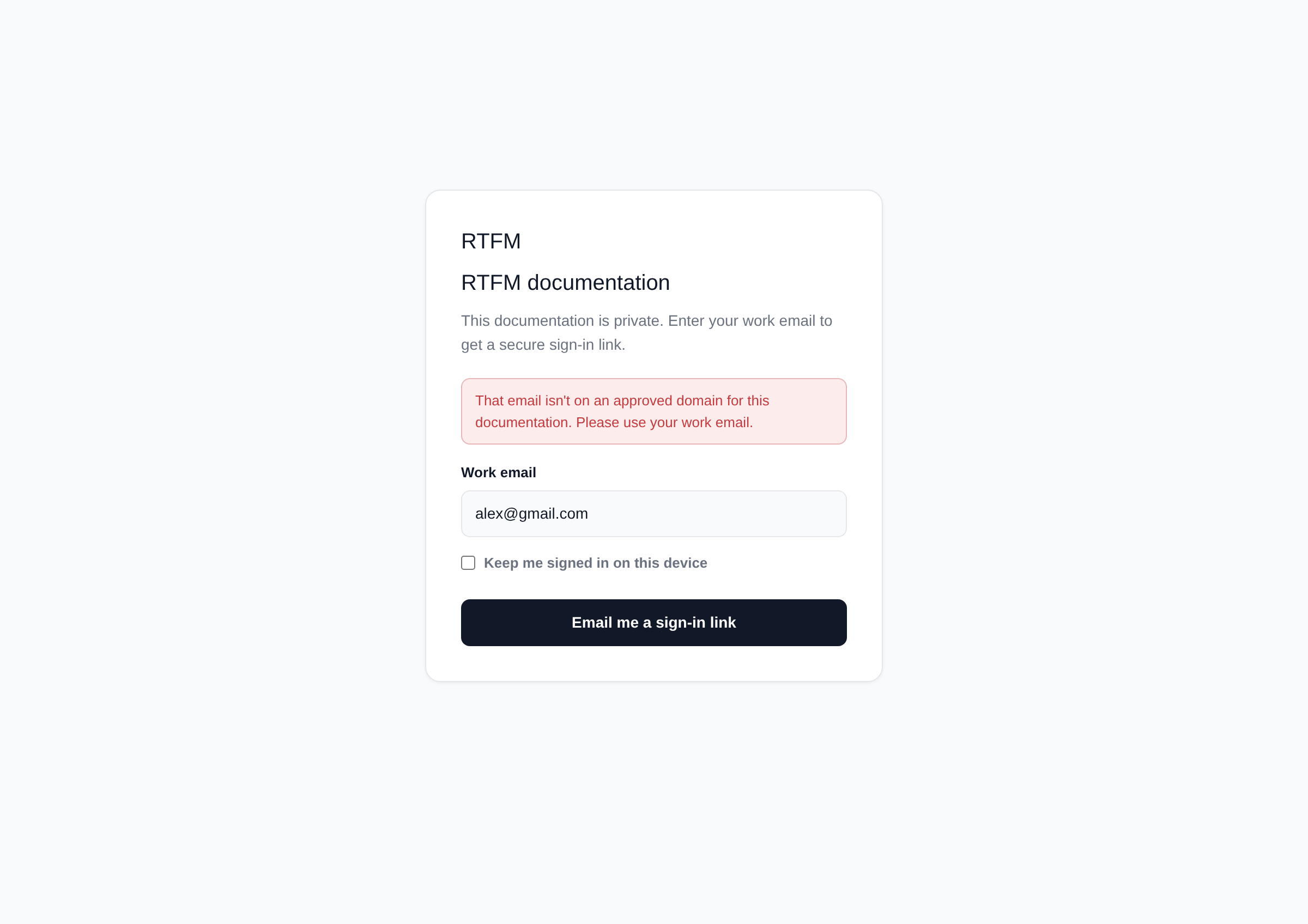
When a visitor enters an email from an unapproved domain, they'll see That email isn't on an approved domain for this documentation. Please use your work email. If they report this message, their domain still isn't on your list — double-check spelling and add any alternate domains their company uses.
Ask them to check spam for the sign-in link
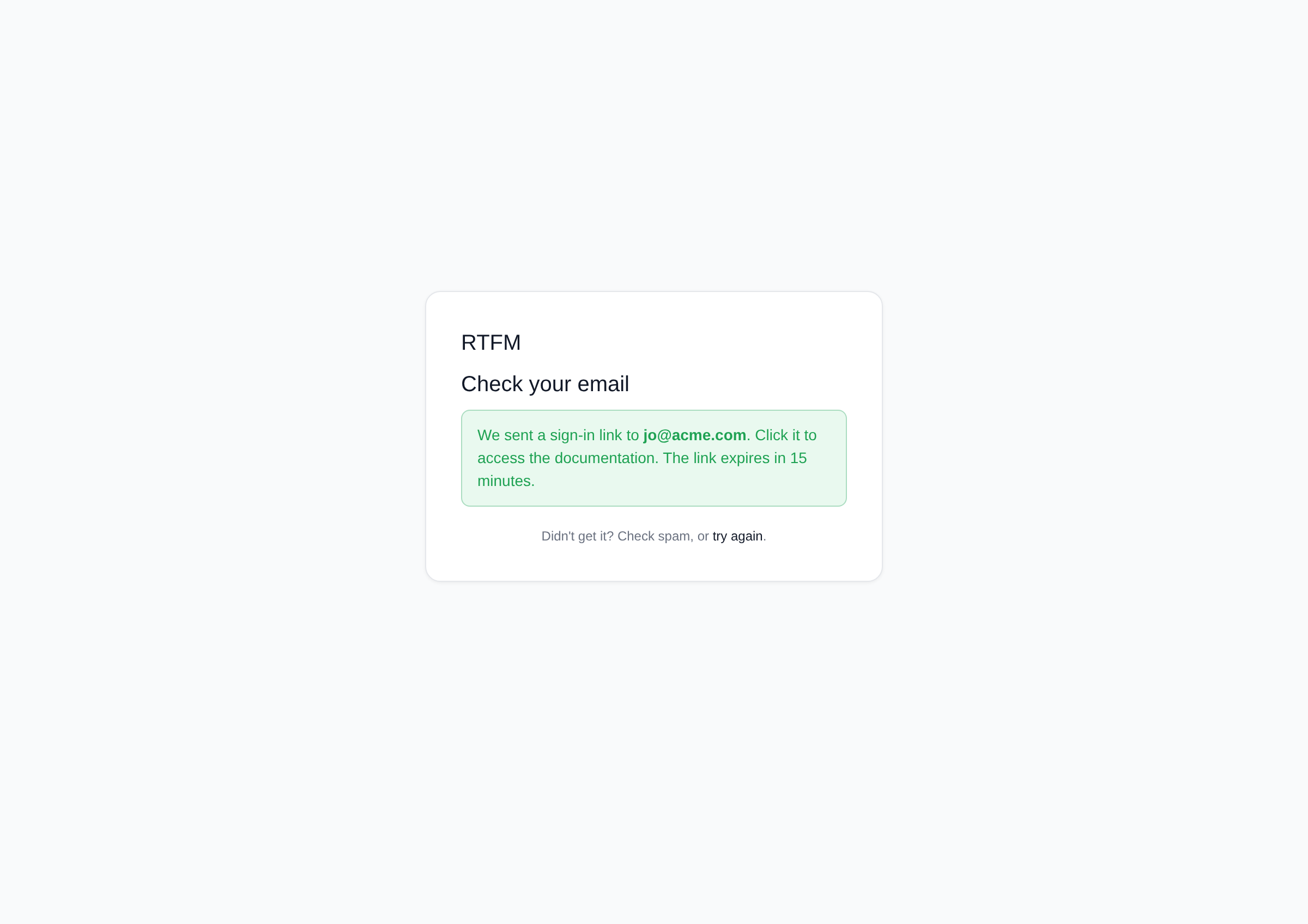
After they enter a valid Work email and click Email me a sign-in link, they should see Check your email with a confirmation that a link was sent. The email subject starts with "Your sign-in link for" followed by your project name. Have them check spam or promotions if nothing arrives within a minute or two.
Have them request a fresh link
Sign-in links expire after 15 minutes and work only once. If they already clicked the link or waited too long, they'll be sent back to request a new one with a message that the link is invalid or expired. They can enter their email again on the sign-in page to get a replacement.
Wait if they've tried too many times
After several rapid attempts from the same email or network, the visitor may see a "Too many requests. Please wait a few minutes and try again." message. Ask them to pause for about 15 minutes before requesting another link.
Tips
-
List every domain variant your customers use — including regional domains like
.co.uk— so contractors and partners aren't locked out. - Tell visitors to use their company email, not a personal Gmail or Outlook address.
- Suggest they tick Keep me signed in on this device so they won't need a new link every visit.
Summary
Most access issues come down to a missing email domain or an expired magic link. Check Visibility settings first, then walk the visitor through requesting a fresh sign-in link from their work inbox.
Was this article helpful?
Generated automatically by supportpages.io — AI knowledge base software for SaaS teams.
Have a question?
Search our articles, or ask and get an answer straight away.