
How to invite teammates to your project
Updated 4 months ago
Browse All
Bring a colleague into your project so they can review drafts and help publish your help centre — without sharing your login.
Prerequisites
- You must be the project owner
- Your plan must have an available team seat
Steps
Open your project
From Projects, open the project you want to share. You'll land in the project workspace.
Open Settings
In the workspace sidebar, click Settings at the bottom.
Open the Team tab
In the settings sidebar, under Workspace, click Team.
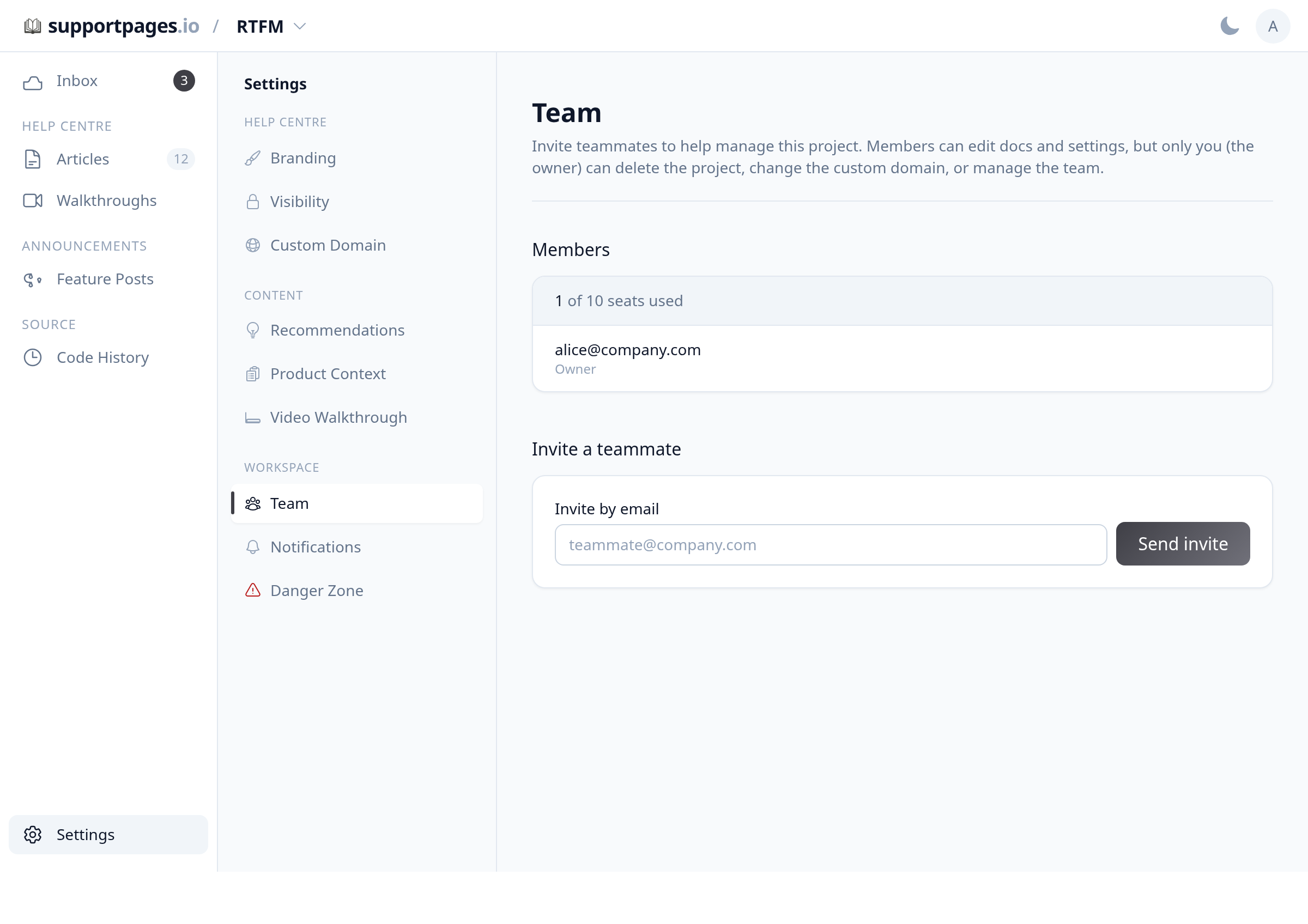
Enter your teammate's email
In Invite a teammate, type your colleague's address in Invite by email.
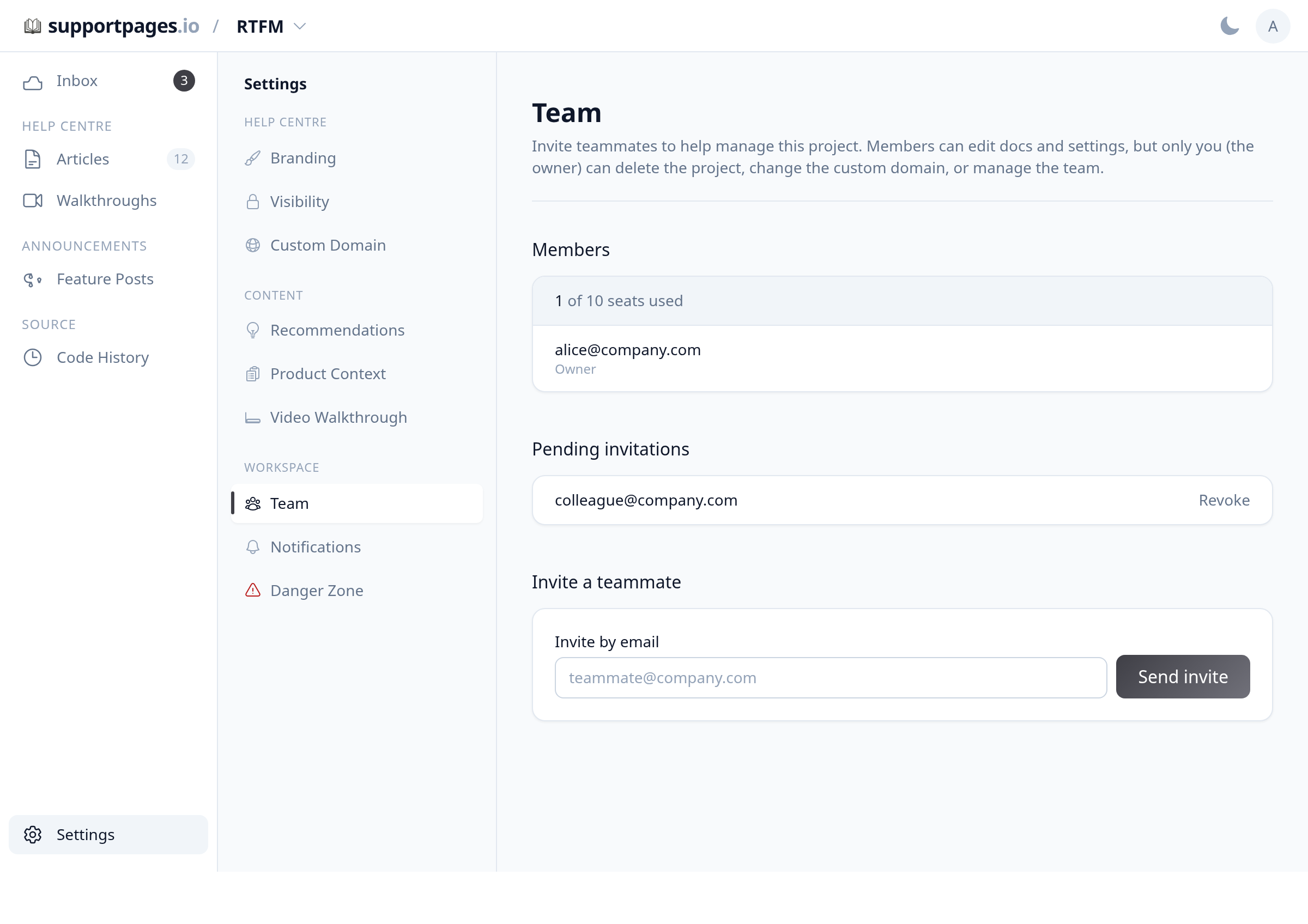
Send the invitation
Click Send invite. They'll appear under Pending invitations until they accept.
Your teammate accepts
They'll get an email with an Accept invitation link. After signing in with that address, they'll have access to the project workspace.
Tips
- Click Revoke next to a pending invite if you sent it to the wrong address.
- Team members can edit docs and settings; only the owner can delete the project or manage the team.
- Need more seats? Upgrade your plan from Billing.
Summary
Open Settings, choose Team, enter an email, and click Send invite. Once your teammate accepts from their email, they can help manage the project with you.
Was this article helpful?
Generated by supportpages.io, automating product documentation from your codebase.
Have a question?
Search our articles, or ask and get an answer straight away.