
How to create a video walkthrough from an article
Updated 4 months ago
Browse All
Turn any completed help-centre article into a narrated video that walks through each step for you — no screen recording required.
Prerequisites
- A SupportPages project with at least one completed article
- A Pro plan (video walkthroughs are a Pro feature)
Steps
Open a completed article
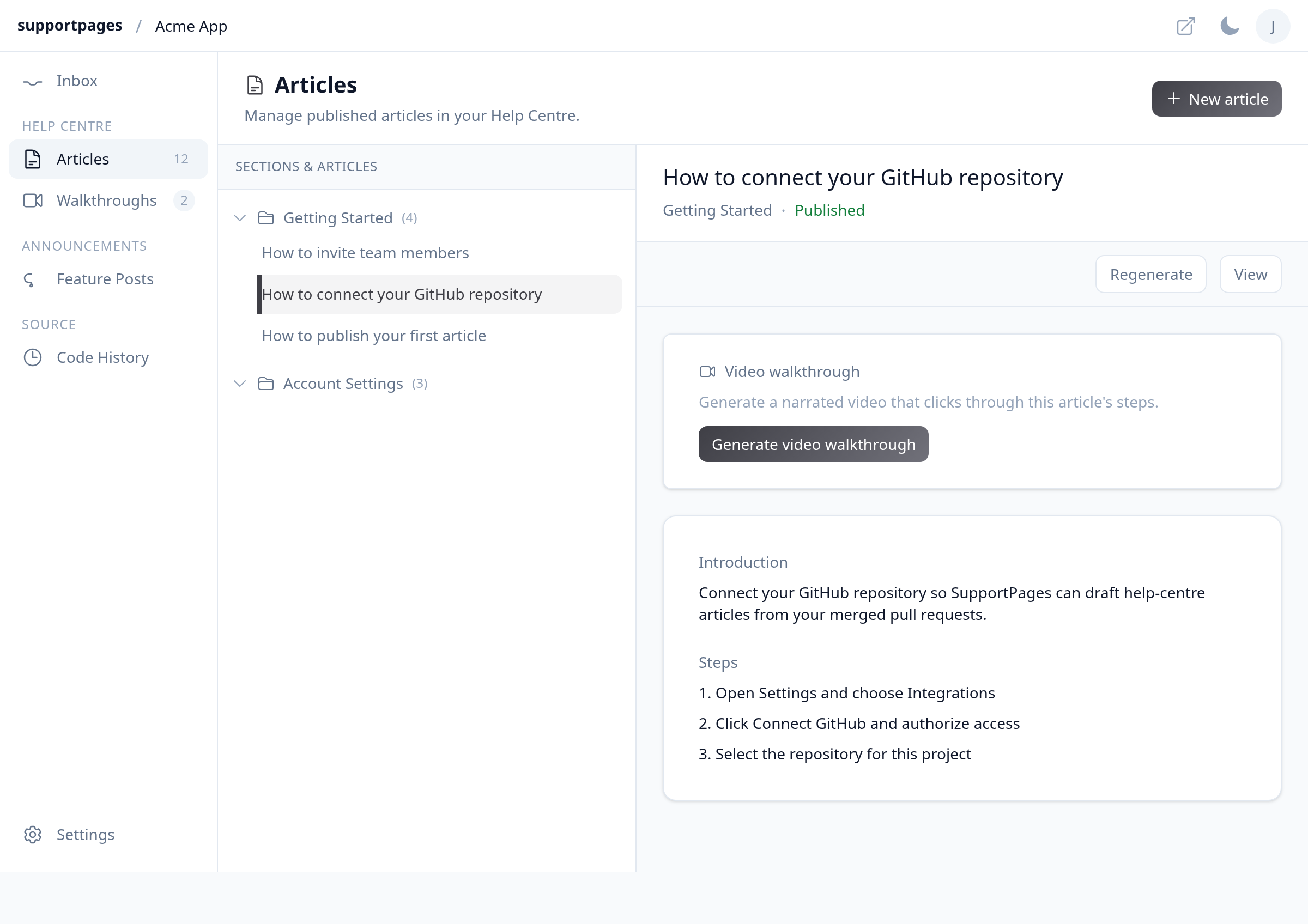
In your project workspace, click Articles in the sidebar. Pick a completed article from the Sections & Articles list on the left.
Start the video generation
Above the article content, find the Video walkthrough panel. Click Generate video walkthrough to begin.
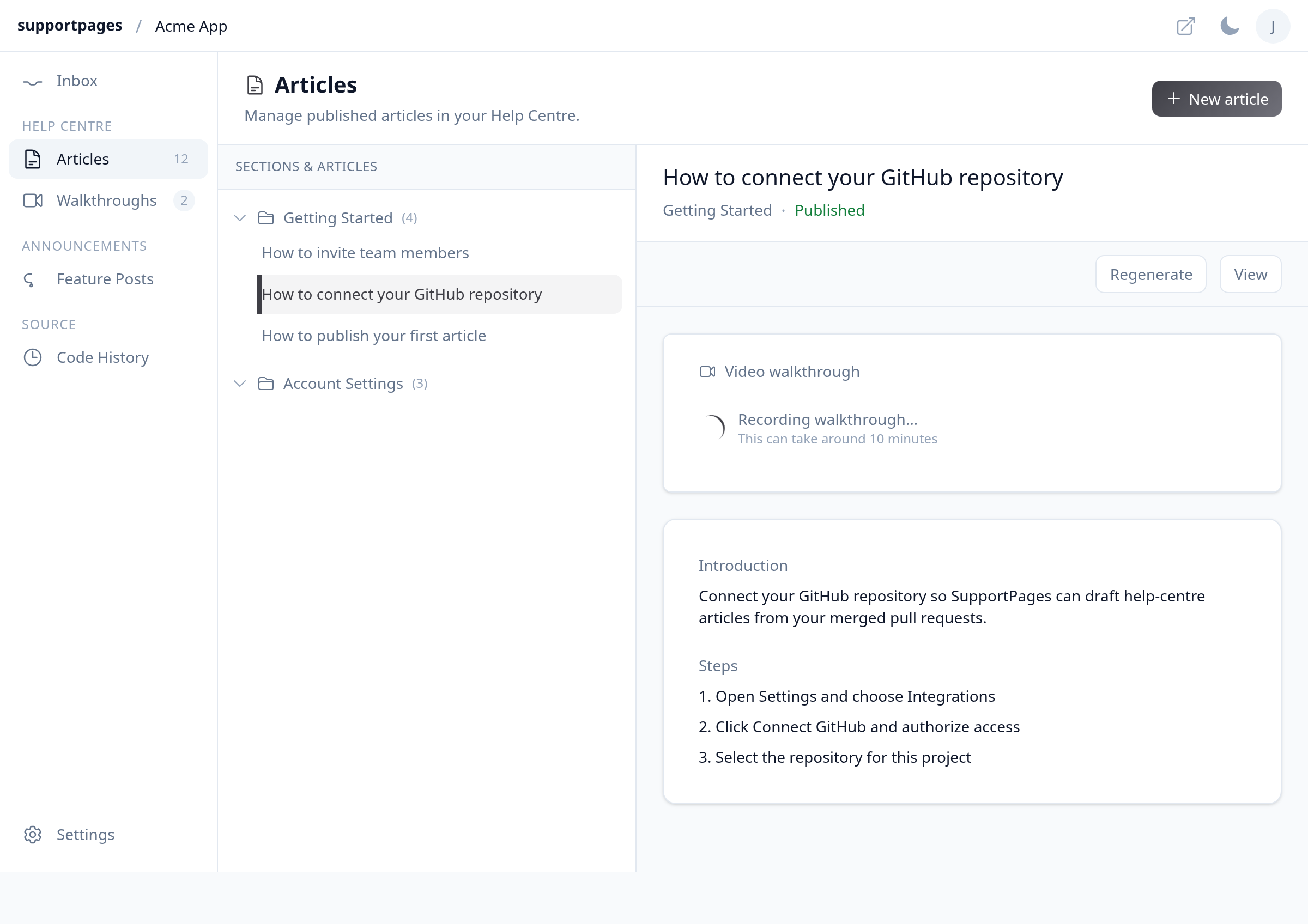
Wait while the walkthrough is recorded
SupportPages records a screencast that follows your article's steps. You'll see Recording walkthrough… — this usually takes around 10 minutes.
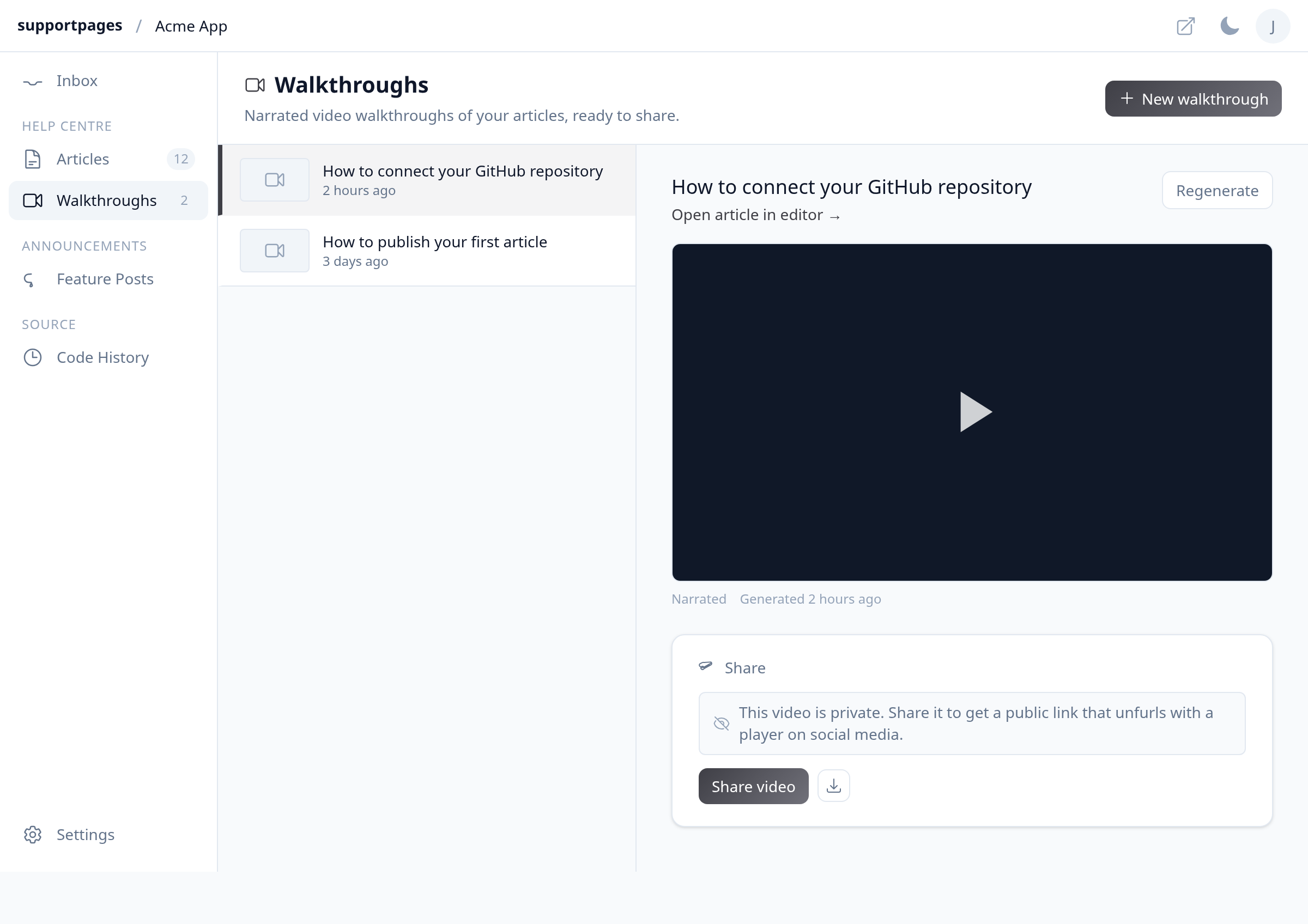
Preview and share your video
When it's ready, play the video from the article editor or open Walkthroughs in the sidebar. Select your walkthrough to preview it, then click Share video to get a public link.
Tips
- You can also create a walkthrough from Walkthroughs by clicking New walkthrough and picking an article from the list.
- Set a narration voice and title-card background under Settings → Video Walkthrough before generating.
Summary
Pick a completed article, click Generate video walkthrough, and wait about 10 minutes. Your narrated video appears in Walkthroughs, ready to preview and share.
Was this article helpful?
Generated automatically by supportpages.io — AI knowledge base software for SaaS teams.
Have a question?
Search our articles, or ask and get an answer straight away.