
How to remove a teammate or cancel a pending invitation
Updated 4 months ago
Browse All
If someone should no longer have access to your project—or you sent an invite to the wrong email—you can remove them or withdraw the invitation from Team settings. Only the project owner can do this.
Prerequisites
- You must be signed in as the project owner
Steps
Open Settings
From your project workspace, click Settings in the left sidebar.
Open the Team tab
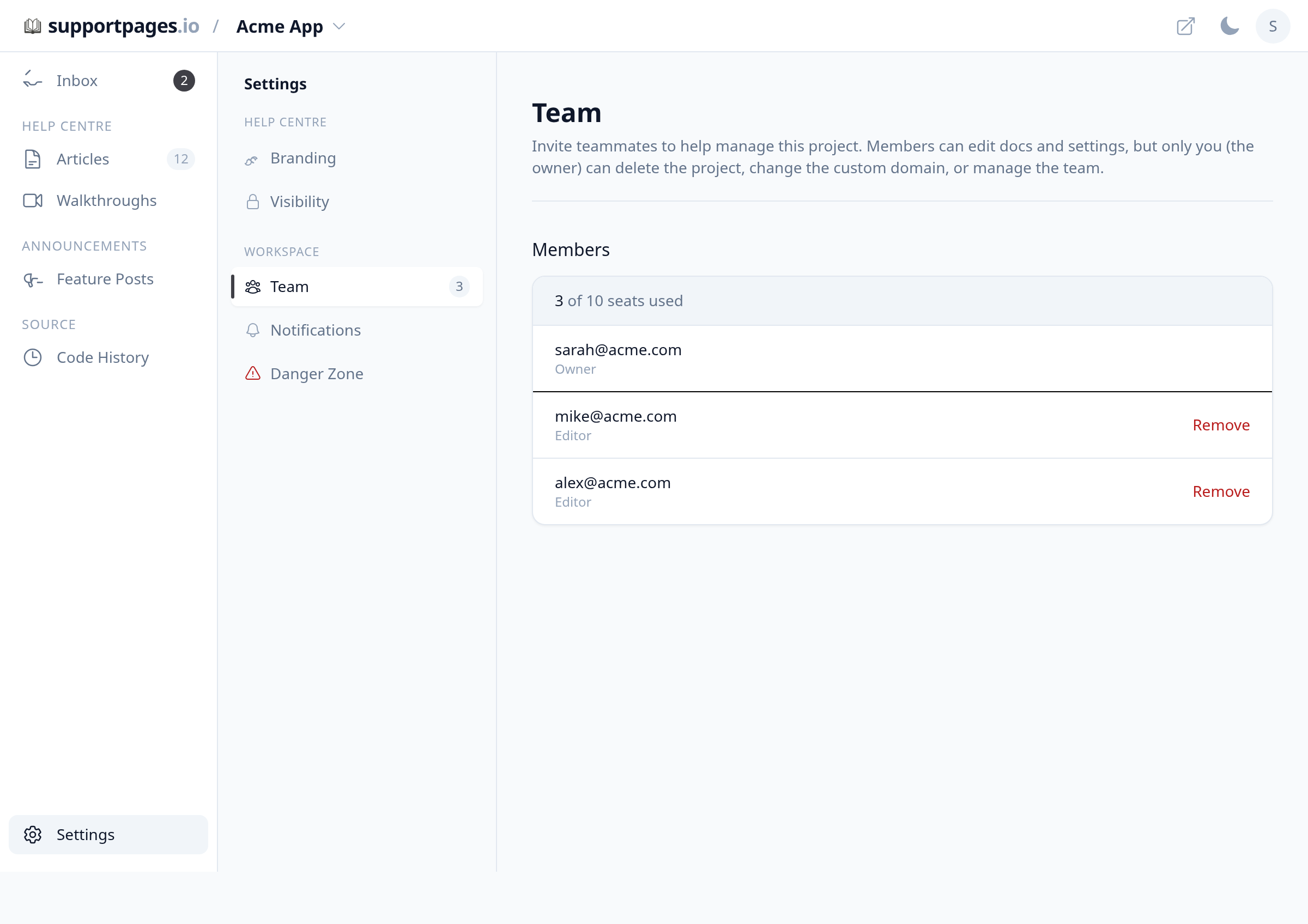
In the settings sidebar, under Workspace, click Team. The Members list shows everyone who currently has access.
Remove a teammate
Find the person in Members and click Remove next to their name. Confirm when asked—they'll lose access to this project right away.
Cancel a pending invitation
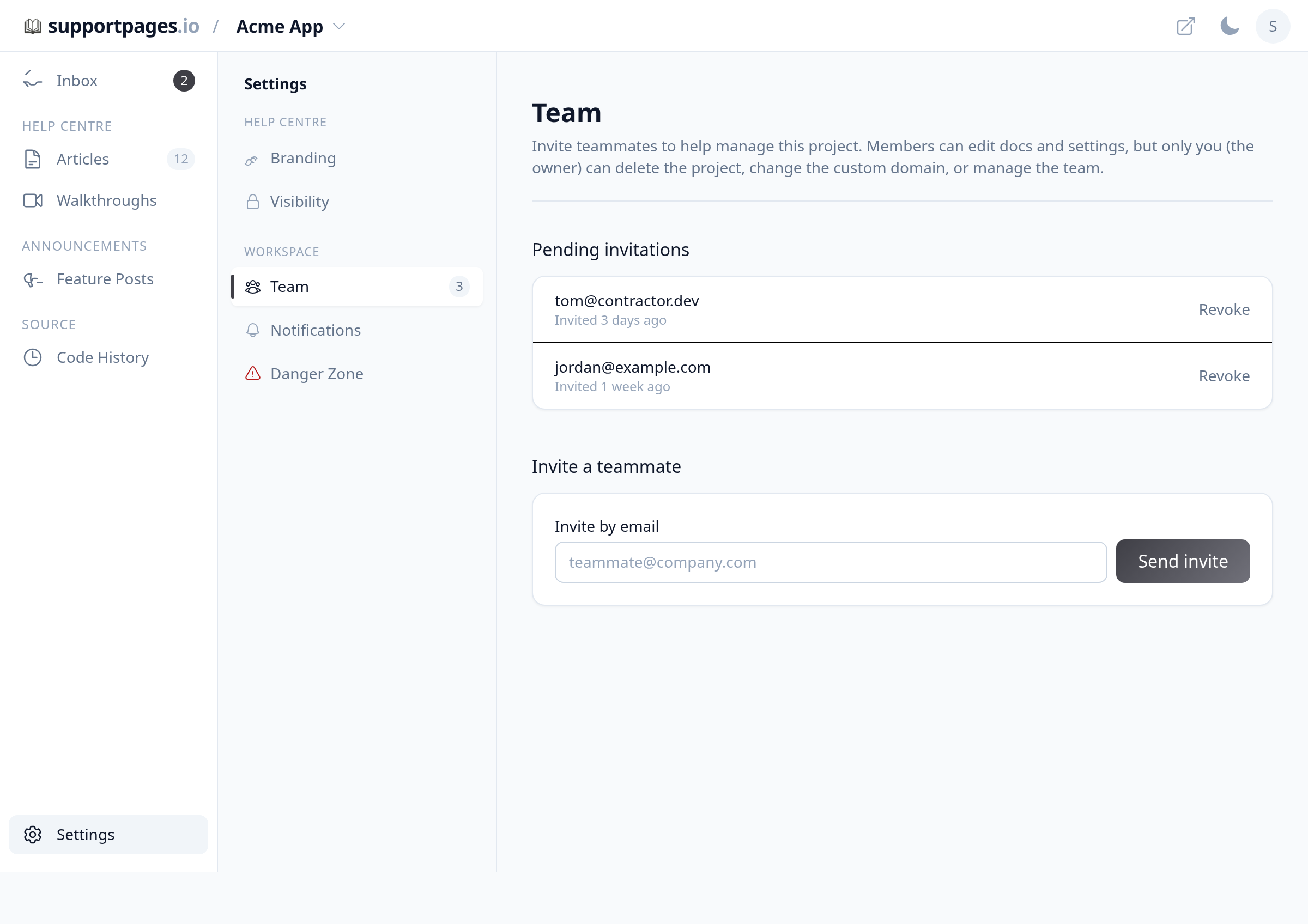
Scroll to Pending invitations, find the invite you want to withdraw, and click Revoke. The link in their email will stop working.
You're done
The teammate is removed or the invitation is cancelled. The change takes effect immediately—no extra save step needed.
Tips
- Only the project owner can remove teammates or revoke invitations—editors and other members cannot manage the team.
- Removing someone frees up a seat on your plan, so you can invite someone else if you have seats available.
- Revoking an invitation does not notify the recipient, but they will no longer be able to accept the invite.
Summary
Open Settings, go to the Team tab, then use Remove for active members or Revoke for pending invitations. Both actions are immediate and owner-only.
Was this article helpful?
Built on supportpages.io — automated help articles for SaaS products.
Have a question?
Search our articles, or ask and get an answer straight away.