
How to set up email notifications for drafts and publishes
Updated 4 months ago
Browse All
Stay in the loop when SupportPages finishes work on your project — without watching the inbox all day. You can pick which task completions trigger an email digest and preview exactly what those messages look like before they land in your inbox.
Prerequisites
- A SupportPages account with at least one project
- Access to the project workspace (owner or team member)
Steps
Open project settings
Open your project and click Settings in the left sidebar.
Go to the Notifications tab
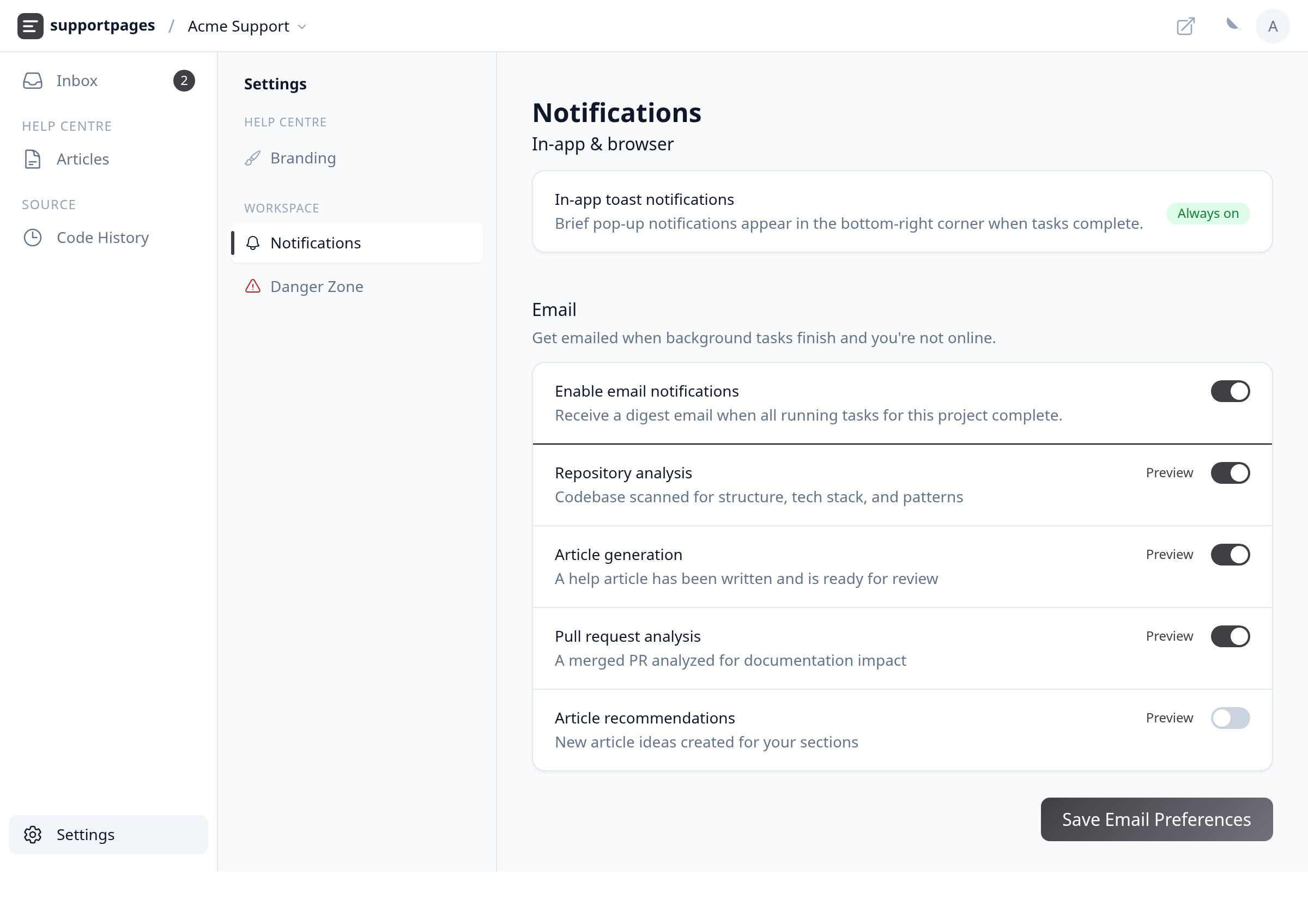
Under Workspace in the settings sidebar, click Notifications.
Turn on email notifications
Scroll to the Email section and switch on Enable email notifications. You'll get a digest email when background tasks finish and you're not online.
Choose draft and publish-related events
Toggle the events you care about. Turn on Article generation to get emailed when a draft article is ready for review. Pull request analysis and Article recommendations are useful if you want a heads-up when new content ideas land after a merge.
Preview a sample email
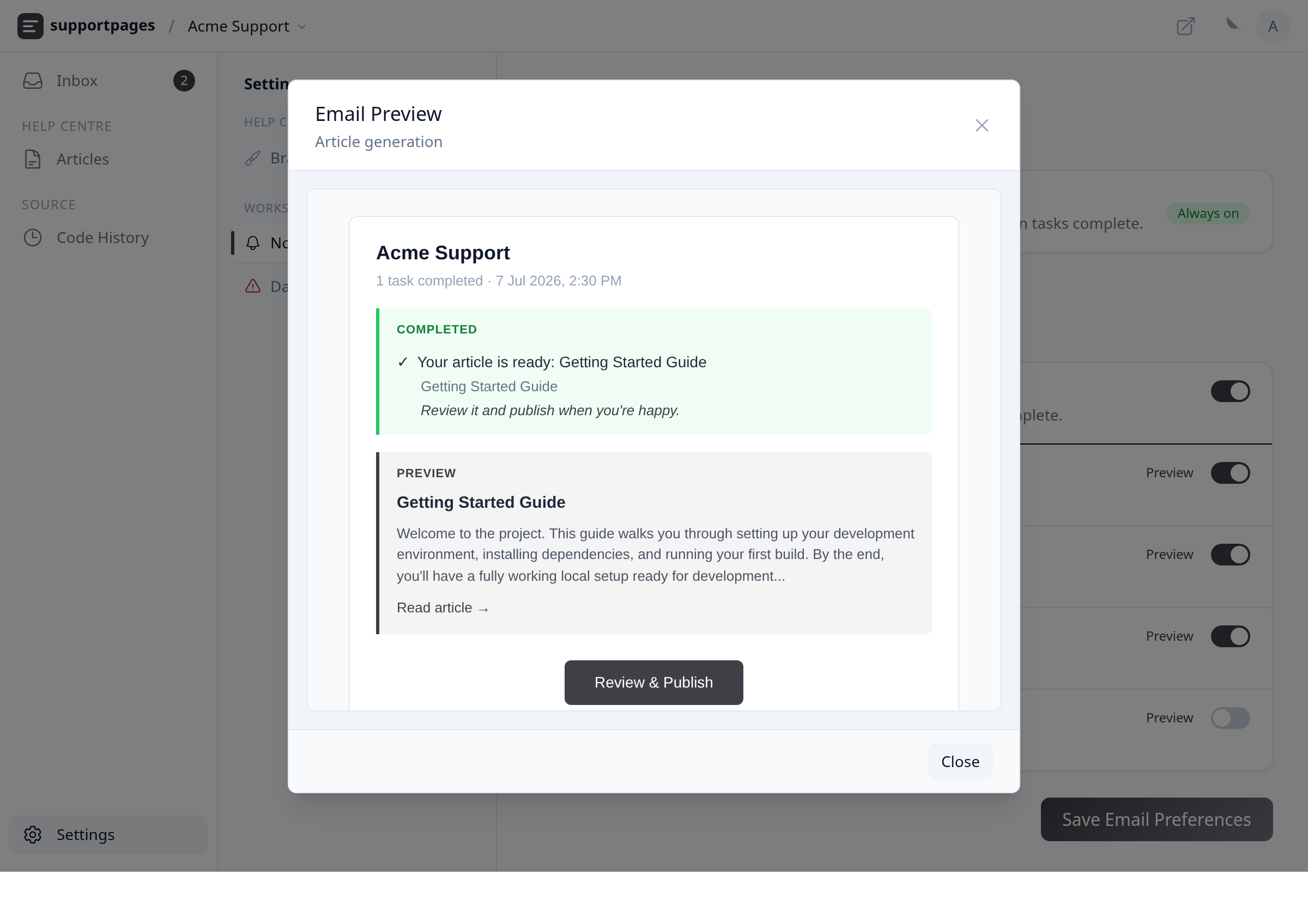
Click Preview next to any event — for example Article generation — to open the Email Preview modal and see a sample digest.
Save your preferences
Click Save Email Preferences at the bottom of the form. Your choices apply to this project for your account.
Tips
- In-app toast notifications are always on while you're in the workspace — email digests only send when you're offline.
- Each team member sets their own email preferences; changing yours does not change anyone else's.
Summary
You're set — open Settings, choose Notifications, turn on Enable email notifications, pick the events you want (especially Article generation for draft-ready alerts), and save. Use Preview any time you want to double-check how a digest will read.
Was this article helpful?
Built with supportpages.io — an AI documentation generator.
Have a question?
Search our articles, or ask and get an answer straight away.