
How to share or remove a walkthrough video
Updated 4 months ago
Browse All
Walkthrough videos start private. This guide shows you how to publish a standalone link you can send anywhere, stop sharing when you need to, or remove a video from your project entirely.
Prerequisites
- A project with at least one finished walkthrough video
Steps
Open Walkthroughs
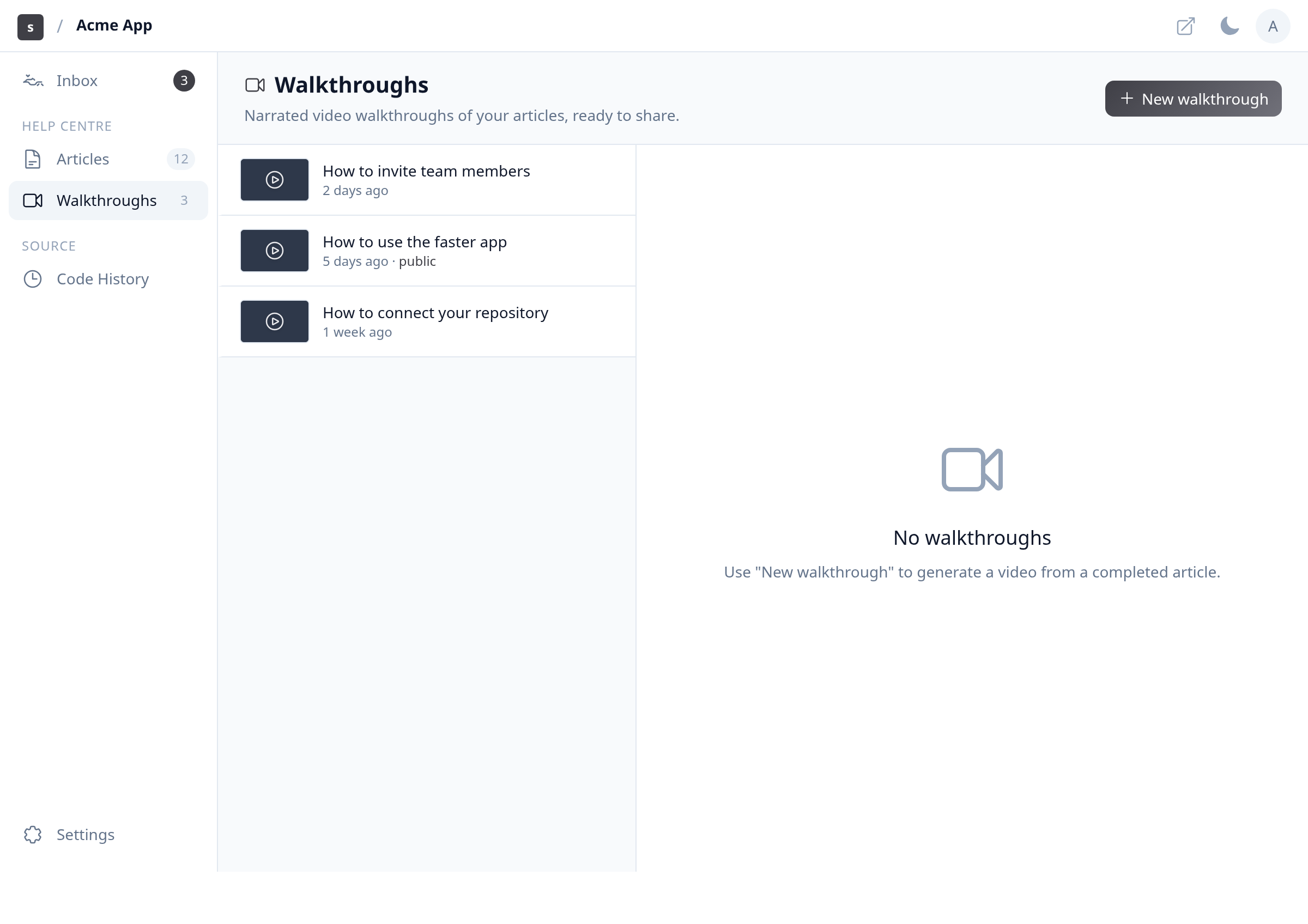
In your project workspace, click Walkthroughs in the sidebar under Help Centre.
Select a walkthrough
Click the walkthrough you want to manage in the list on the left. Its video and sharing options appear on the right.
Share the video
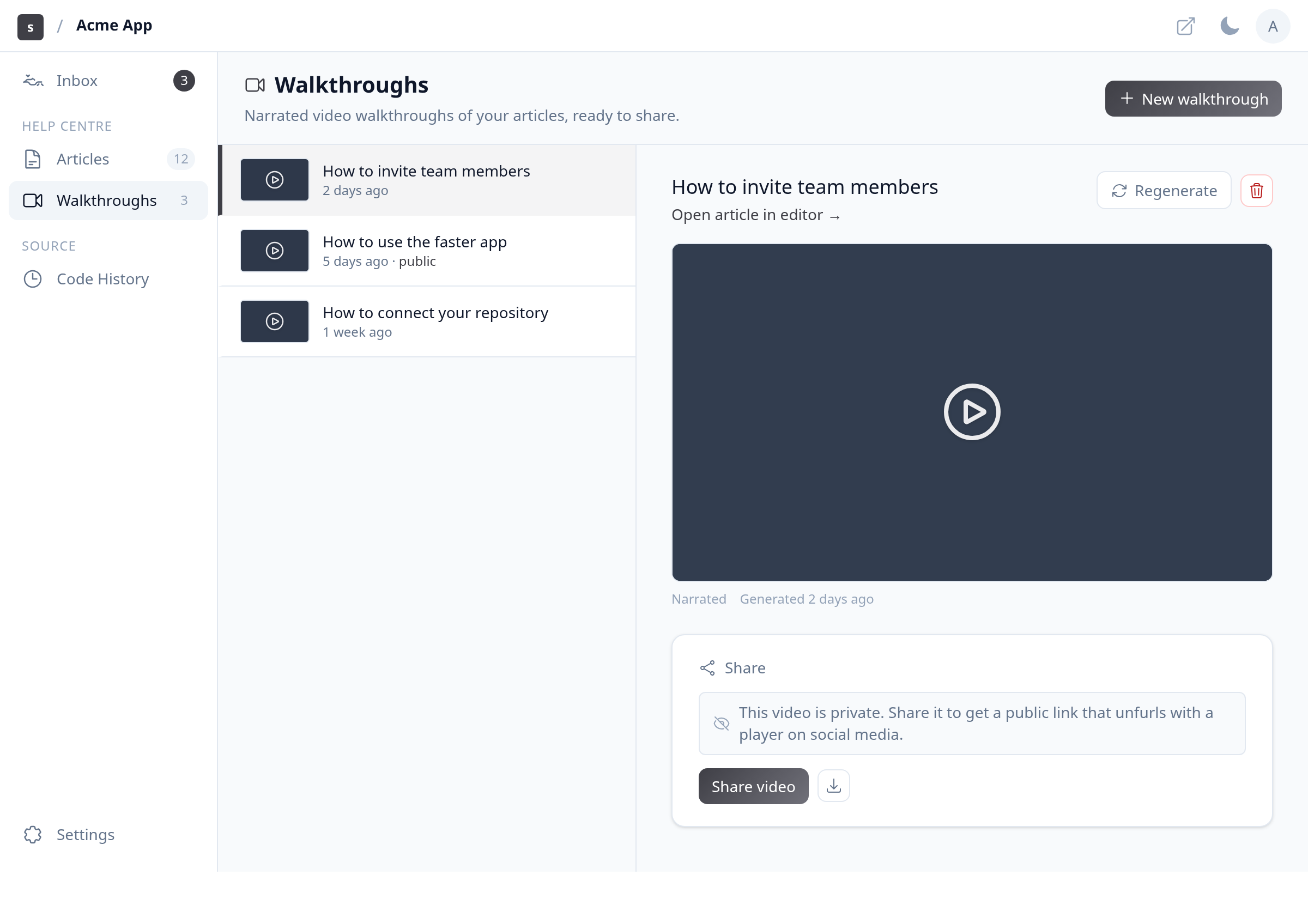
Scroll to the Share section below the player. Click Share video to turn on a public link anyone can open.
Copy the public link
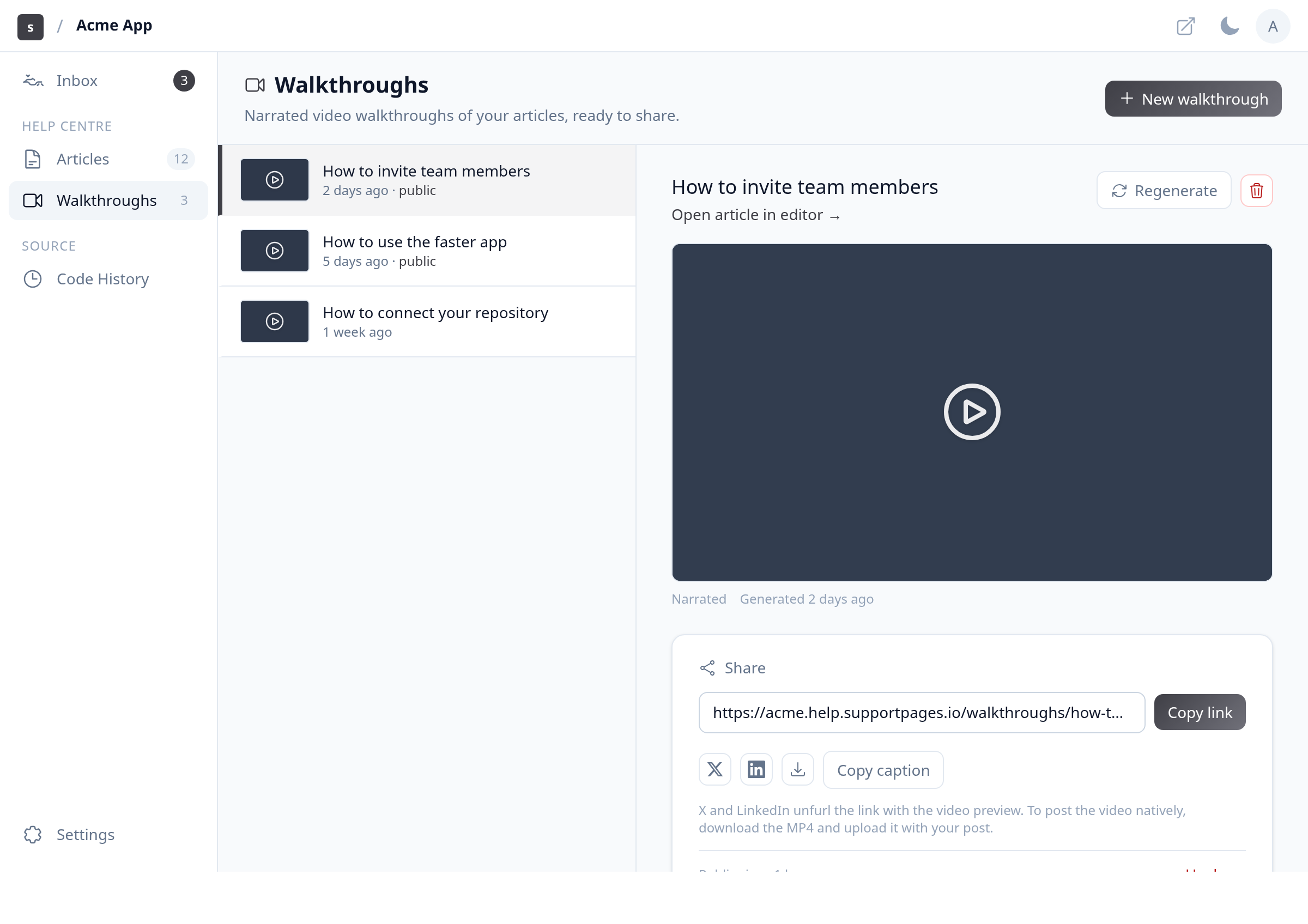
After sharing, click Copy link to copy the standalone URL. Paste it in email, chat, or social posts — the link unfurls with a video player on X and LinkedIn.
Stop sharing
To revoke the public link without deleting the video, click Unshare at the bottom of the Share section and confirm. The link stops working immediately.
Remove the walkthrough
To delete the video from your project, click the trash icon (Remove) in the top-right corner of the detail panel and confirm.
Tips
- Sharing a walkthrough does not require the source article to be published — the public page works on its own.
- Download the MP4 from the Share section if you want to upload the video natively to a social platform.
Summary
Use Share video and Copy link when you want a standalone tutorial URL, Unshare when the link should stop working, and Remove when the video should leave your project altogether.
Was this article helpful?
Maintained by supportpages.io, a self-updating help centre for SaaS teams.
Have a question?
Search our articles, or ask and get an answer straight away.