
How to set up your first project
Updated 4 months ago
Browse All
This guide walks you through connecting a code repository, naming your help centre, and starting the first analysis so SupportPages can draft documentation from your merges.
Prerequisites
- A SupportPages account
- A GitHub or Bitbucket repository you want to document (or a public GitHub URL)
Steps
Start a new project
Sign in and open Projects. Click New Project to begin the setup wizard.
Connect your repository
On Choose your repository, pick a source such as GitHub, Bitbucket, or Public repo. Select the repository you want to document and click Connect.
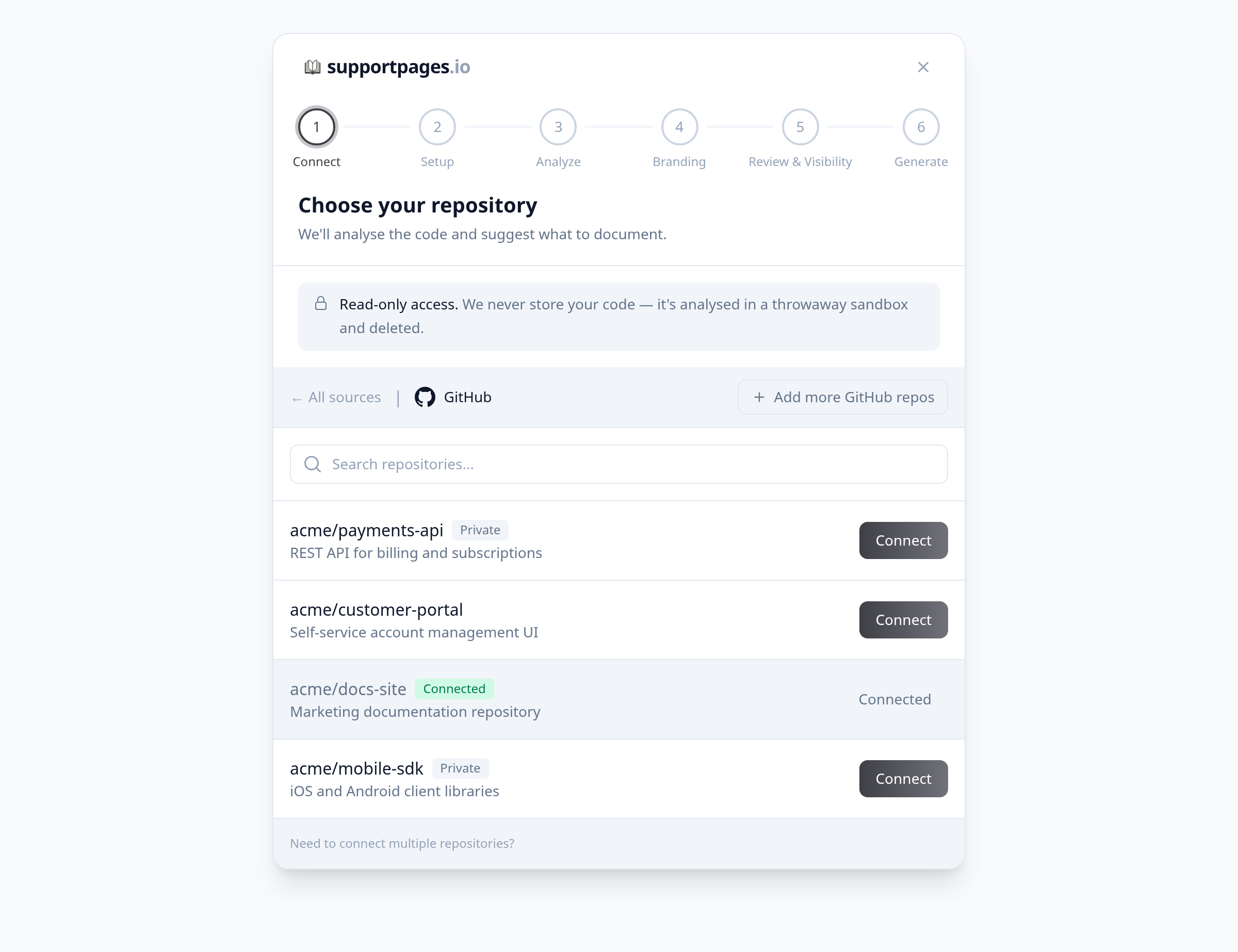
Pick a branch to track
If you see Choose a branch to track, open the branch menu for each connected repository and select the branch SupportPages should watch. Click Continue.
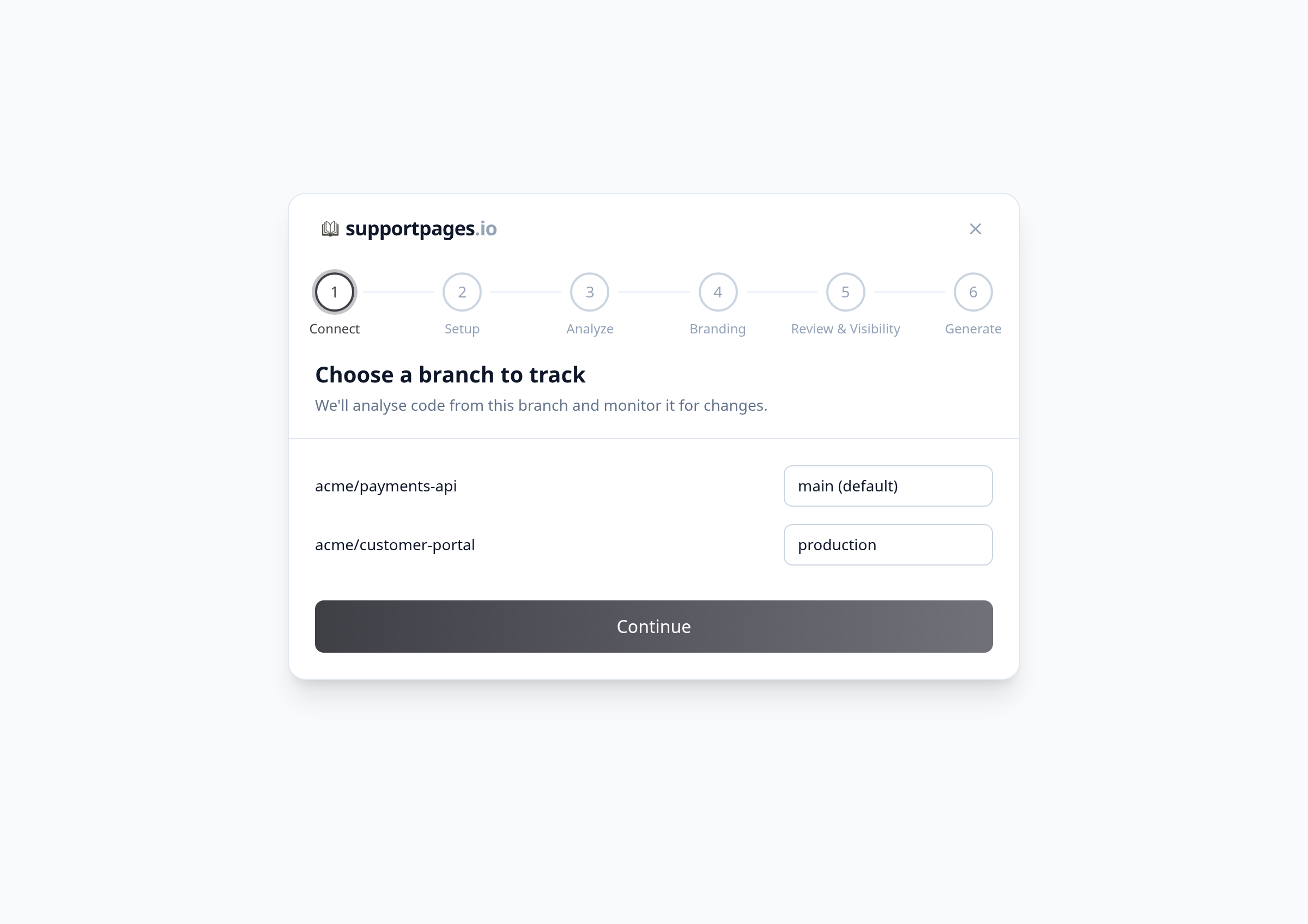
Name your help centre
On Set up your help centre, enter a Project name and Subdomain for your public help centre URL. Add a Website URL or support contact details if you like, then click Continue.
Start the codebase analysis
On Analyse your codebase, click Start Analysis. SupportPages scans your repository in the background to learn how your product works.
Answer a few tailoring questions
When Help us tailor your docs appears, choose options such as Who's reading these docs? and click Next through each card. Use Skip if you prefer to move on — analysis keeps running either way.
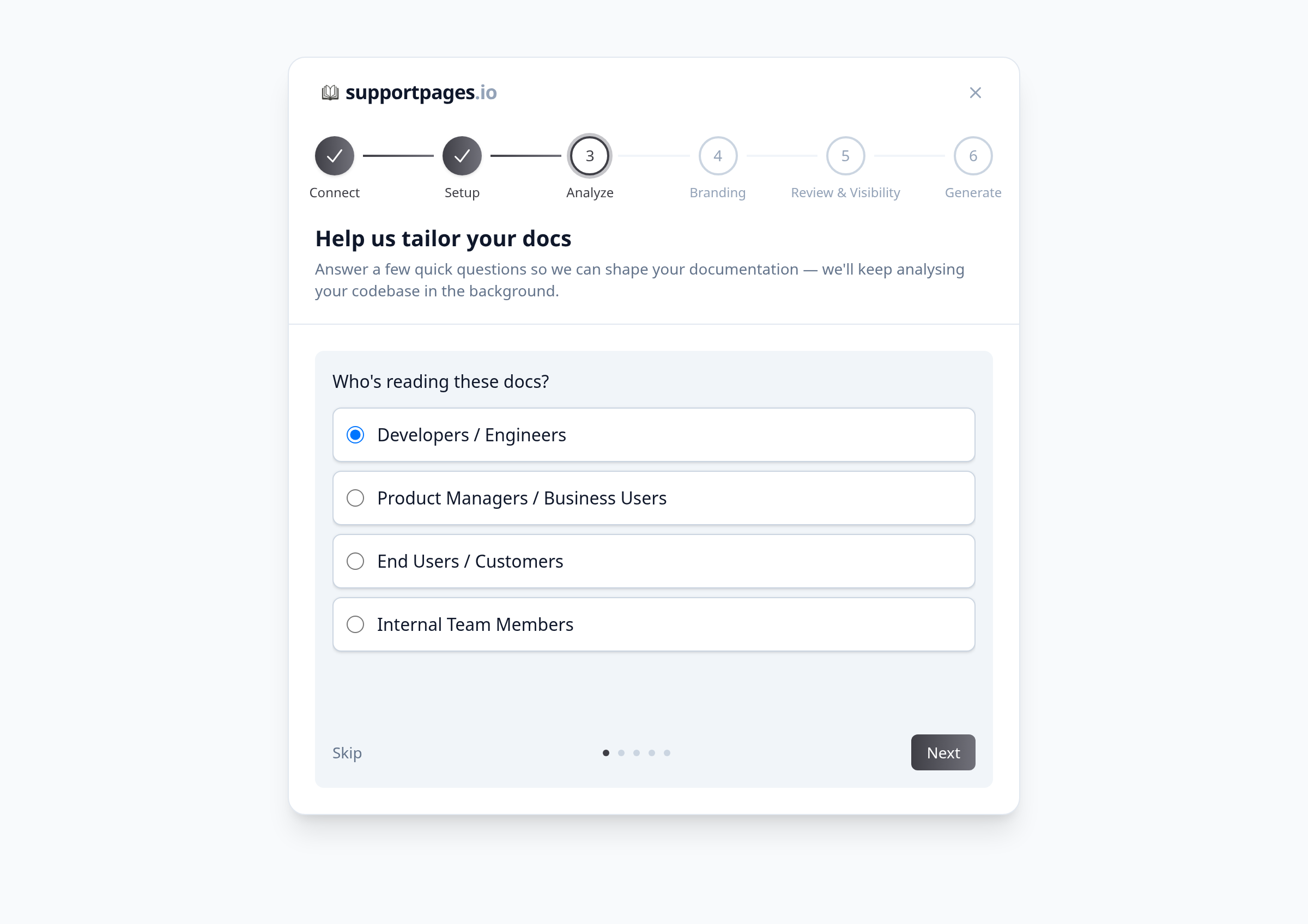
Wait for analysis to finish
You'll see Analysing your codebase while the scan completes. When it finishes, the wizard moves on to branding and content generation automatically.
Tips
- Install the GitHub App or connect Bitbucket before onboarding if you want your private repositories to appear in the list.
- Public repository URLs work too — paste the link under Public repo if you do not need webhook access.
- You can cancel setup any time with the × button in the wizard header; that removes the in-progress project.
Summary
Once analysis completes, SupportPages continues through branding and article generation. Your project will then watch merges on the branch you chose and draft help-centre content for you to review.
Was this article helpful?
Built with supportpages.io — SaaS documentation software.
Have a question?
Search our articles, or ask and get an answer straight away.