
How to reject an article from the Inbox
Updated 4 months ago
Browse All
Use the Inbox to turn down AI-generated drafts you do not want in your help centre. You can also undo a rejection if you change your mind before moving on.
Prerequisites
- You are signed in to SupportPages
- Your project has at least one draft article waiting in the Inbox
Steps
Open the Inbox
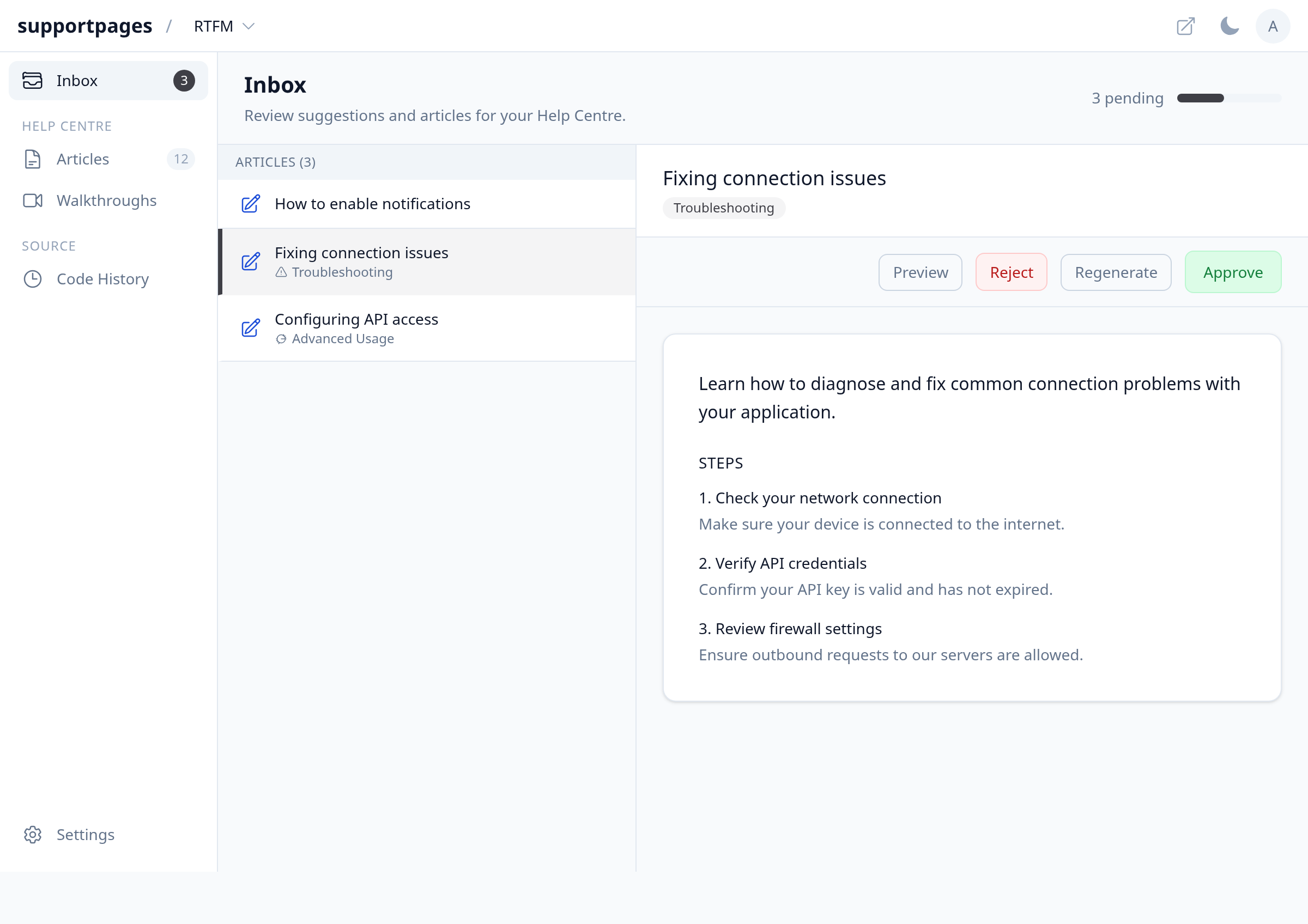
Open your project workspace and click Inbox in the left sidebar.
Select the draft to decline
In the Articles list on the left, click the draft you want to turn down. Its content opens in the editor on the right.
Click Reject
In the editor toolbar, click Reject. The draft is removed from your Inbox and will not be published to your help centre.
Review the next item
SupportPages loads the next pending item in your Inbox, or shows All done! when nothing is left to review.
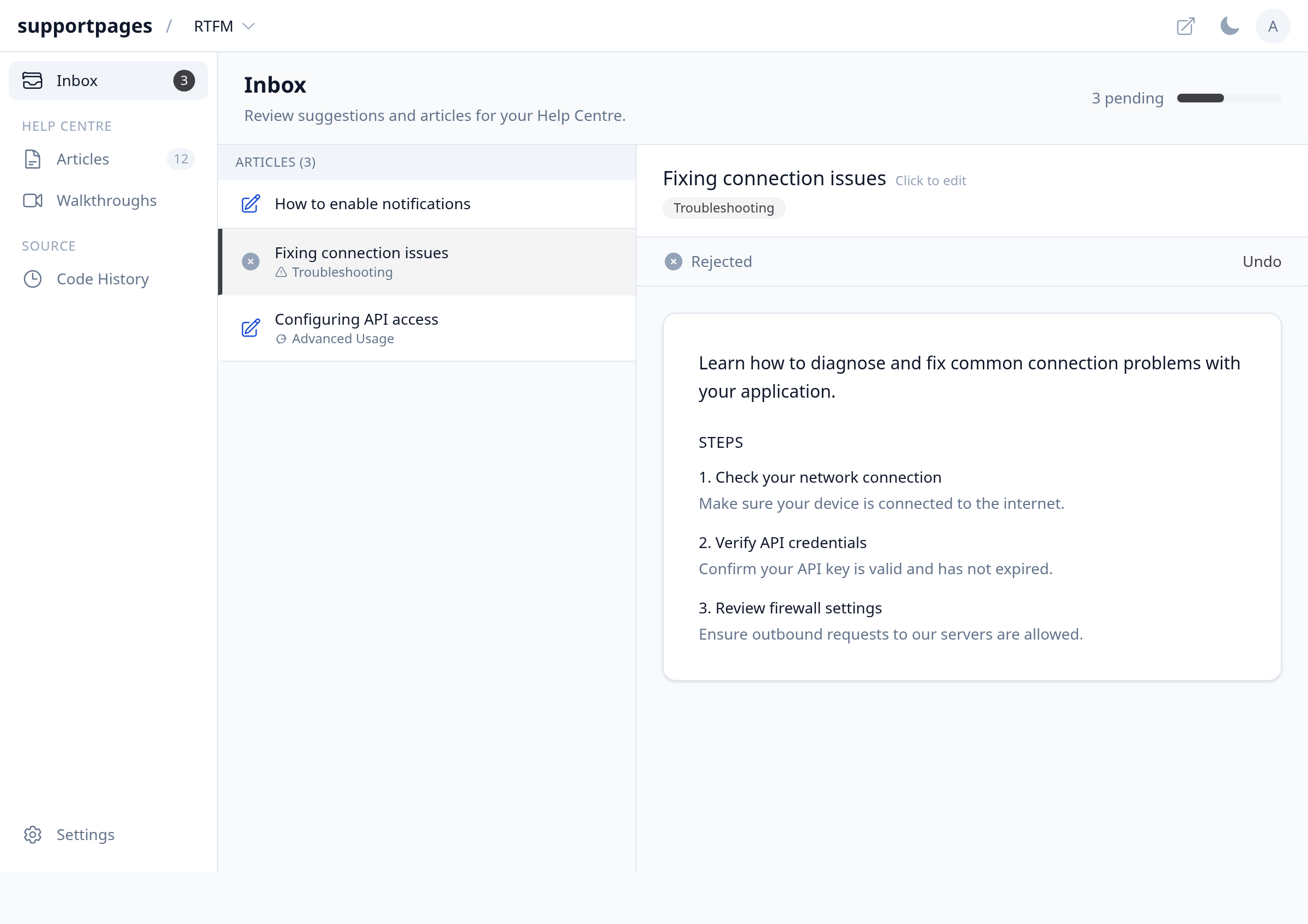
Undo a rejection
If the editor shows Rejected in the toolbar, click Undo to return the draft to your Inbox for review.
Tips
- Rejecting a draft keeps it out of your help centre without deleting it from your project history.
- Use Reject for off-topic or low-quality drafts; you can always approve a different article instead.
Summary
Open Inbox, select a draft, and click Reject to decline it. Click Undo while the article shows Rejected if you want another look before it leaves review.
Was this article helpful?
Powered by supportpages.io — help centre software for SaaS.
Have a question?
Search our articles, or ask and get an answer straight away.