
How to customise walkthrough title cards and narration voice
Updated 4 months ago
Browse All
Make your video walkthroughs feel like your brand by choosing the intro and outro card artwork and the voice that narrates them. These settings apply to walkthroughs you generate from here on — existing videos stay as they are.
Prerequisites
- A SupportPages project on a Pro plan (video walkthroughs)
- Permission to edit project settings
Steps
Open Settings
In your project workspace, click Settings in the sidebar.
Open the Video Walkthrough tab
In the settings sidebar under Content, select Video Walkthrough.
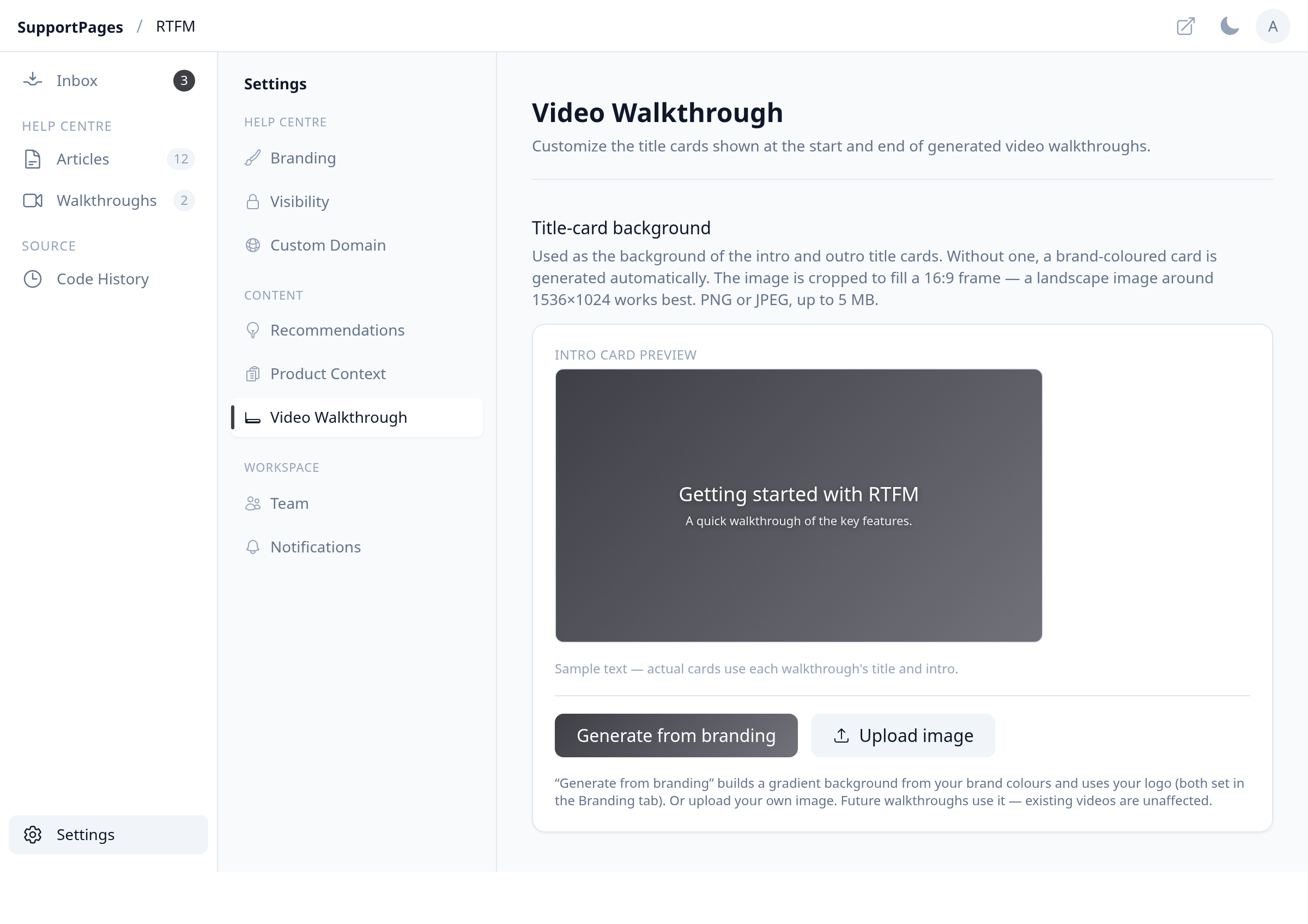
Set up your title-card background
In Title-card background, check the Intro card preview to see how your cards will look. Click Generate from branding to build a gradient from your brand colours and logo, or Upload image to use your own PNG or JPEG. Use Replace image or Remove if you want to change it later.
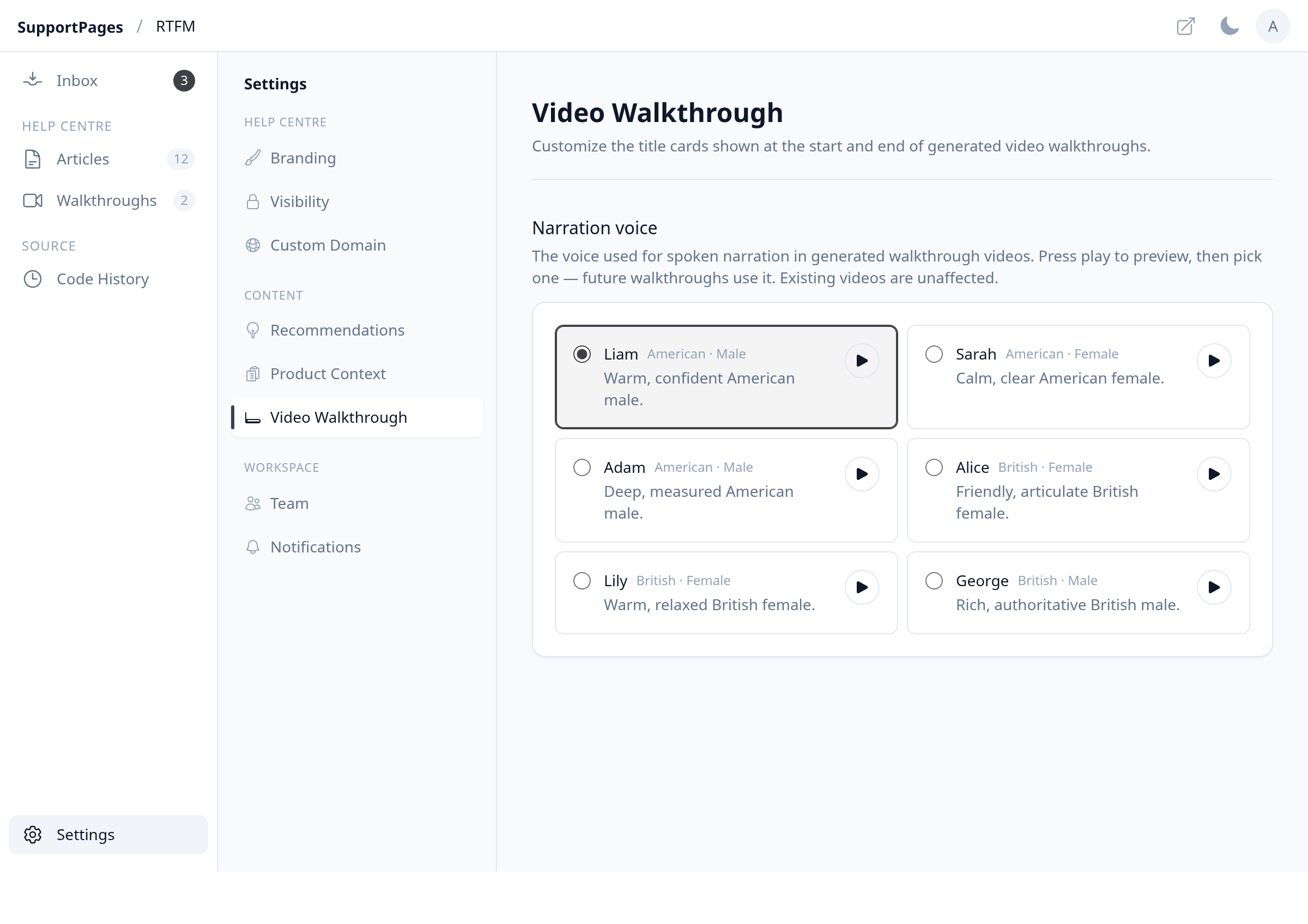
Choose a narration voice
Scroll to Narration voice. Press the play button on any voice to hear a sample, then select the one you want. Your choice saves automatically.
Generate a walkthrough
Go to Walkthroughs and create a new walkthrough from a completed article. The video will use your title-card background and narration voice.
Tips
- Update your logo and colours on the Branding tab first — Generate from branding pulls from those settings.
- A landscape image around 1536×1024 works best for title-card backgrounds.
- If your branding changes after generating a background, regenerate it so the preview stays in sync.
Summary
You're all set — open Settings, Video Walkthrough, pick your title-card artwork and narration voice, then generate walkthroughs as usual.
Was this article helpful?
Help centre by supportpages.io — AI-generated documentation for SaaS.
Have a question?
Search our articles, or ask and get an answer straight away.