
How shared walkthrough links work for your users
Updated 4 months ago
Browse All
When you share a walkthrough link, your users land on a standalone page on your help centre—not a generic video host. You get a branded viewing experience that matches the rest of your help centre, so you can share tutorials with confidence.
Key concepts
Standalone links on your help centre
Each shared walkthrough has its own URL on your help centre domain, shaped like /walkthroughs/how-to-use-the-faster-app. Visitors open the link in any browser—no account or login required—and go straight to the video.
Your branding front and centre
The page carries your logo, colours, and fonts—the same styling visitors see elsewhere on your help centre. At the top of the card they see breadcrumb links to Help Centre and the article's section, the article title, and a Video walkthrough label beneath it.
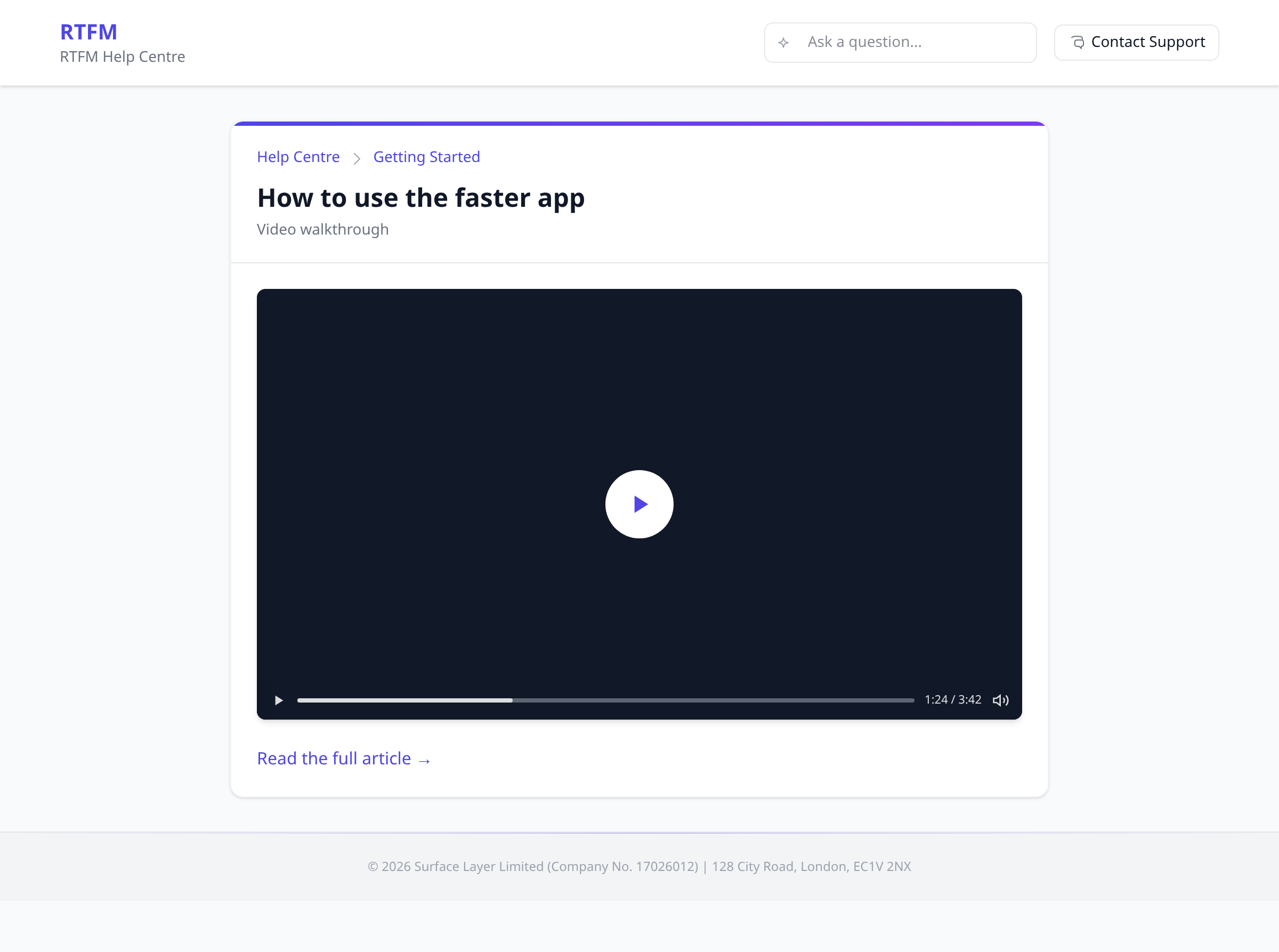
A familiar video player
The walkthrough plays in a standard video player with the usual play, pause, and volume controls. If your walkthrough includes narration, English captions are available in the player. A poster image appears before playback starts.
An optional link to the written guide
When the related article is published in your help centre, visitors also see Read the full article → below the video—a quick path to the step-by-step written version. If the article is still a draft, the video page works on its own without that link.
Sharing stays under your control
The public link only works while sharing is turned on for that walkthrough. Turn sharing off from your dashboard and the page stops loading—visitors who kept an old link will see a not-found page instead of the video.
Tips
- Share the walkthrough link in onboarding emails, chat replies, or social posts—the preview card uses your article title and poster image when available.
- You can share a walkthrough before the written article is published; users still get the video without waiting for the full guide to go live.
Summary
Shared walkthrough links give your users a branded, login-free video page on your own help centre domain—with optional navigation back to the written article when it's published. To share a walkthrough, open Walkthroughs in your project workspace and turn on sharing for a ready video.
Was this article helpful?
Created with supportpages.io — AI help centre software.
Have a question?
Search our articles, or ask and get an answer straight away.