
How to sign in with email and password
Updated 4 months ago
Browse All
Use the email and password from your SupportPages account to sign in when you would rather skip social sign-in. This guide walks you through opening the sign-in form and logging in.
Prerequisites
- A SupportPages account registered with an email address and password
- Your email address confirmed (check your inbox if you signed up recently)
Steps
Open the sign-in page
Go to supportpages.io/login in your browser, or visit supportpages.io and click Sign in in the top-right corner.
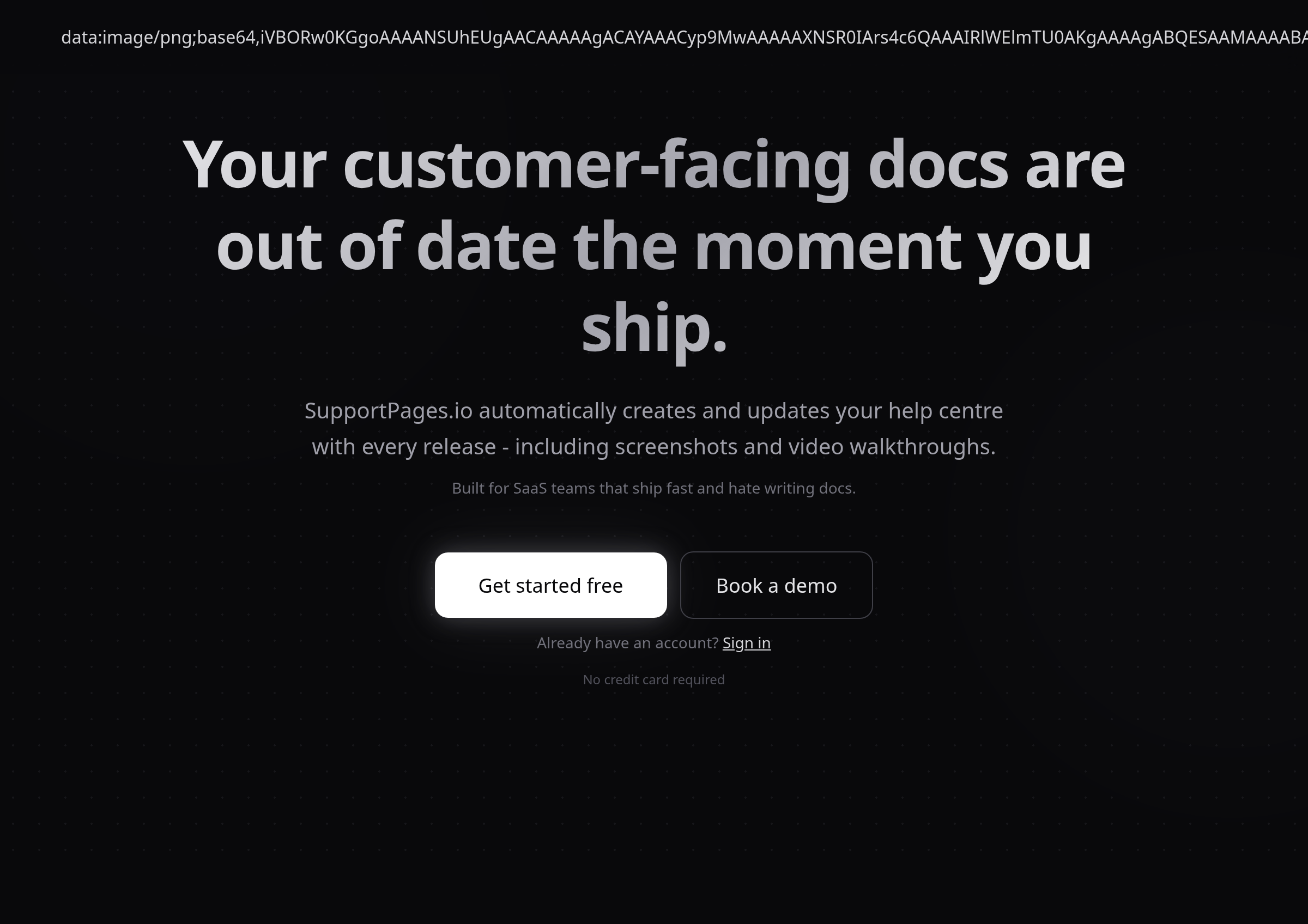
Open the sign-in dialog
Click Sign in under "Already have an account?" or the Sign in button in the header. The sign-in dialog opens over the page.
Enter your email and password
Type the Email address and Password you chose when you registered. Use the same email address you confirmed after signing up.
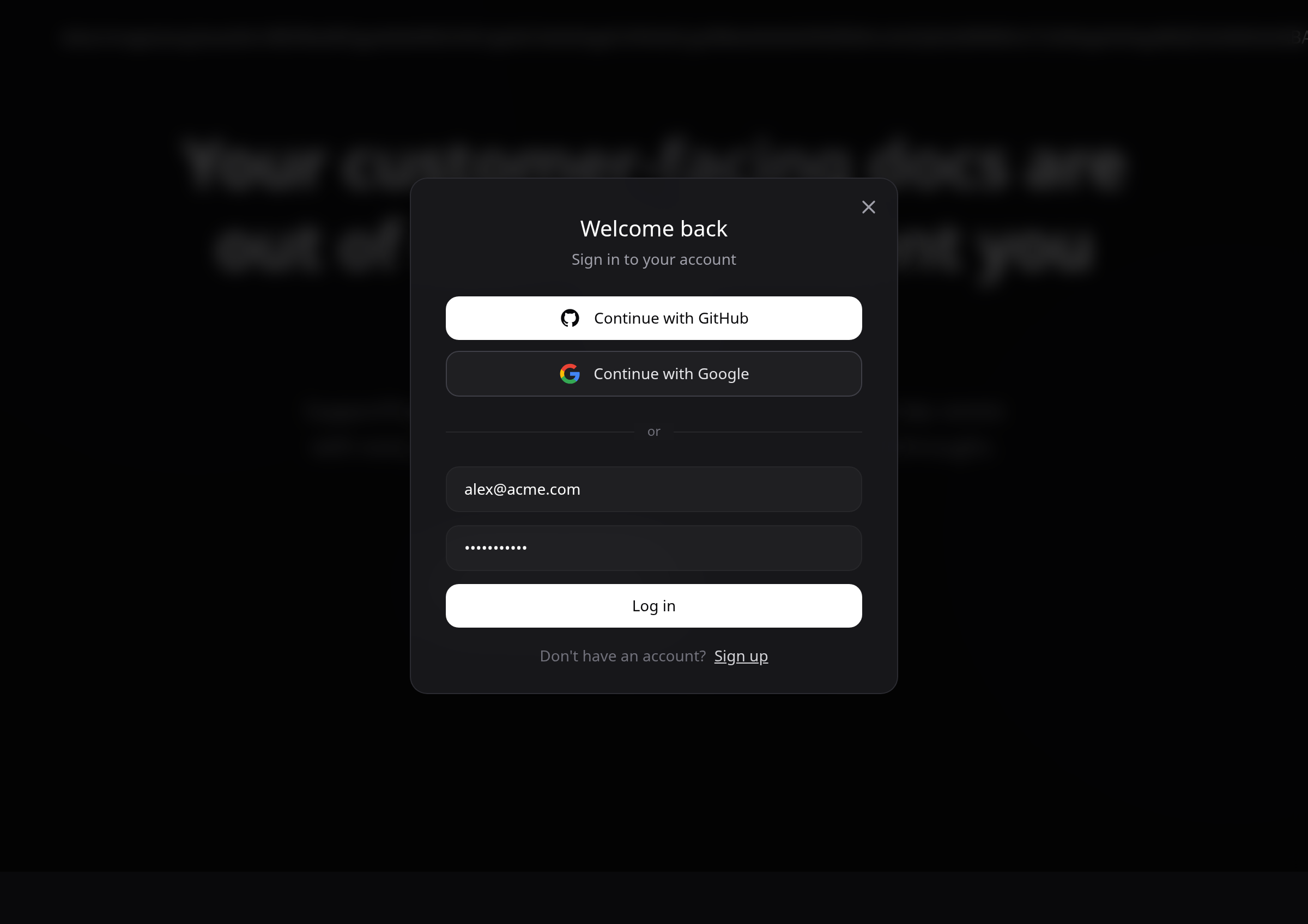
Log in
Click Log in. SupportPages checks your credentials and signs you in.
Open your projects
You land on your projects list. Click a project to open its workspace, or choose New Project to create one.
Tips
- Prefer a one-click option? Use Continue with GitHub or Continue with Google in the same dialog instead of email and password.
- If you see a message asking you to confirm your email, open the confirmation link from your inbox first, then try signing in again.
Summary
Open the sign-in dialog from the SupportPages homepage or login page, enter your email and password, and click Log in. You will arrive at your projects list ready to pick up where you left off.
Was this article helpful?
Built with supportpages.io, a help centre generator for developers — written from your codebase.
Have a question?
Search our articles, or ask and get an answer straight away.