
What to do if detected branding colours or fonts look wrong
Updated 4 months ago
Browse All
Generated article screenshots or walkthroughs look off-brand — colours are too bright, gradients feel wrong, or fonts do not match your product. You can fix this without starting your project over.
Checks and fixes
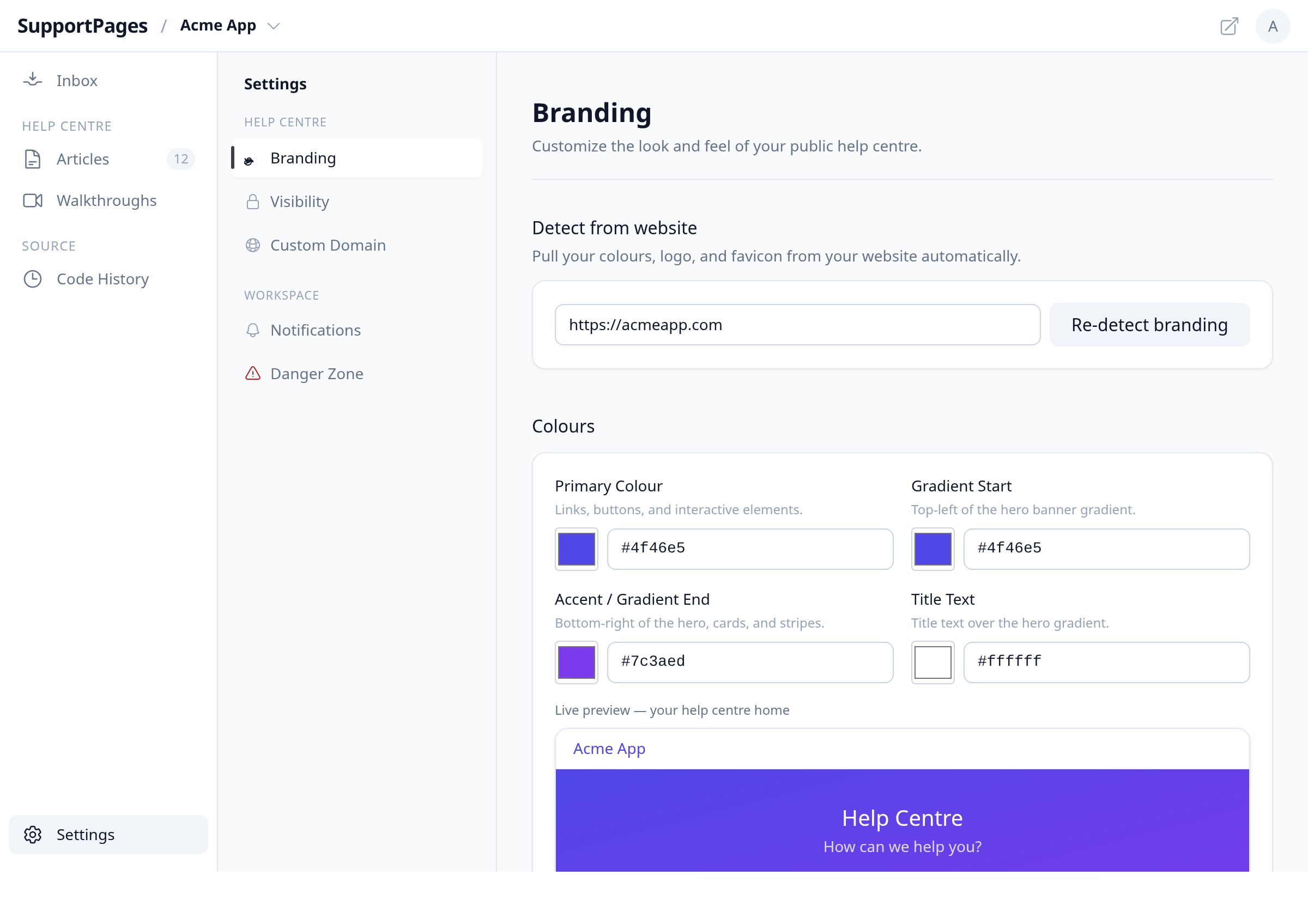
Open Branding settings
From your project workspace, click Settings in the sidebar, then select the Branding tab.
Check the live preview
Review the preview panel below the Colours section and compare it to your public help centre. If colours already look wrong here, auto-detection picked up the wrong palette.
Fix colours
Under Detect from website, enter your site URL and click Re-detect branding, or adjust Primary Colour, Gradient Start, Accent / Gradient End, and Title Text under Colours until the preview matches your brand.
Save your branding
Click Save Branding at the bottom of the page. Your help centre updates right away; new content will use the corrected colours.
Refresh detected fonts and styles
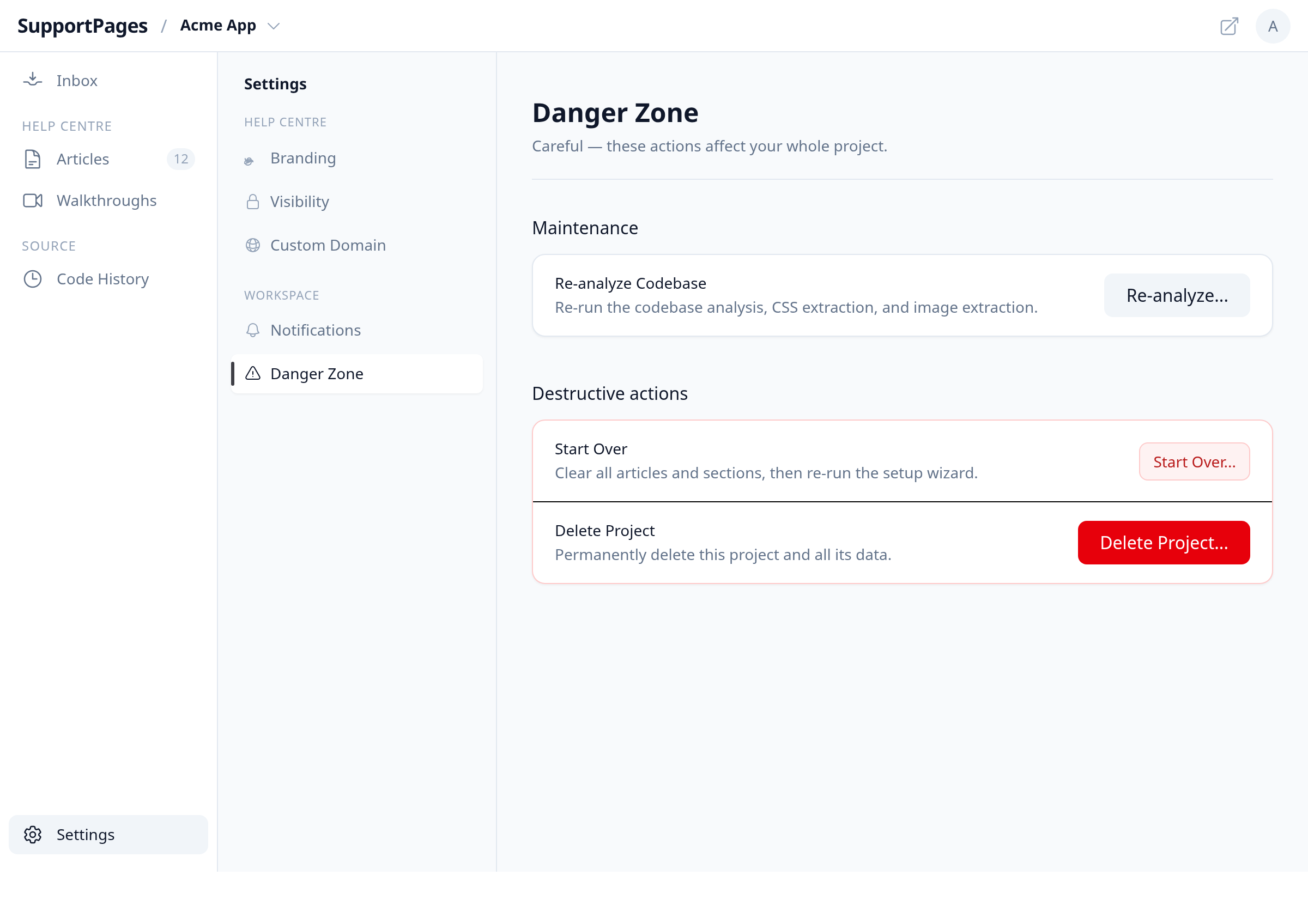
If fonts or styling in generated article screenshots still look wrong, open the Danger Zone tab and click Re-analyze... under Re-analyze Codebase. This re-reads your repository for CSS and fonts used in mockups.
Regenerate affected content
Open any articles or walkthroughs that still look off and click Regenerate so they are recreated with your updated branding.
Tips
- A logo you uploaded yourself is kept when you re-detect branding — only auto-detected logos are replaced.
- Re-analyze Codebase can take a few minutes; wait for it to finish before regenerating articles.
Summary
Fix colours in Settings → Branding, refresh fonts with Re-analyze Codebase in Danger Zone, then regenerate any content that was created before the fix.
Was this article helpful?
Powered by supportpages.io — help centre software for SaaS.
Have a question?
Search our articles, or ask and get an answer straight away.