
How to generate all accepted article recommendations at once
Updated 4 months ago
Browse All
When several article ideas in your Inbox are ready to draft, you can start them all in one go instead of accepting each suggestion separately.
Prerequisites
- A SupportPages project with pending article suggestions in your Inbox
Steps
Open your Inbox
Open your project workspace and click Inbox in the left sidebar.
Find your suggestions
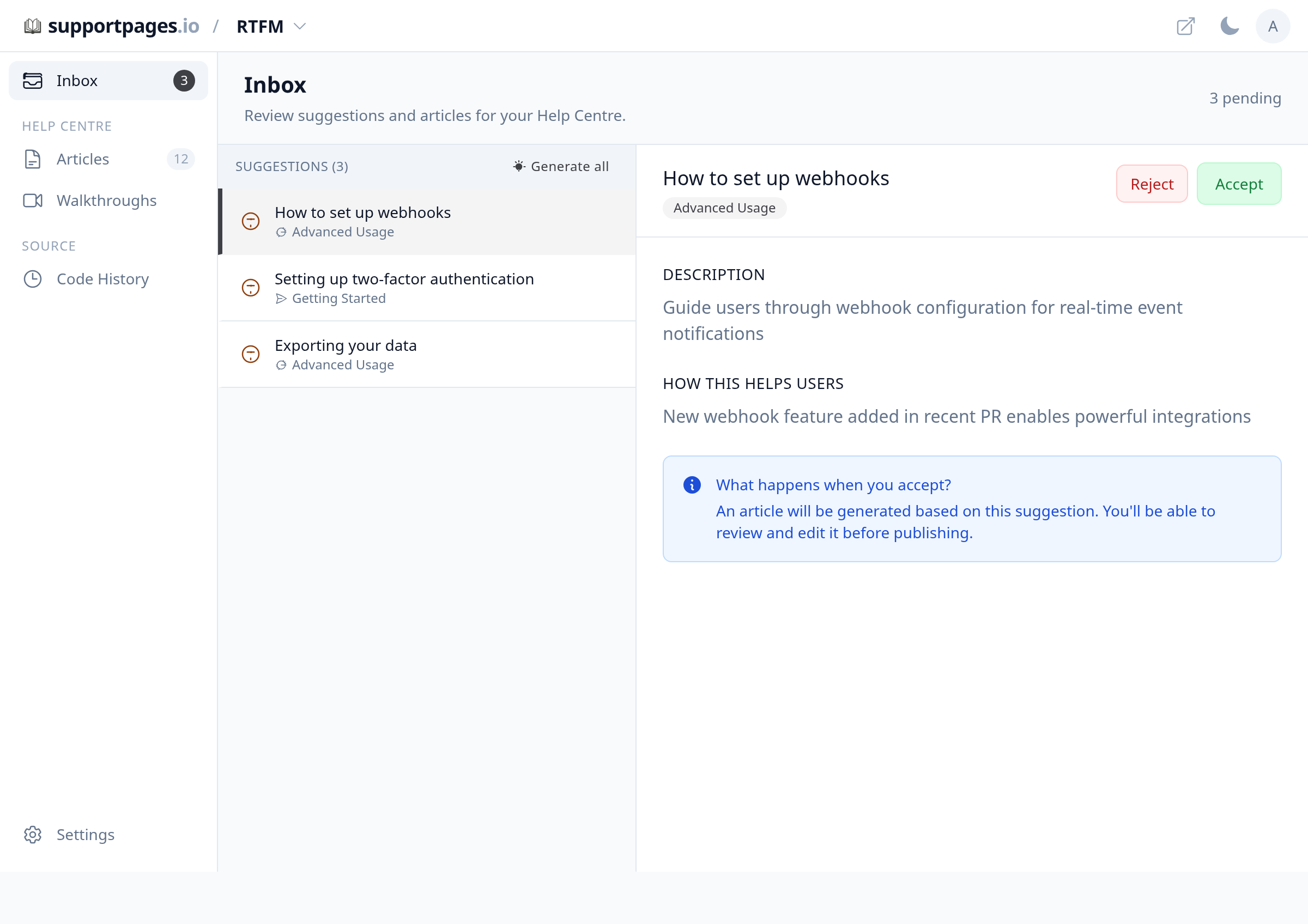
In the left panel, look for the Suggestions section. It lists article ideas waiting for your review.
Remove any topics you don't want
Click a suggestion to read it, then choose Reject for topics you don't want to keep. Skip this if you're happy with every suggestion in the list.
Click Generate all
At the top of the Suggestions section, click Generate all to start drafting every remaining suggestion at once.
Confirm the bulk action
When the confirmation dialog appears, click OK to start generating articles for all remaining suggestions.
Watch your articles appear
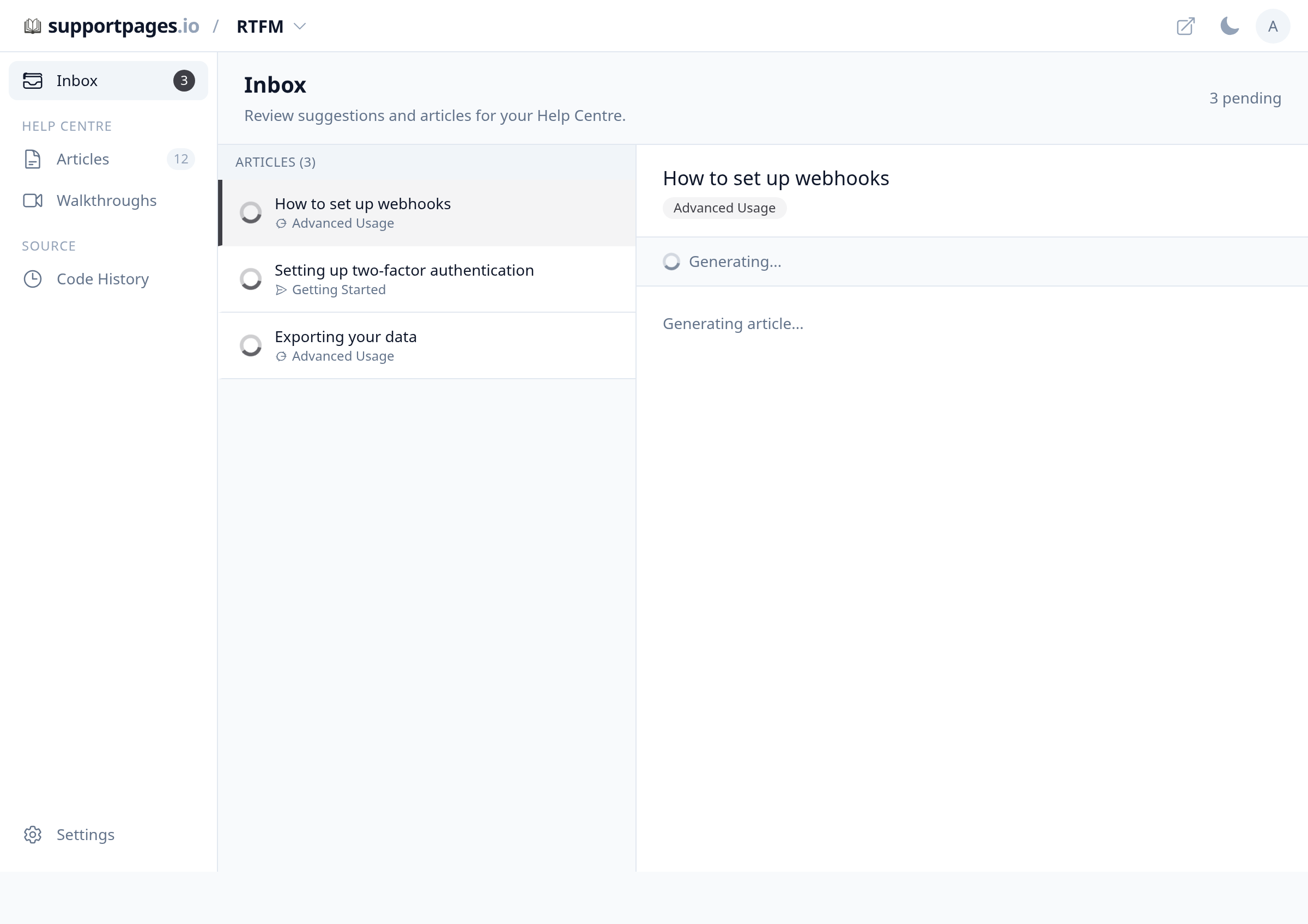
Your new drafts show up under Articles in the same left panel, each with a generating indicator until the draft is ready to review.
Tips
- Use Generate all after you've rejected unwanted suggestions — only the topics still in the list are drafted.
- If your plan has an article limit, generation stops once you reach it; any extra suggestions stay in Suggestions until you upgrade or free up space.
Summary
Open Inbox, review your Suggestions, then click Generate all whenever you're ready to draft every remaining topic together.
Was this article helpful?
Written with supportpages.io. More on documentation automation on our blog.
Have a question?
Search our articles, or ask and get an answer straight away.