
How to update your project branding
Updated 4 months ago
Browse All
Keep your help centre, walkthroughs, and generated mockups looking like your live product. You can pull colours and fonts from your website automatically, or fine-tune your logo and brand colours by hand.
Prerequisites
- You are signed in and have access to the project
- Custom logo and colour editing requires a Pro plan
Steps
Open Settings
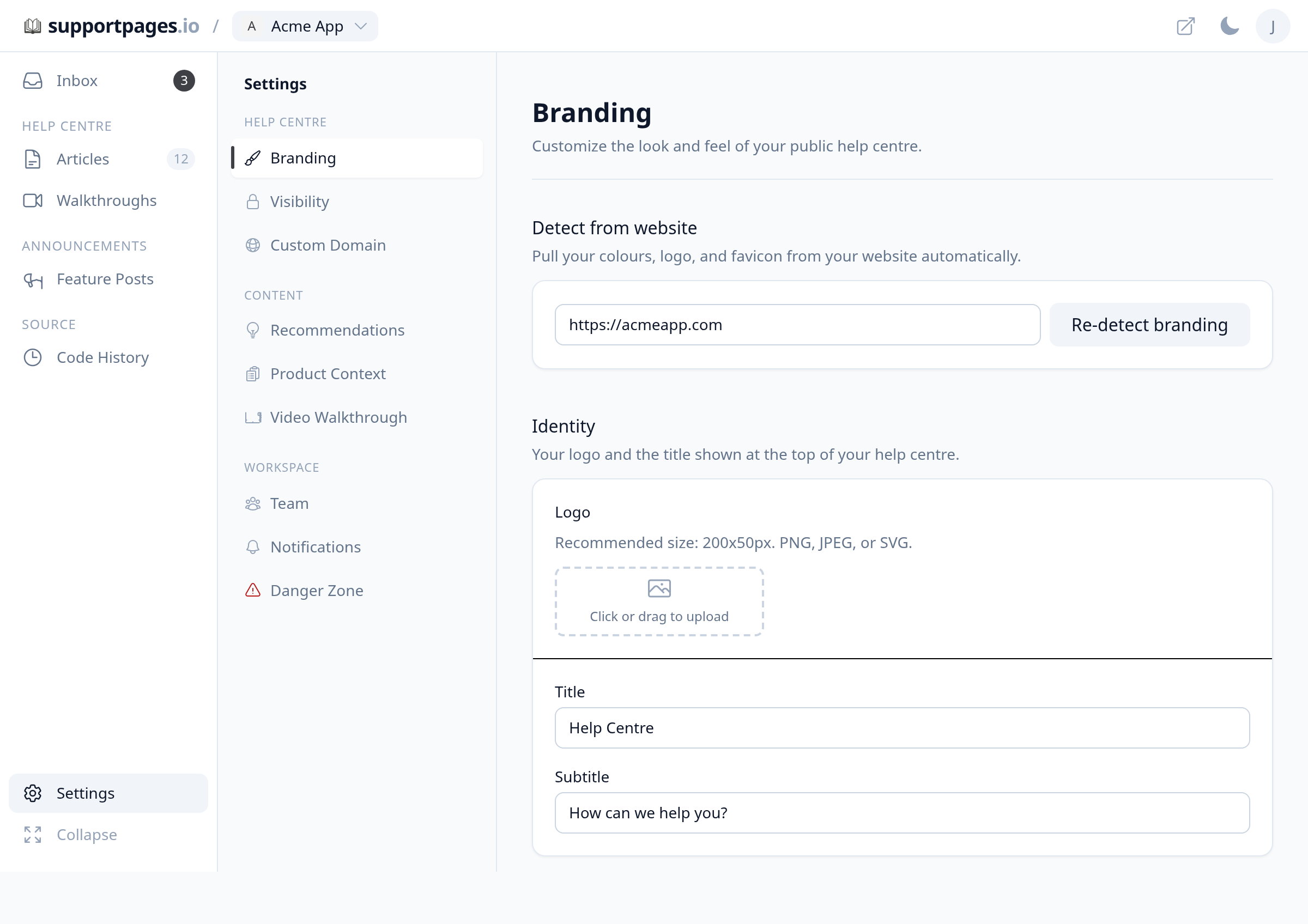
From your project workspace, click Settings in the left sidebar (at the bottom, above Collapse).
Open the Branding tab
Under Help centre in the settings sidebar, select Branding. The page opens on this tab by default.
Re-detect branding from your website
If your product look has changed, enter your website URL in Detect from website and click Re-detect branding. SupportPages pulls your colours, fonts, logo, and favicon from the site — a logo you uploaded yourself is kept.
Update your logo and brand colours
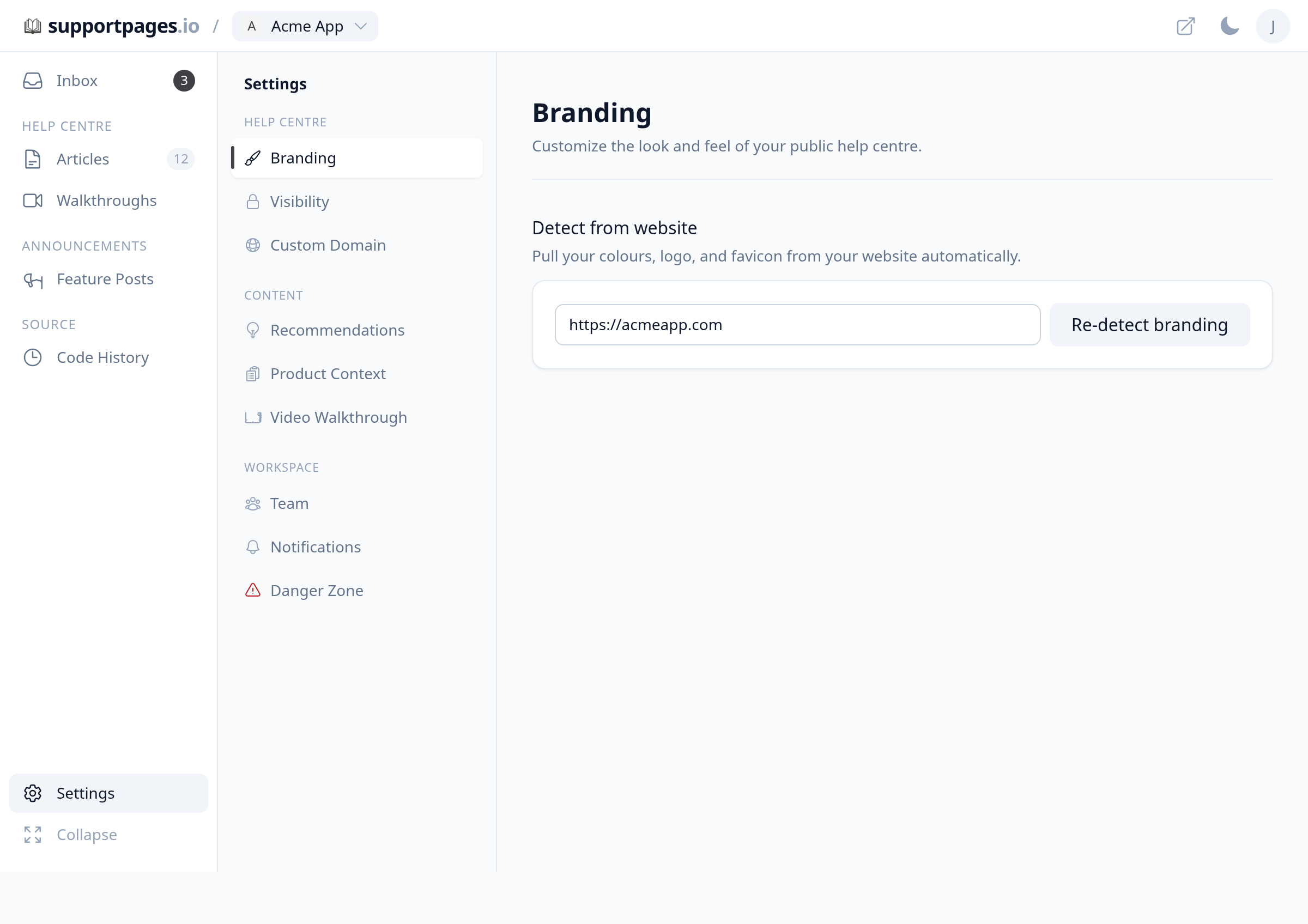
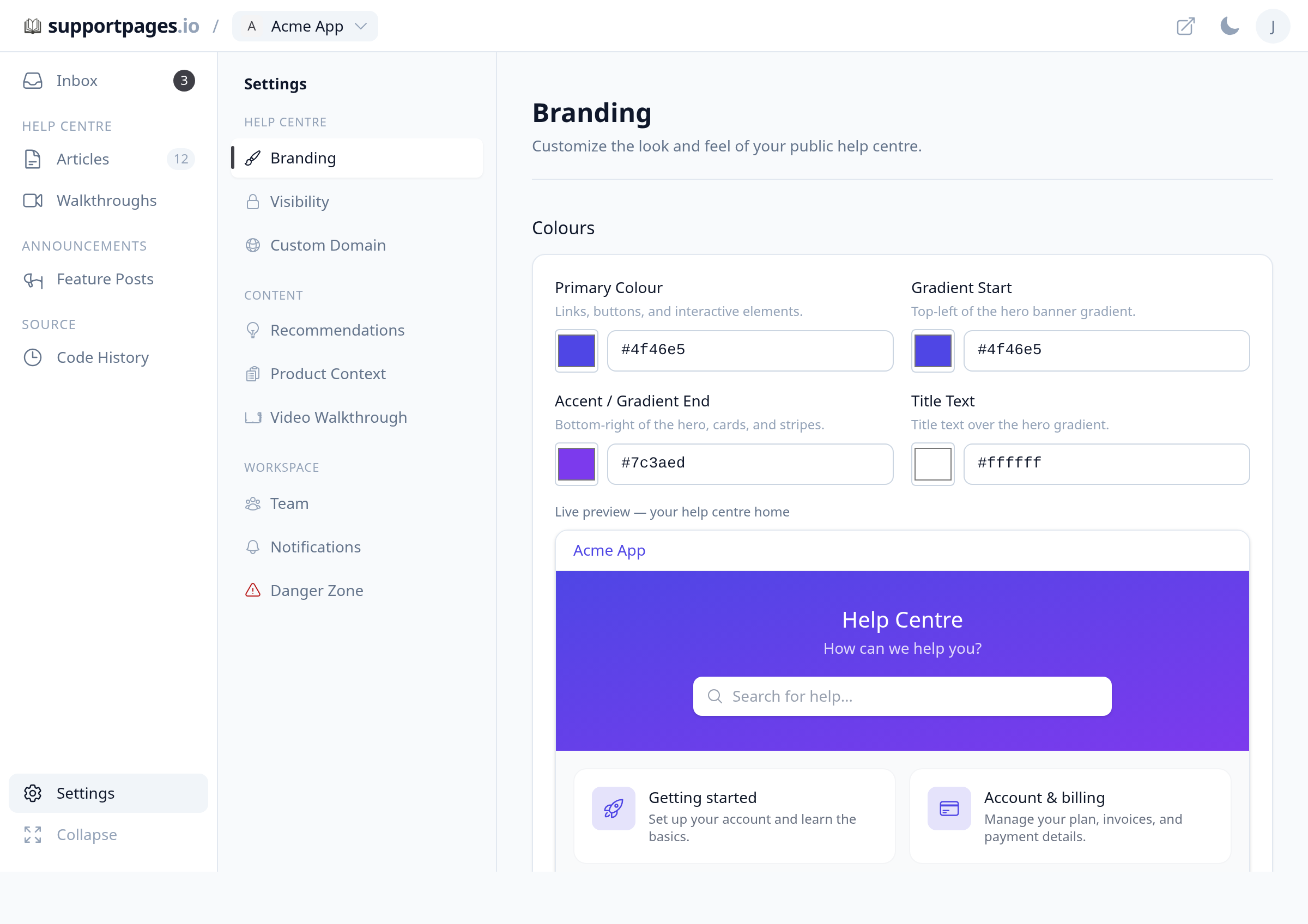
In Identity, upload a Logo or edit the Title and Subtitle shown on your help centre home page. In Colours, adjust Primary Colour, Gradient Start, Accent / Gradient End, and Title Text — the Live preview below updates as you pick colours.
Save your changes
Scroll to the bottom and click Save Branding. Your help centre and future generated content use the updated look.
Tips
- Use Re-detect branding after a rebrand so fonts and colours stay in sync with your live site
- Recommended logo size is 200×50 px — PNG, JPEG, or SVG
- If you change brand colours, regenerate video walkthrough title cards from the Video Walkthrough settings tab
Summary
Open Settings → Branding to re-detect from your website or edit logo and colours manually, then click Save Branding. Your help centre and generated assets pick up the new look right away.
Was this article helpful?
Powered by supportpages.io, AI release notes software.
Have a question?
Search our articles, or ask and get an answer straight away.