
How to approve an article from the Inbox
Updated 4 months ago
Browse All
When SupportPages drafts a help-centre article for you, it lands in your Inbox for a quick review. This guide walks you through opening a draft, checking the content, and approving it so it is ready for your help centre.
Prerequisites
- A SupportPages project with at least one AI-generated article waiting in the Inbox
- Access to the project workspace
Steps
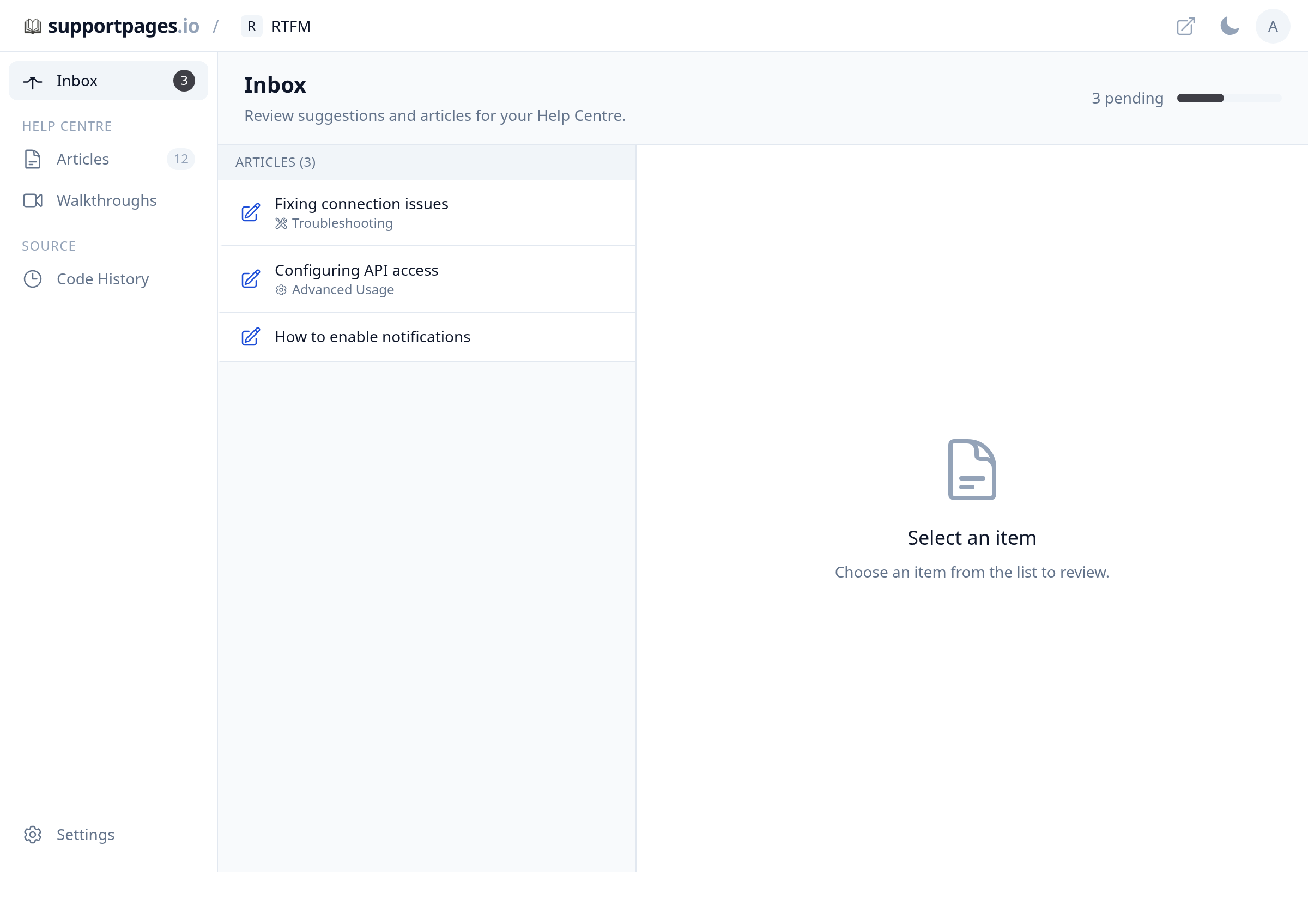
Open the Inbox
Open your project and click Inbox in the sidebar. You will see draft articles listed under Articles, along with any pending suggestions.
Select a draft article
Click an article in the list to open it in the editor on the right. Pick one marked ready for review — not one that is still generating.
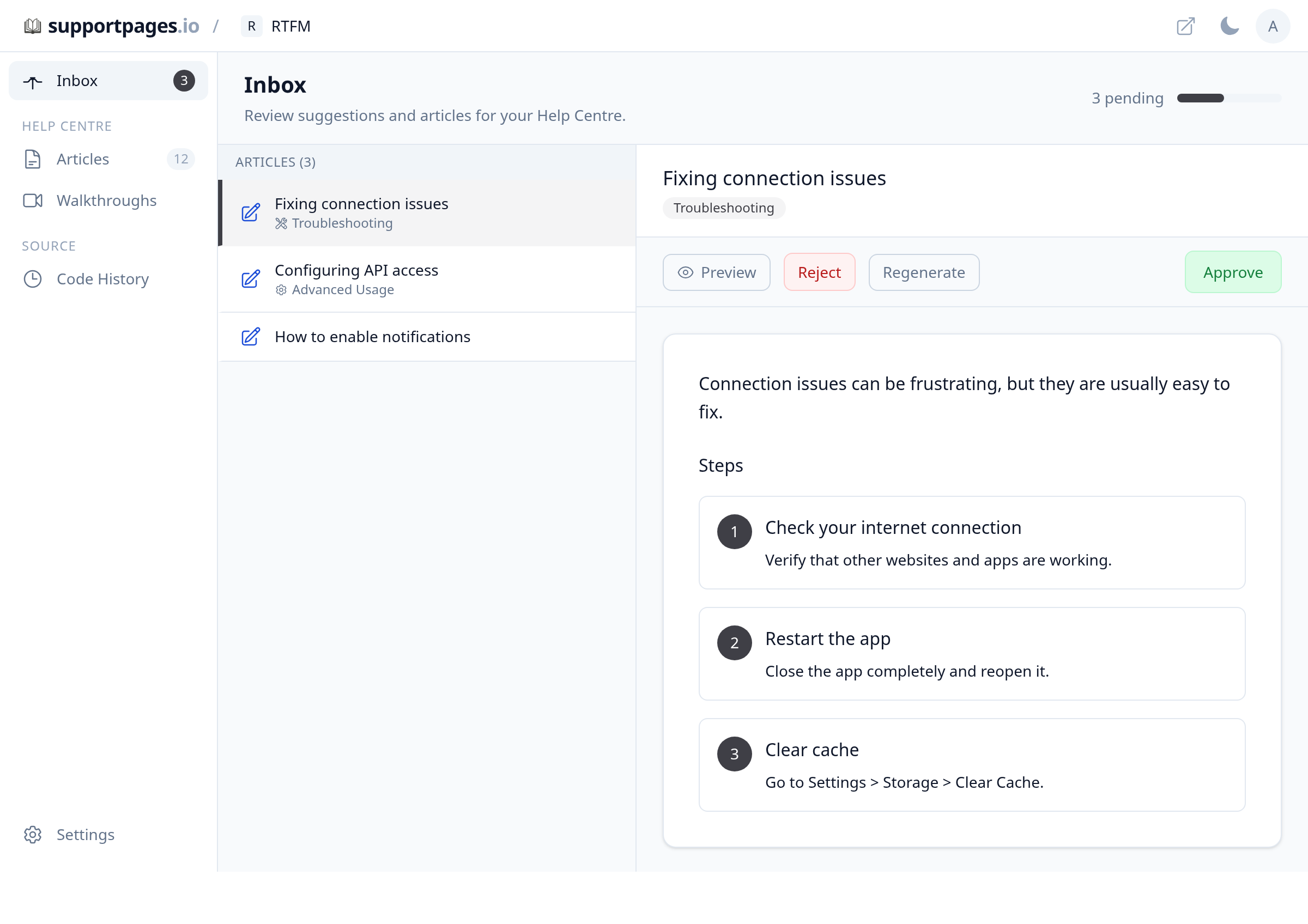
Review the content
Read through the title, introduction, steps, and summary. Click any text to edit it before you approve.
Click Approve
When you are happy with the article, click Approve in the toolbar. If the article has no section yet, choose a section in the dialog and click Approve again.
Confirm the approved status
The toolbar shows Approved with a green check. The article is now ready — publish it from Articles whenever you want it live on your help centre.
Tips
- Use Preview to see how the article will look on your public help centre before you approve.
- Click Reject if an article is not useful — you can undo a rejection from the same toolbar.
- Approved articles appear under Articles in the sidebar, organized by section.
Summary
You opened a draft from the Inbox, reviewed it, and clicked Approve. The article is marked ready for your help centre — publish it from Articles when you are ready for customers to see it.
Was this article helpful?
Generated by supportpages.io, an AI changelog generator for SaaS teams.
Have a question?
Search our articles, or ask and get an answer straight away.