
How to publish or unpublish an article
Updated 4 months ago
Browse All
Control what your customers can read on your help centre. Publish a draft when it is ready to go live, or unpublish an outdated article without losing your work.
Prerequisites
- A SupportPages project with at least one article
- The article has finished generating and is assigned to a section
Steps
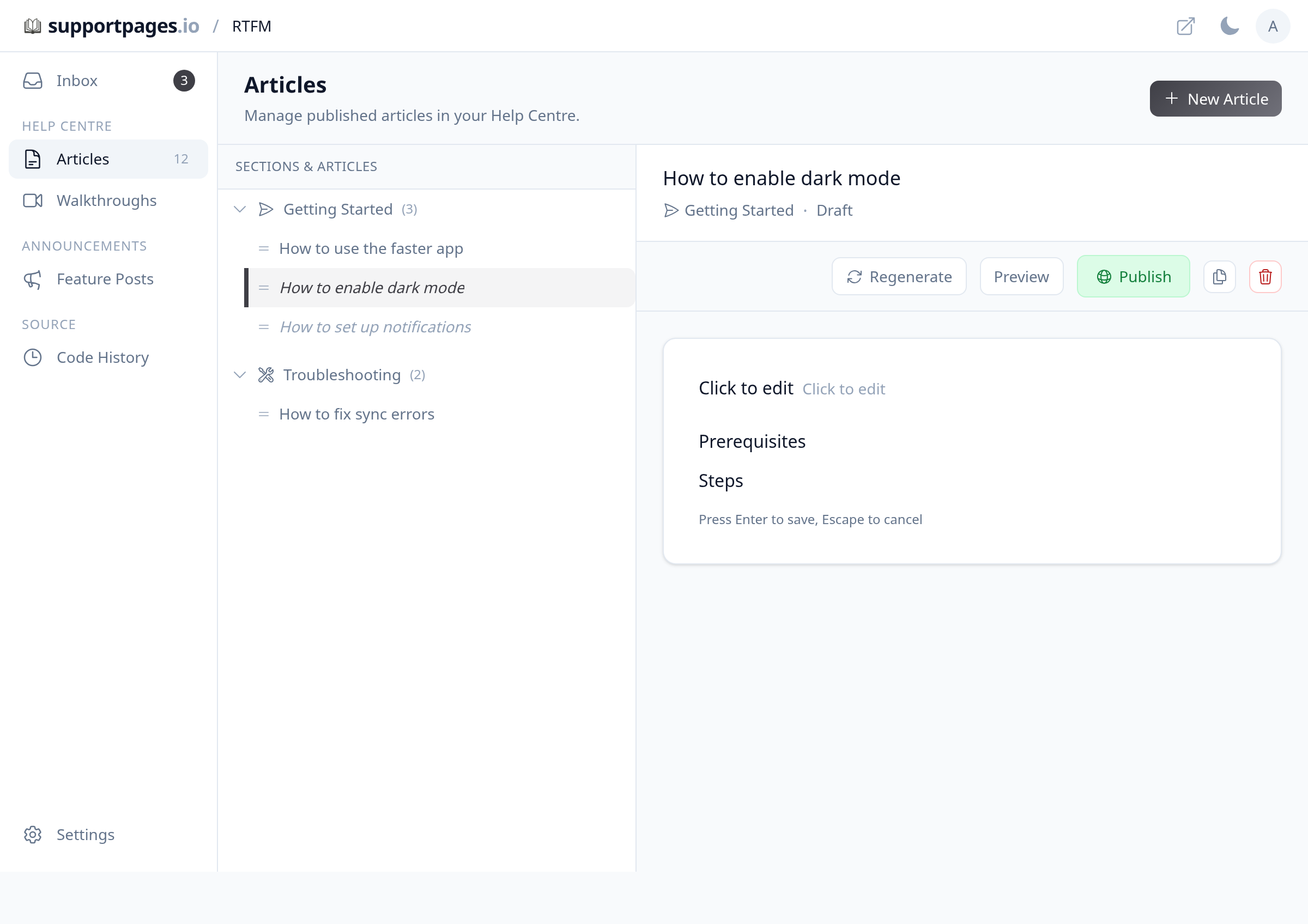
Open Articles
In your project workspace, click Articles in the sidebar under Help Centre.
Select an article
In Sections & Articles, click the article you want to update. Its content opens on the right.
Check the article status
Look below the title for the status label. Draft means the article is not visible to customers yet. Published means it is live on your help centre.
Publish a draft
When the status shows Draft, click Publish in the toolbar. The article goes live on your help centre right away.
Unpublish a live article
When the status shows Published, click Unpublish in the toolbar. The article is taken offline but stays in your workspace so you can edit and publish it again later.
Tips
- Use View on a published article to open the live help-centre page in a new tab.
- Unpublishing does not delete the article — your edits are saved as a draft.
Summary
Use Publish and Unpublish on the Articles page to control what appears on your help centre. You can bring an unpublished article back anytime without starting over.
Was this article helpful?
Generated by supportpages.io, automating product documentation from your codebase.
Have a question?
Search our articles, or ask and get an answer straight away.