
How to create a new help-centre article
Updated 4 months ago
Browse All
You can add help-centre articles from scratch or turn an accepted suggestion into a draft — handy when you want to document something SupportPages has not auto-drafted yet.
Prerequisites
- You are signed in to SupportPages
- You have at least one project set up
Steps
Open your project
From the Projects list, open the workspace for the help centre you want to update.
Go to Articles
In the sidebar under Help Centre, click Articles.
Start a blank article
Click New Article in the top-right corner of the Articles panel.
Fill in the article details
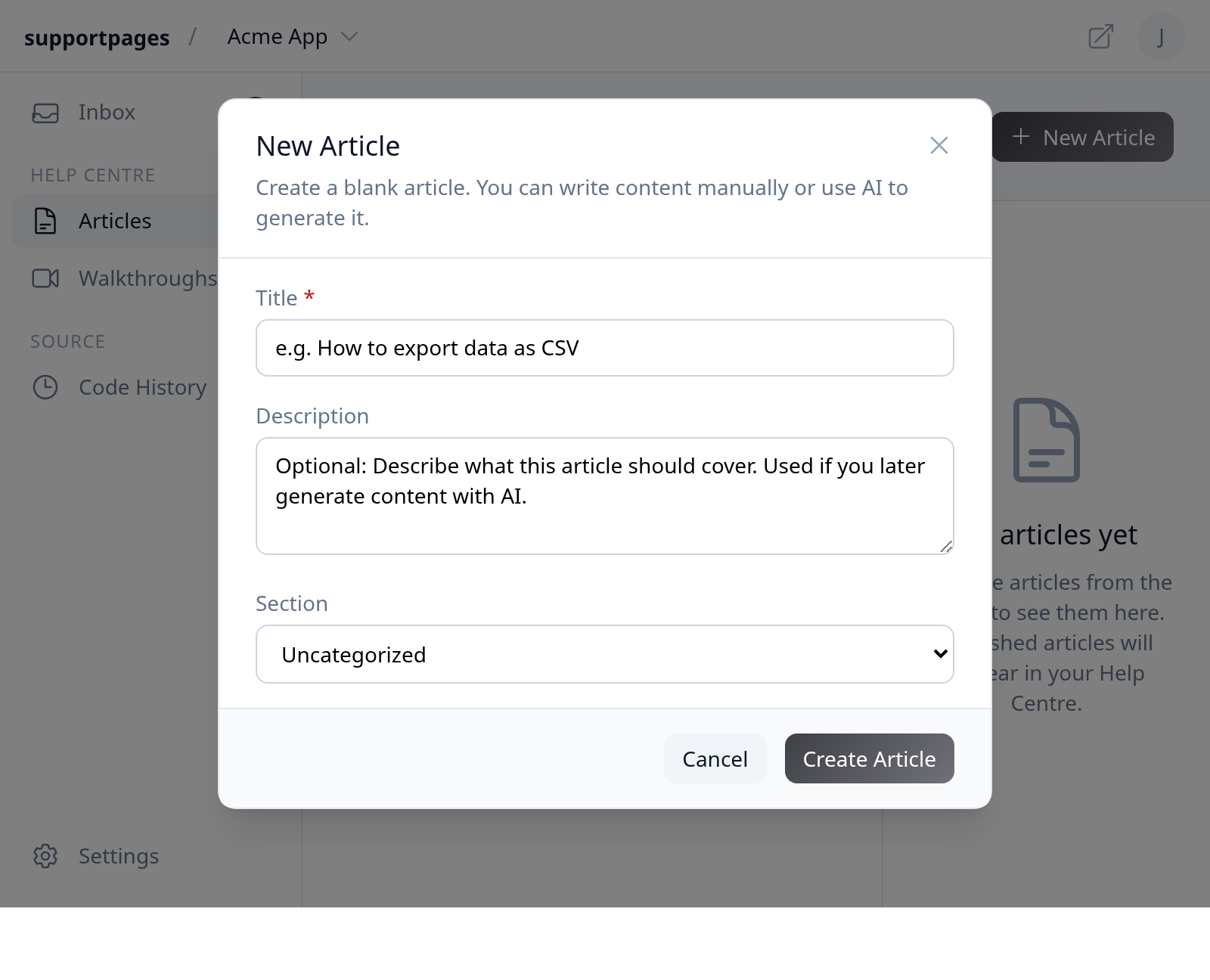
Enter a Title, add an optional Description for AI context, pick a Section if you want, then click Create Article.
Write or generate content
Your new article opens in the editor as a draft. Type content yourself, or click Generate to have AI draft the article for you.
Open your Inbox for suggestions
To create from a suggestion instead, click Inbox in the sidebar.
Select a suggestion
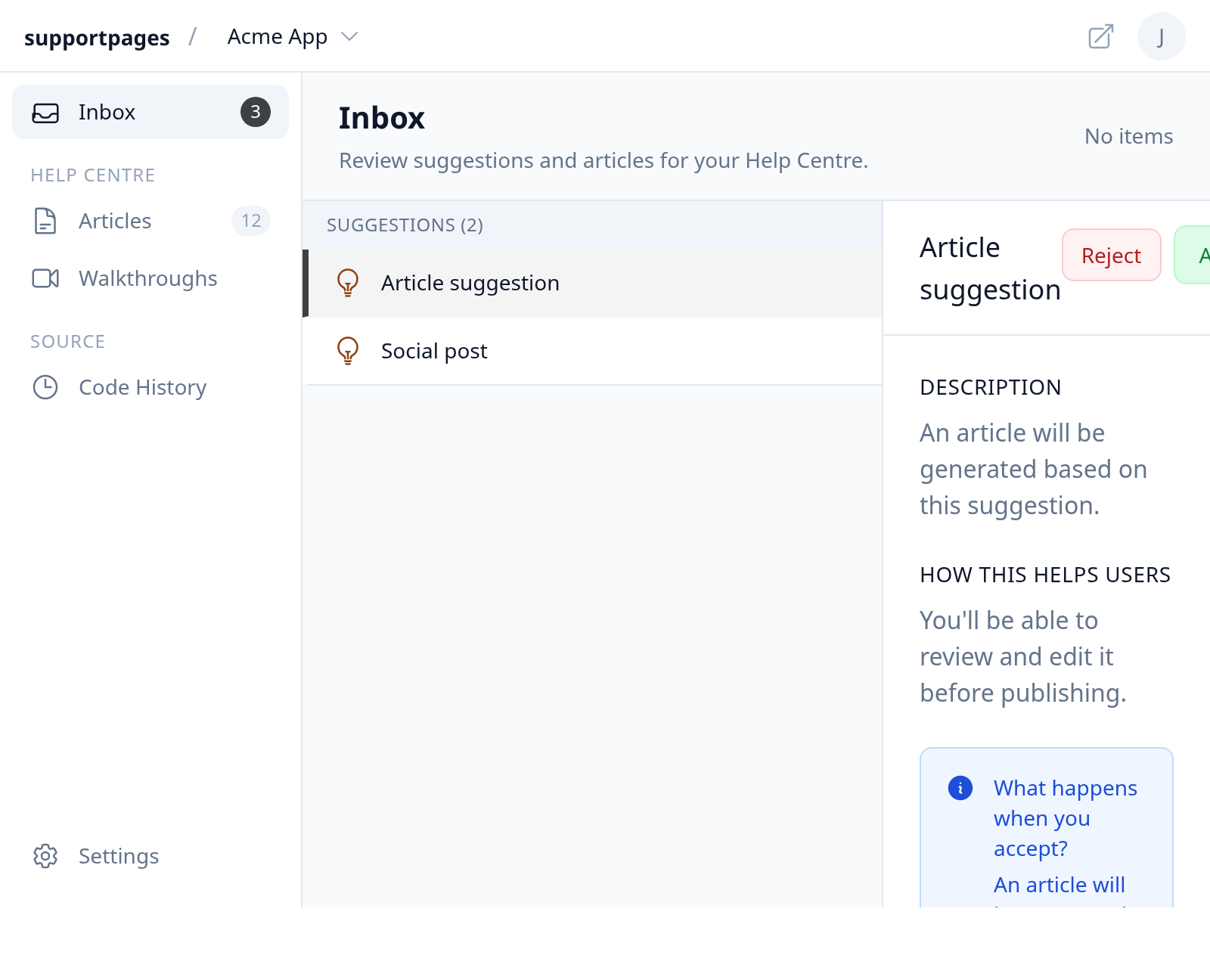
Under Suggestions, click the article topic you want to add to your help centre.
Accept the suggestion
Review the description on the right, then click Accept. SupportPages generates a draft article you can edit before publishing.
Review and publish
When generation finishes, find the draft in your Inbox or Articles list. Edit as needed, then click Publish when you are ready for customers to see it.
Tips
- Add a Description when creating a blank article — it gives AI better context if you generate content later.
- Suggestions in your Inbox come from your codebase and recent changes, so accepting one is a quick way to fill gaps in your help centre.
Summary
Use New Article on the Articles page for a blank draft, or accept a suggestion in your Inbox to generate one automatically. Either way, review the draft and publish when it is ready.
Was this article helpful?
Built with supportpages.io — an AI documentation generator.
Have a question?
Search our articles, or ask and get an answer straight away.