
How to connect GitHub to SupportPages
Updated 4 months ago
Browse All
Link your GitHub account and install the SupportPages app so we can read your repos and pick up merged pull requests automatically — the setup that turns code changes into draft updates for you.
Prerequisites
- A SupportPages account
- Admin or write access to the GitHub repositories you want to connect
Steps
Sign in to SupportPages
Open SupportPages and sign in. If you use GitHub day to day, click Continue with GitHub to link your account in one step. Otherwise, connect GitHub on the repository step.
Start a new project
From Projects, click Create your first project (or New Project if you already have one). SupportPages walks you through setup — the first step is choosing a repository.
Connect or install GitHub
On Choose your repository, find GitHub in the source list. If it shows Not connected, click Connect to link your GitHub account, or Install if you already signed in with GitHub. SupportPages only asks for read-only access to repos you choose.
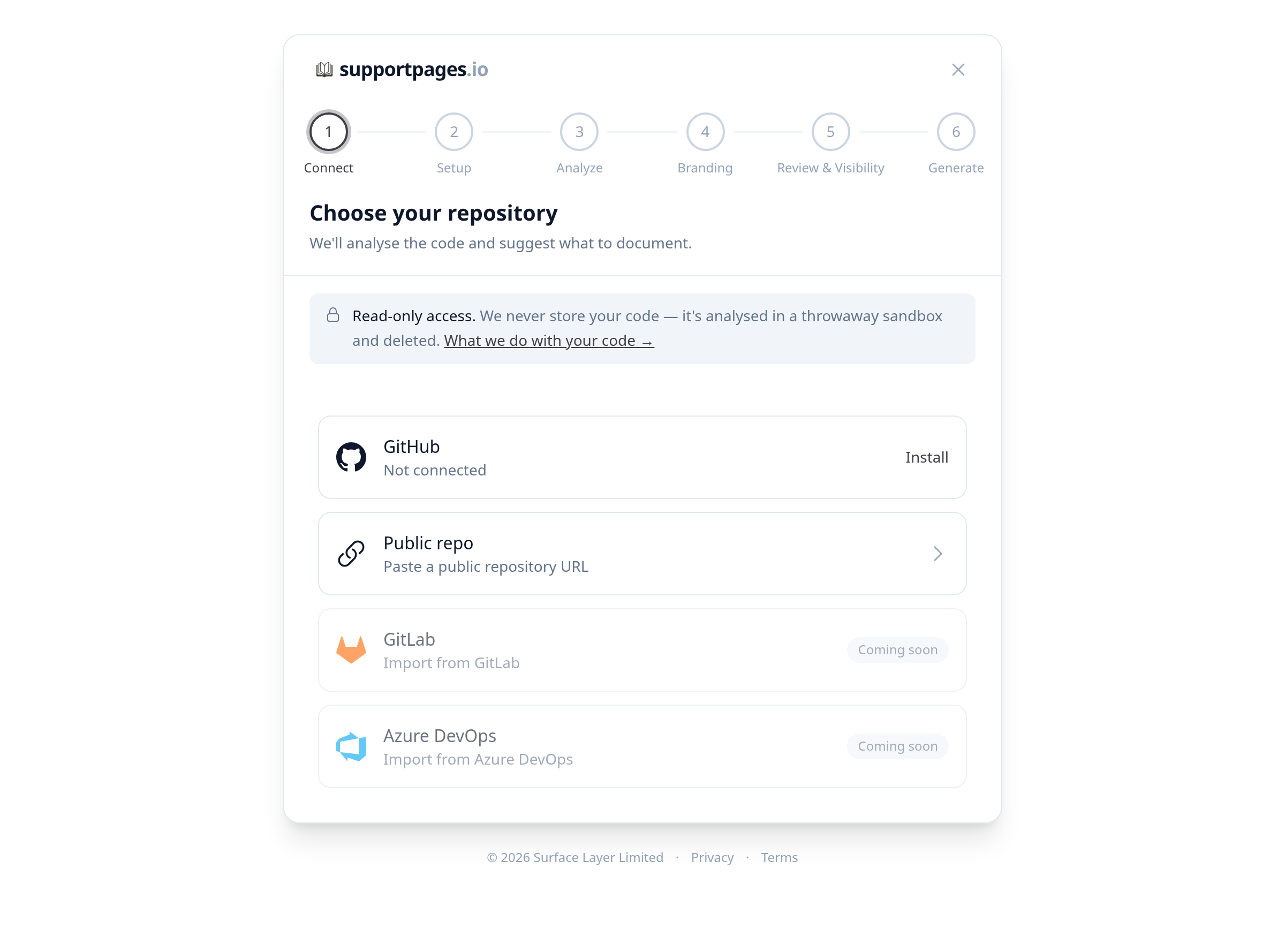
Approve the GitHub App
GitHub opens in a new tab. Pick your account or organisation, then choose which repositories SupportPages can access. Grant access to every repo you want merge alerts for — you can add more later from the same screen.
Select your repository
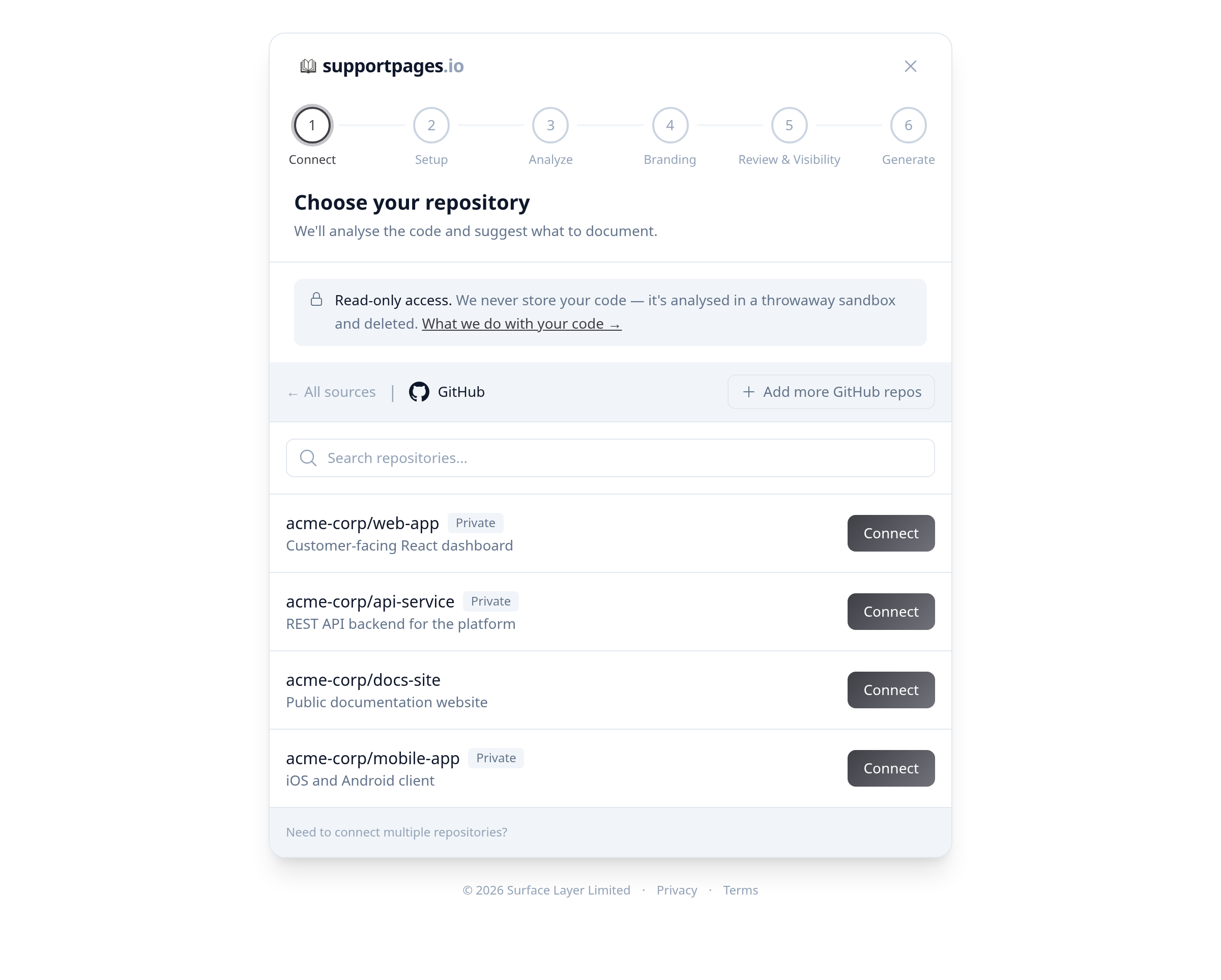
Back in SupportPages, click GitHub in the source list to see your repos. Find the one you want to track and click Connect. SupportPages sets up a webhook so merged pull requests show up in your inbox automatically.
Tips
- Don't see an organisation's repos? Use Reconnect on the repository step to refresh GitHub permissions.
- Need another repo later? Click Add more GitHub repos on the GitHub source screen to open GitHub's access settings again.
Summary
Once GitHub is connected and a repository is selected, SupportPages can read your code and watch for merges — you're ready for automatic draft generation on every pull request you ship.
Was this article helpful?
Generated by supportpages.io, automating product documentation from your codebase.
Have a question?
Search our articles, or ask and get an answer straight away.