
How to reorganise articles within and between sections
Updated 4 months ago
Browse All
As your help centre grows, you can drag articles into a better order, move them between sections, or duplicate one as a starting point — all from the Articles page.
Prerequisites
- You have at least one article in your project
- You have access to the project workspace
Steps
Open the Articles page
In the sidebar, under Help Centre, click Articles.
Find the article in the folder tree
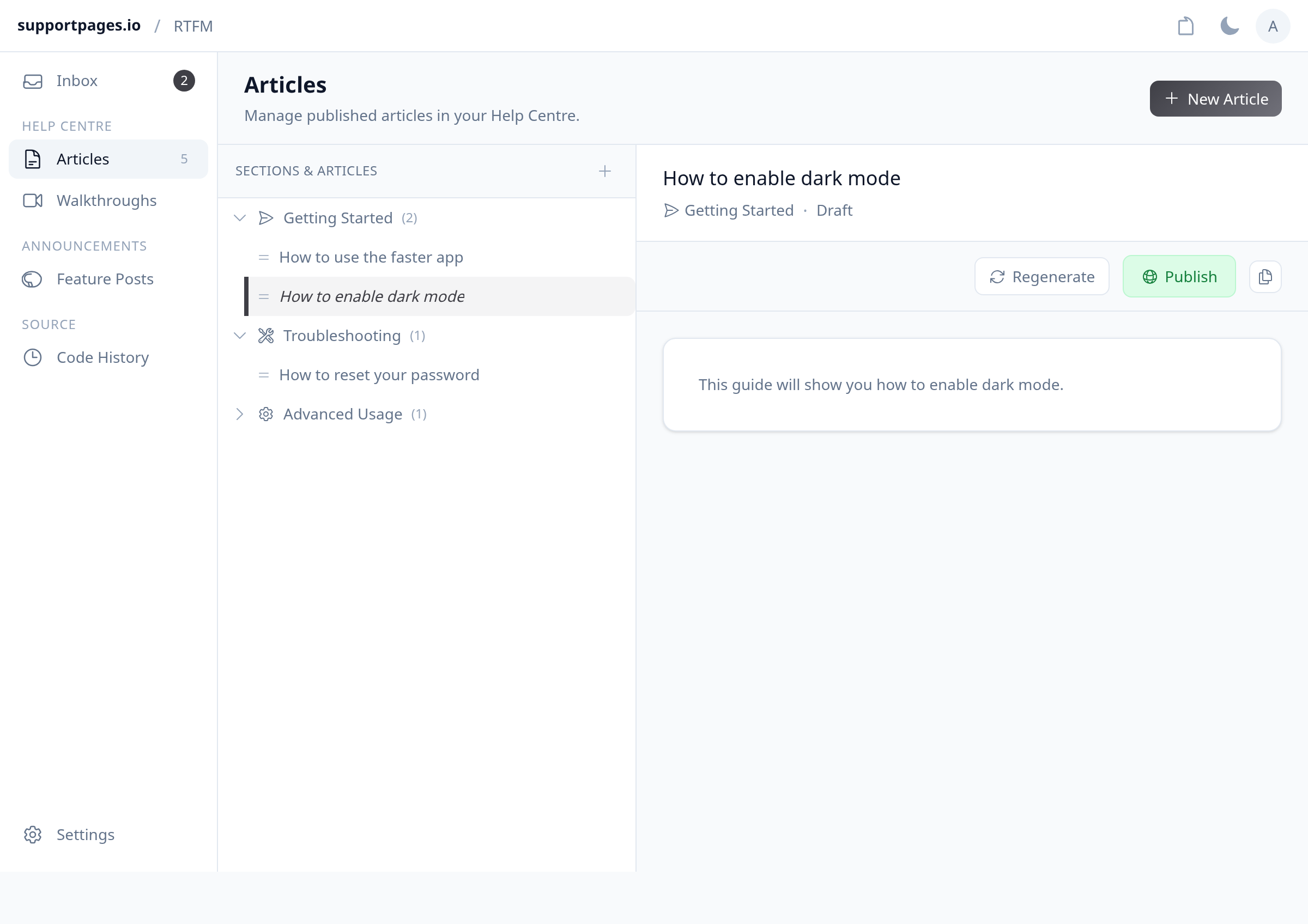
In the Sections & Articles panel on the left, expand a section if needed and locate the article you want to move.
Reorder an article within its section
Drag the article by its handle to a new position in the same section. The order updates automatically.
Move an article to a different section
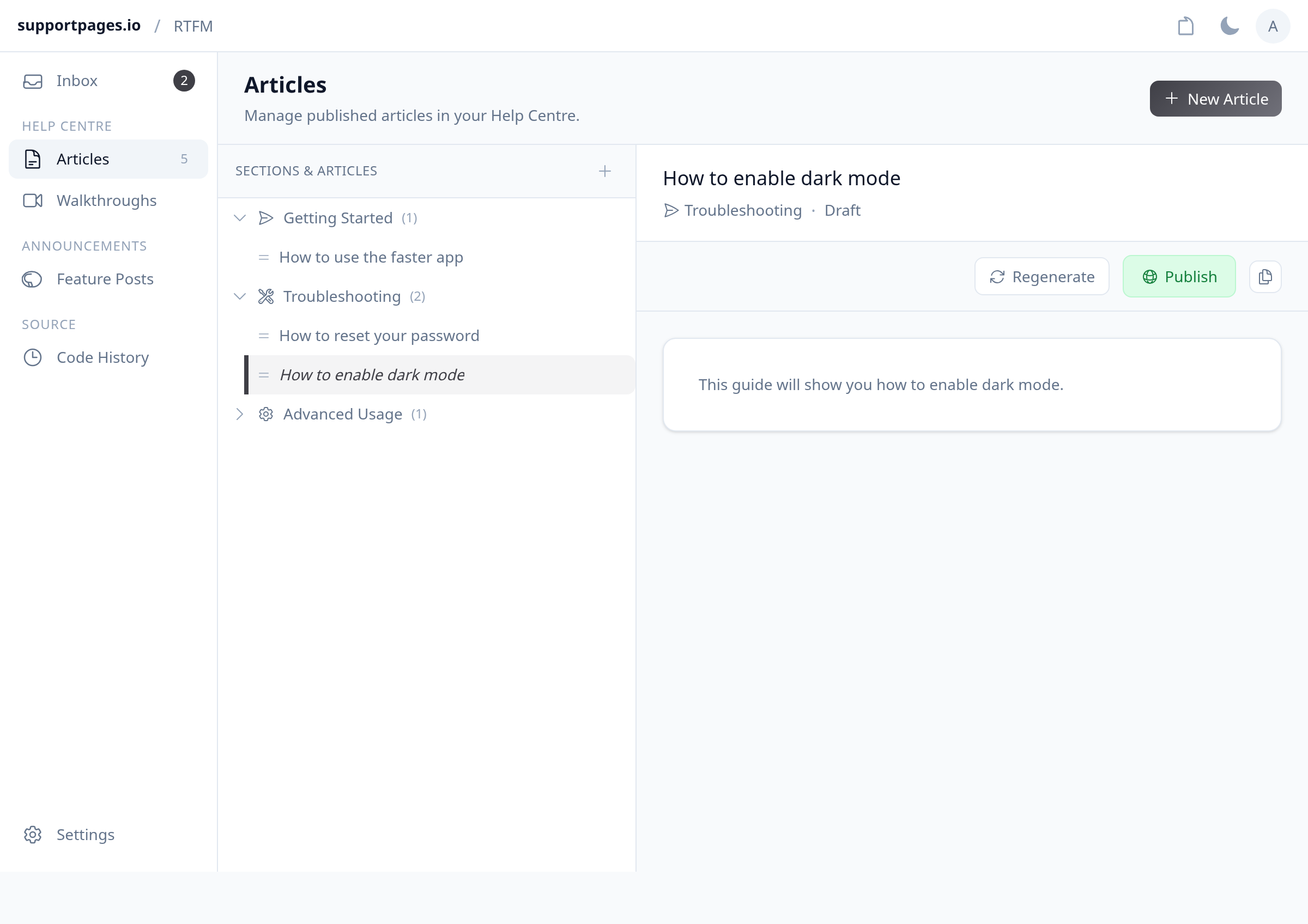
Drag the article into another section in the folder tree. Drop it where you want it to appear — the move saves right away.
Duplicate an article
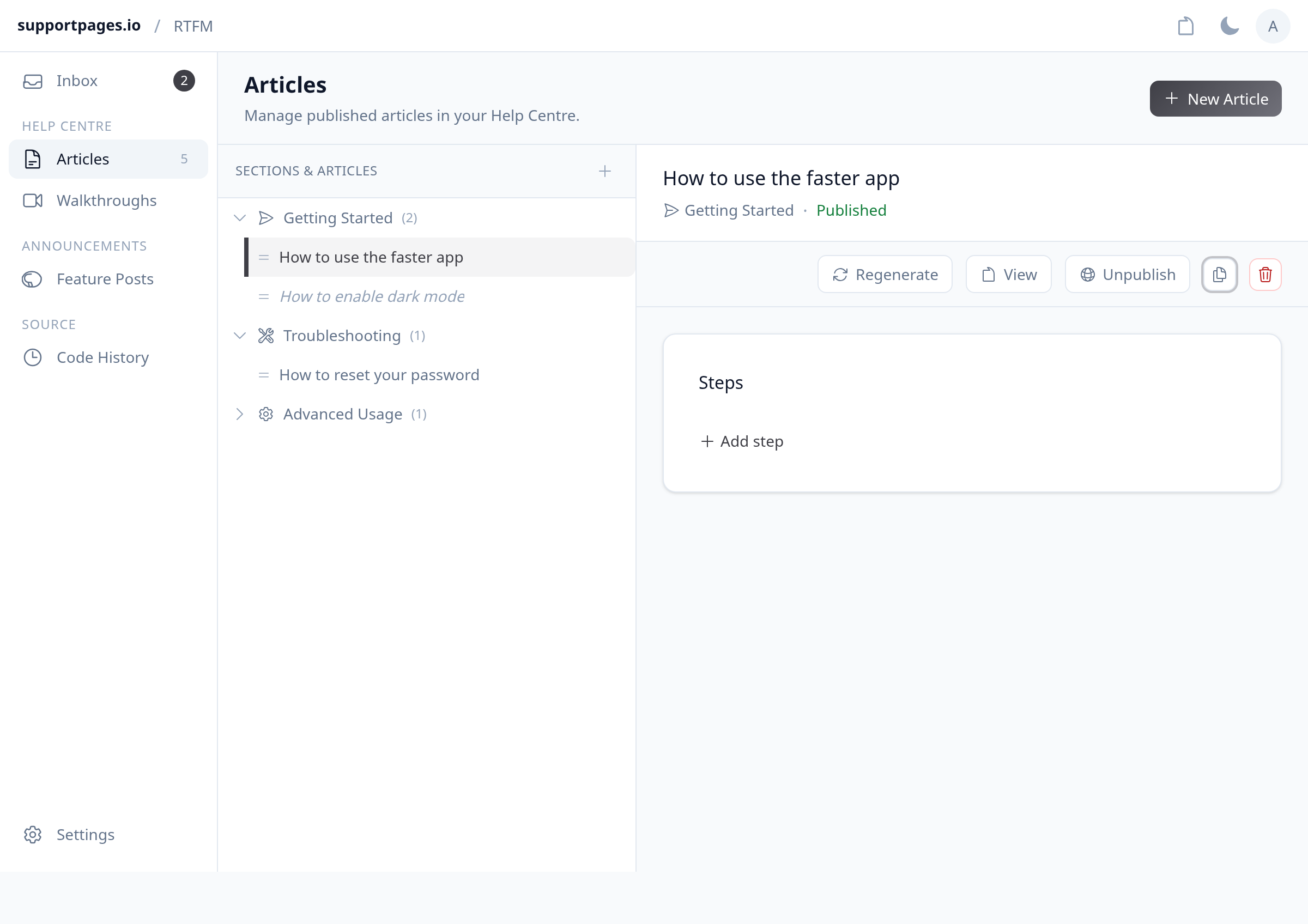
Click the article to open it, then click Duplicate in the toolbar. A draft copy appears in the same section, ready for you to edit.
Review your help centre
Your changes are saved automatically. Open your help centre to confirm articles appear in the order and sections you set.
Tips
- Collapse or expand sections by clicking the section name to keep long lists manageable.
- Duplicated articles start as drafts, so you can edit the copy before publishing.
Summary
Use drag-and-drop in Sections & Articles to reorder or move articles, and Duplicate when you want a similar guide without starting from scratch.
Was this article helpful?
Built on supportpages.io — automated help articles for SaaS products.
Have a question?
Search our articles, or ask and get an answer straight away.