
How to manage connected repositories
Updated 4 months ago
Browse All
When your product spans more than one codebase, you can connect multiple repositories to a single project and choose which one drives analysis. This guide shows you how to add repos, remove ones you no longer need, and pick the primary source for drafts.
Prerequisites
- A SupportPages project with at least one connected repository
- Permission to change project settings
Steps
Open Settings
Open your project workspace and click Settings in the left sidebar.
View your connected repositories
In the settings sidebar under Workspace, open the repositories panel. You will see every repository currently linked to this project.
Choose the primary repository
Select the radio button next to the repository that should be the main source for analysis and baseline updates. SupportPages uses this repo when checking for doc changes and running scheduled scans.
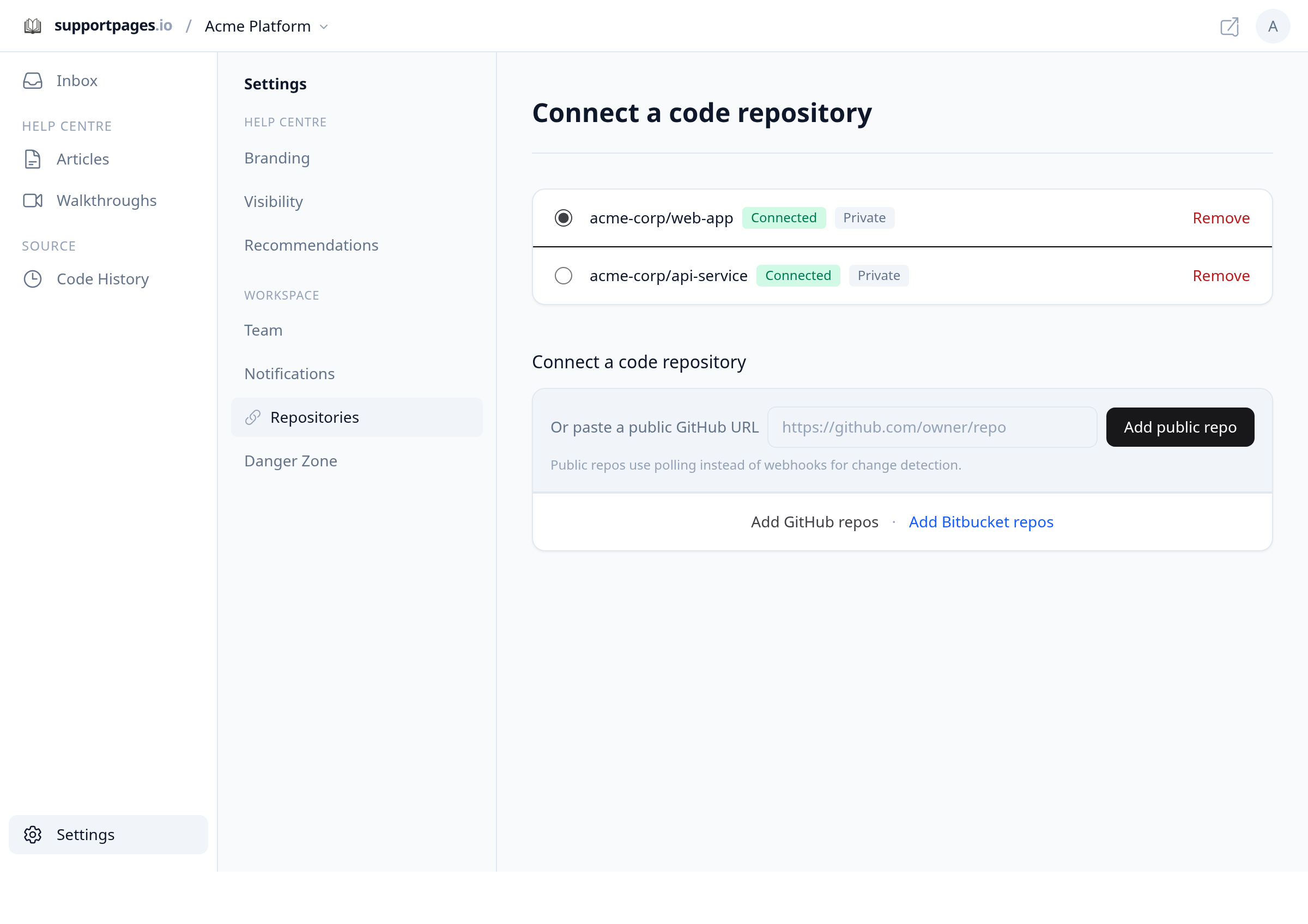
Remove a repository you no longer need
Click Remove next to the repository you want to disconnect. You must keep at least one repository connected to the project.
Add another repository
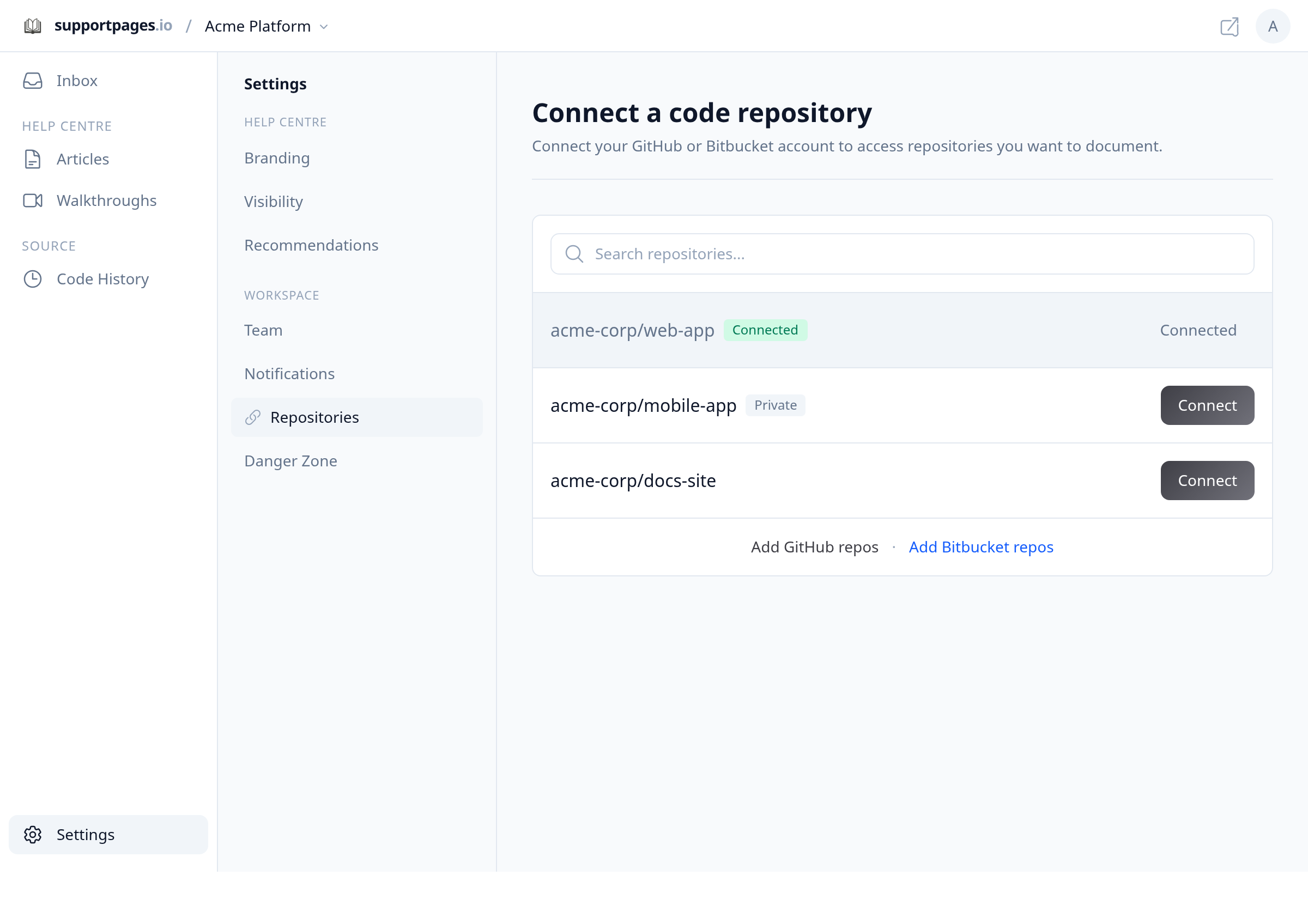
To connect a public GitHub repo, paste the URL under Or paste a public GitHub URL and click Add public repo. For private GitHub or Bitbucket repos, click Add GitHub repos (or Add Bitbucket repos) to grant access, then find the repo in the list and click Connect.
Confirm the new connection
The repository appears in your connected list with a Connected badge. Set it as primary if you want future analysis to focus on that codebase.
Tips
- Public repos use polling instead of webhooks for change detection — merged changes may take a few minutes to appear.
- If you split frontend and backend into separate repos, connect both and set the repo that best represents your user-facing product as primary.
Summary
Open Settings to view connected repositories under Workspace. Add repos as your codebase grows, remove ones you no longer track, and pick a primary so drafts always reflect the repo you care about most.
Was this article helpful?
Written with supportpages.io. More on documentation automation on our blog.
Have a question?
Search our articles, or ask and get an answer straight away.