
How to add and manage help-centre sections
Updated 4 months ago
Browse All
Sections group your help-centre articles by topic so customers can browse your docs the way they think about your product. This guide shows you how to review AI suggestions, add your own sections, and keep them up to date.
Prerequisites
- A project with setup complete (or in progress on the sections step)
- Access to the project workspace
Steps
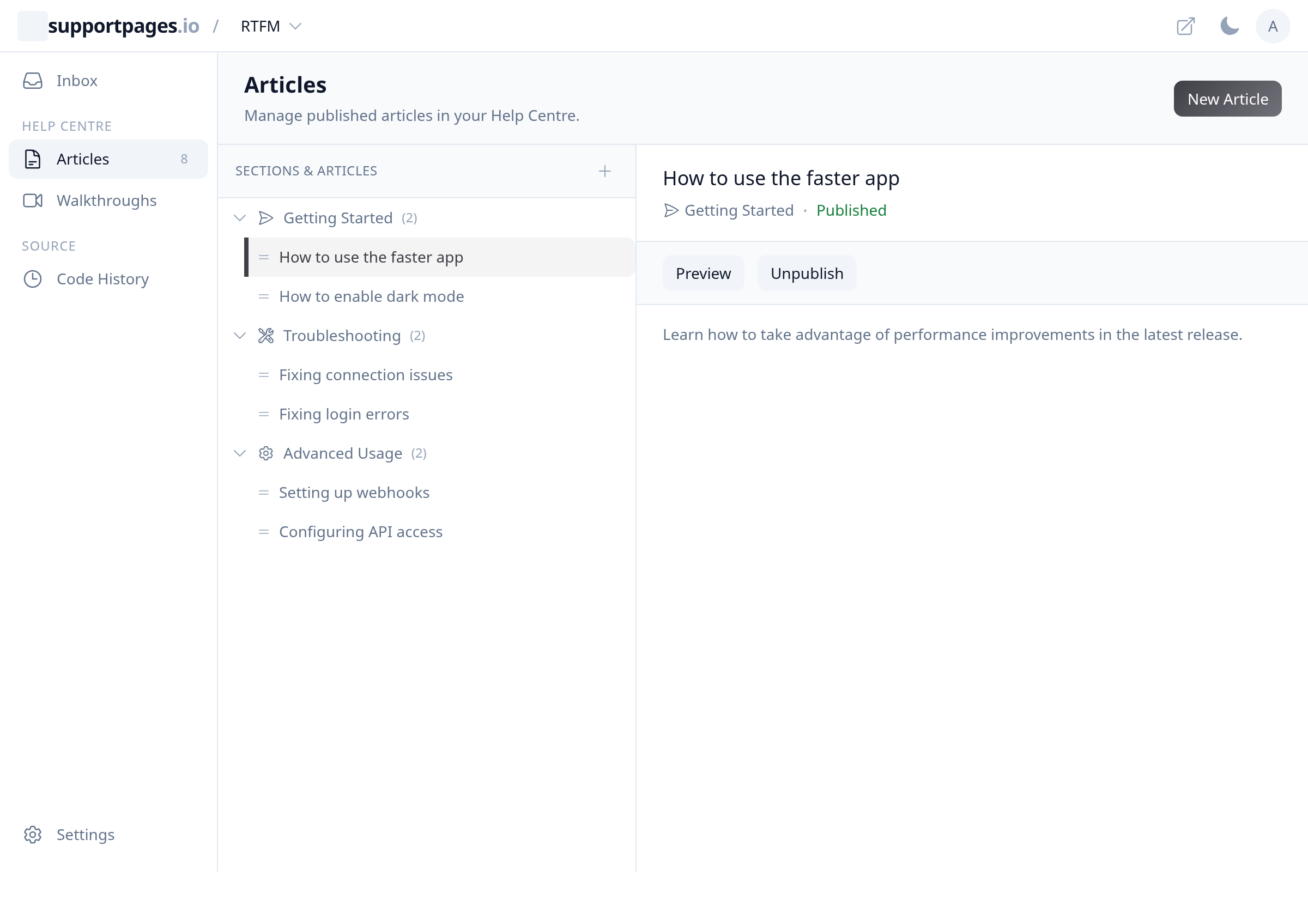
Open the Articles page
In the left sidebar, under Help Centre, click Articles. The Sections & Articles panel on the left lists your current sections and the articles inside each one.
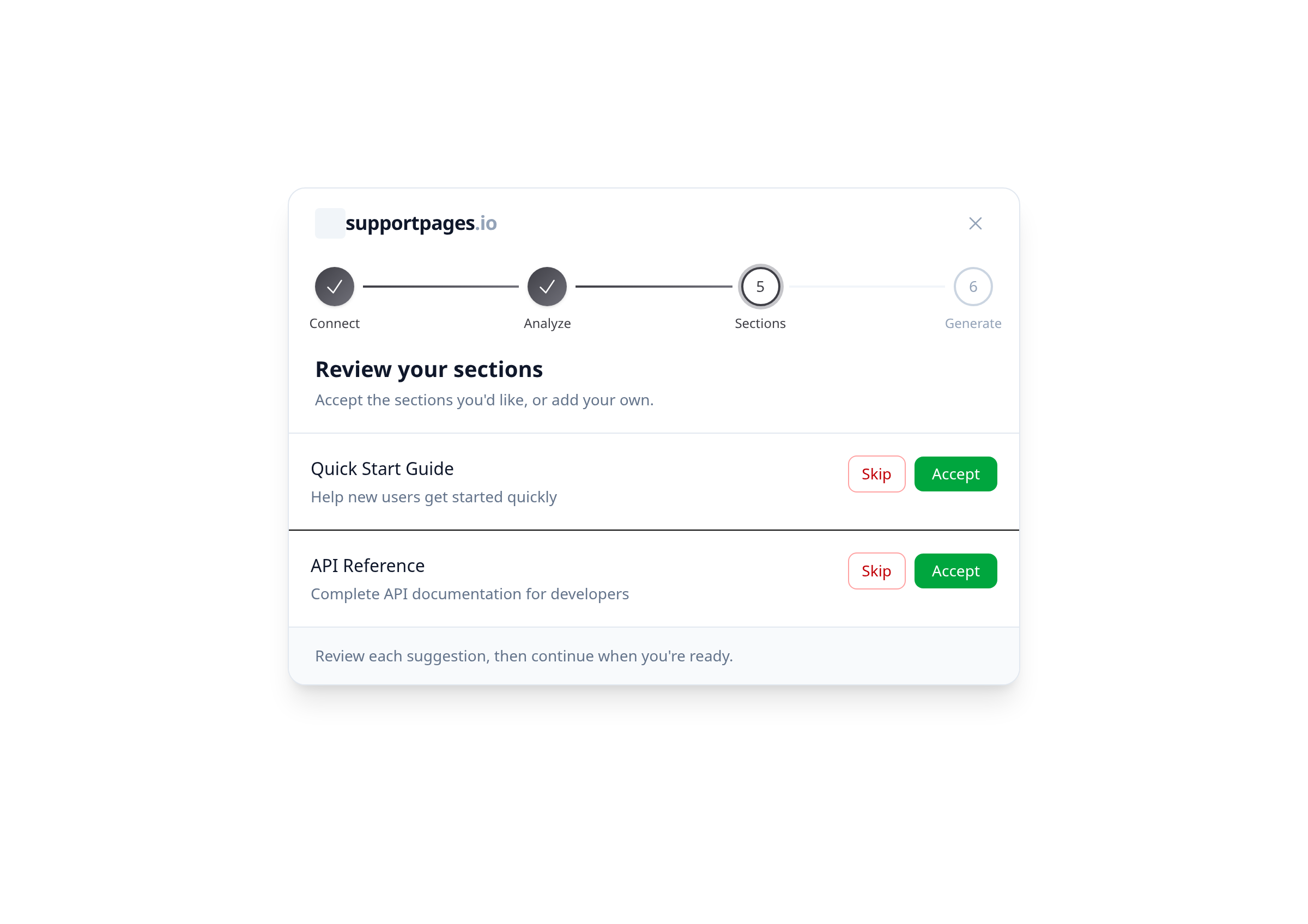
Review suggested sections during setup
When analysis finishes, you'll land on Review your sections. Each suggestion shows a name and description — click Accept to add it to your help centre, or Skip to dismiss it.
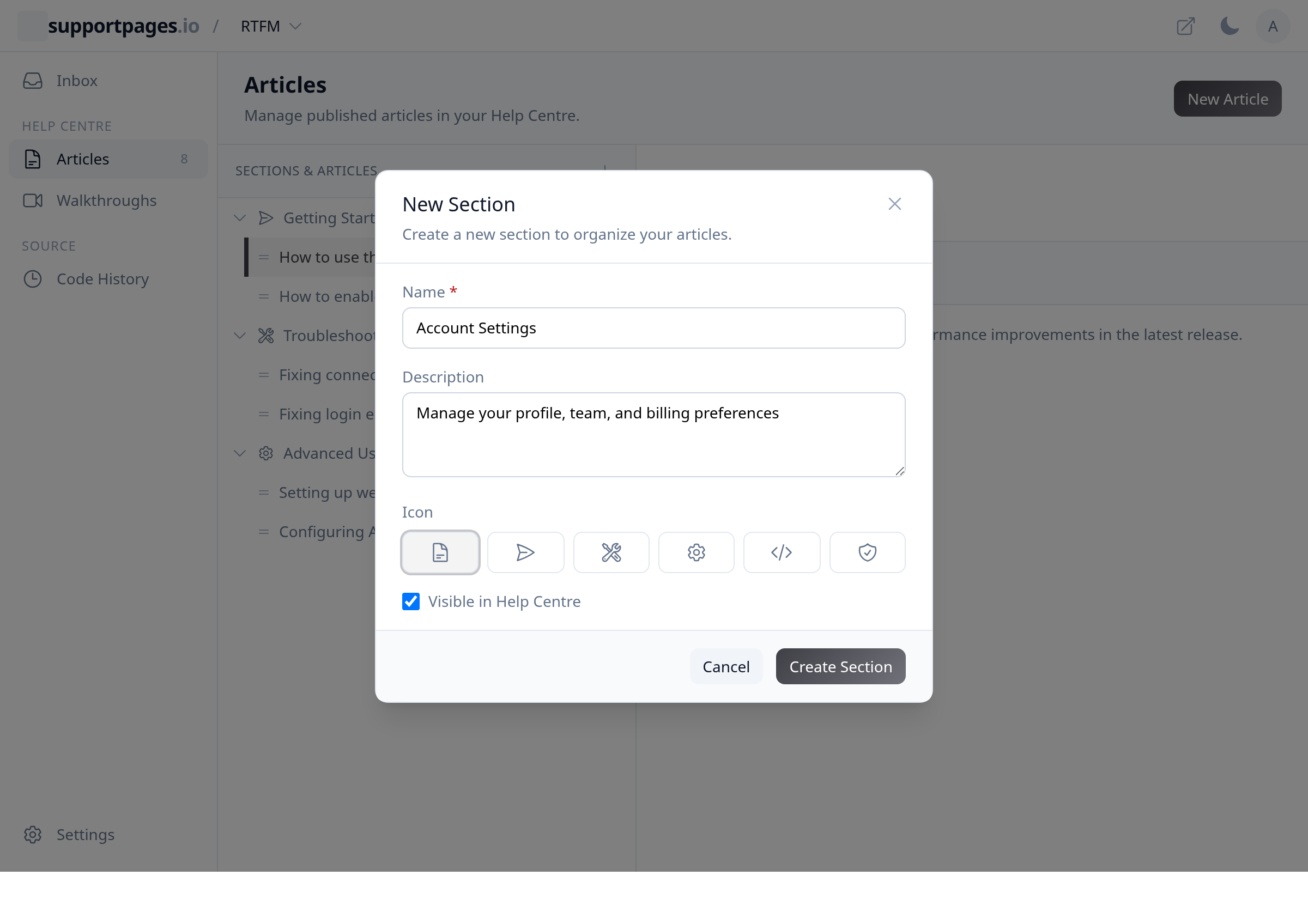
Add a new section
On the Articles page, click the + button next to Sections & Articles to open the New Section dialog.
Fill in the section details
Enter a Name, add an optional Description, pick an Icon, and leave Visible in Help Centre checked if you want it on your public site. Click Create Section when you're done.
Rename or update a section
Hover a section row in the folder tree and click the Section options menu (the vertical dots). Choose Edit, update the Name, Description, Icon, or visibility, then click Save Changes.
Remove a section
Open the Section options menu on the section you want to remove and click Delete. Confirm the prompt — articles in that section move to Uncategorized.
Reorder articles within a section
Drag an article by its handle (the bars icon on the left) to change its order inside a section. You can also drag articles between sections to reorganize your help centre.
Tips
- Accept section suggestions that match how your customers think about your product — you can always add or edit sections later on the Articles page.
- Use clear section names on your public help centre; customers see these on the homepage and in navigation.
Summary
Your help-centre sections shape how customers browse your docs. Review suggestions during setup, then use the Articles page anytime to add, edit, or remove sections as your product grows.
Was this article helpful?
Kept in sync by supportpages.io — continuous documentation for your product.
Have a question?
Search our articles, or ask and get an answer straight away.