
How to sign in with GitHub, Google, or Apple
Updated 4 months ago
Browse All
Use an account you already have to open SupportPages in one click — no new password to remember. You'll be back to reviewing drafts and publishing articles in seconds.
Prerequisites
- An existing GitHub, Google, or Apple account
Steps
Open the sign-in page
Go to supportpages.io and click Sign in in the top-right corner, or open supportpages.io/login directly.
Open the sign-in dialog
Click Sign in again on the page if the dialog is not already open. You will see the Welcome back dialog with your sign-in options.
Choose your sign-in provider
Click Continue with GitHub, Continue with Google, or Continue with Apple — whichever matches the account you want to use.
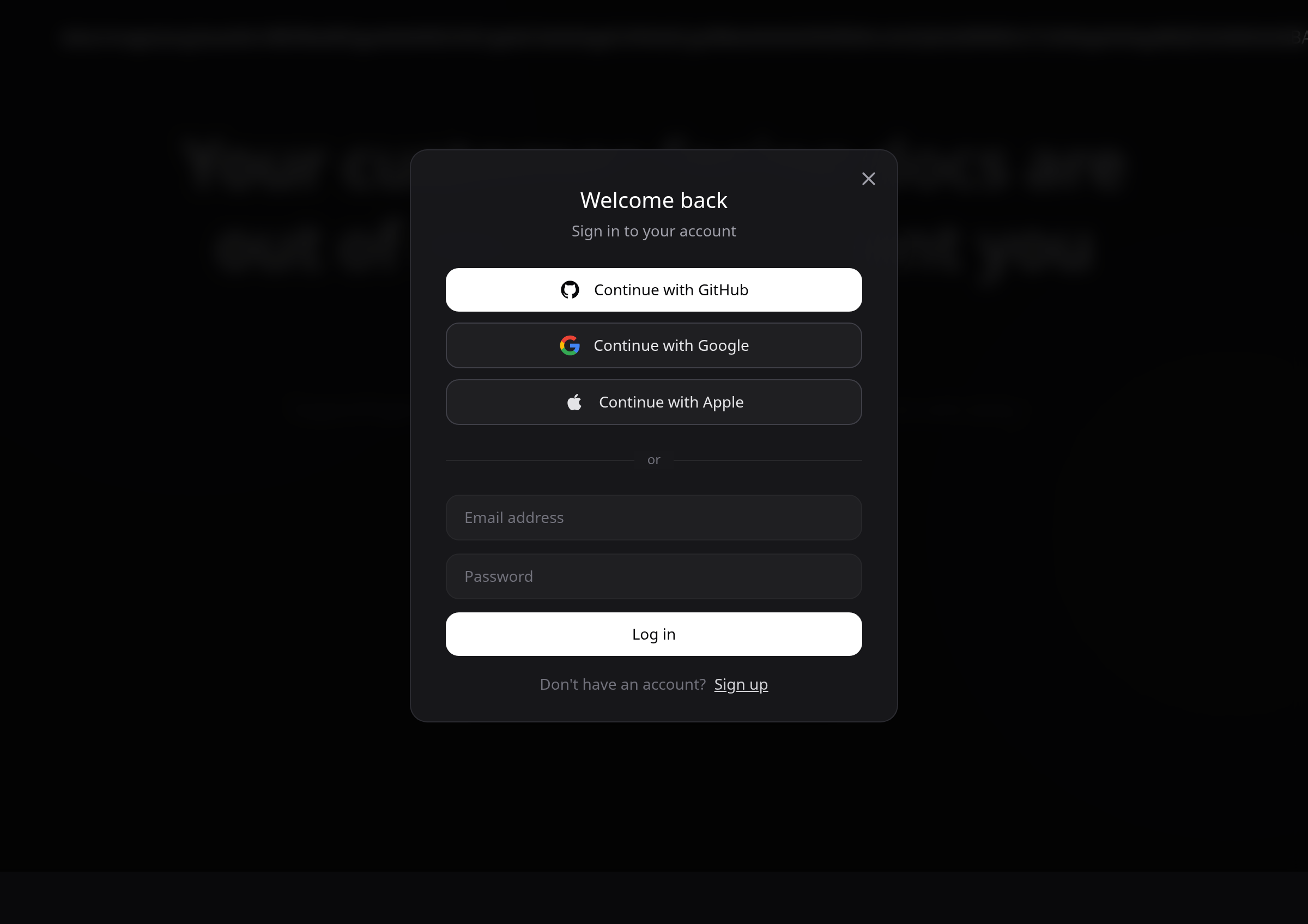
Approve on your provider's site
Follow the prompts on GitHub, Google, or Apple to sign in and allow access. SupportPages only uses this to identify your account.
Open your workspace
After you sign in, you land on Projects. Click a project card to open its inbox, articles, and settings.
Tips
- If you already signed up with email and password, you can still link GitHub, Google, or Apple later from your account settings.
- Use the same provider each time — SupportPages remembers which account you connected on your first sign-in.
Summary
Sign in from supportpages.io/login, pick Continue with GitHub, Continue with Google, or Continue with Apple, approve on your provider's site, and you are ready to work from Projects.
Was this article helpful?
Written with supportpages.io. More on documentation automation on our blog.
Have a question?
Search our articles, or ask and get an answer straight away.