
How to update screenshots in article steps
Updated 4 months ago
Browse All
When your product UI changes, step screenshots in your help articles can fall out of date. This guide shows you how to upload, replace, or remove images on individual steps so your guides stay accurate.
Prerequisites
- You have a project with at least one generated help article
- You are signed in to your SupportPages workspace
Steps
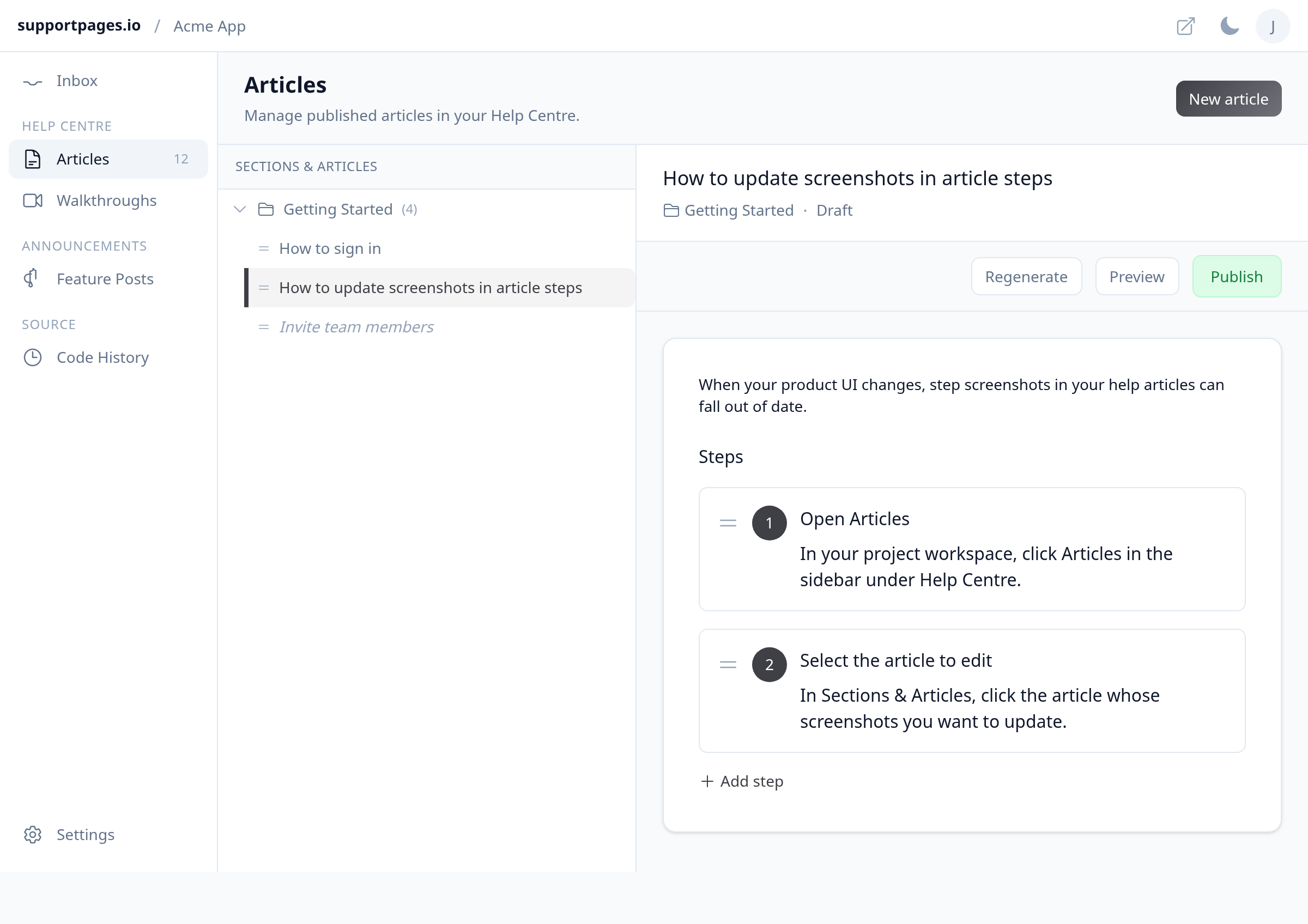
Open Articles
In your project workspace, click Articles in the sidebar under Help Centre.
Select the article to edit
In Sections & Articles, click the article whose screenshots you want to update. The editor opens on the right with the full article content.
Find the step in the Steps section
Scroll down to Steps in the editor and locate the step whose screenshot needs changing.
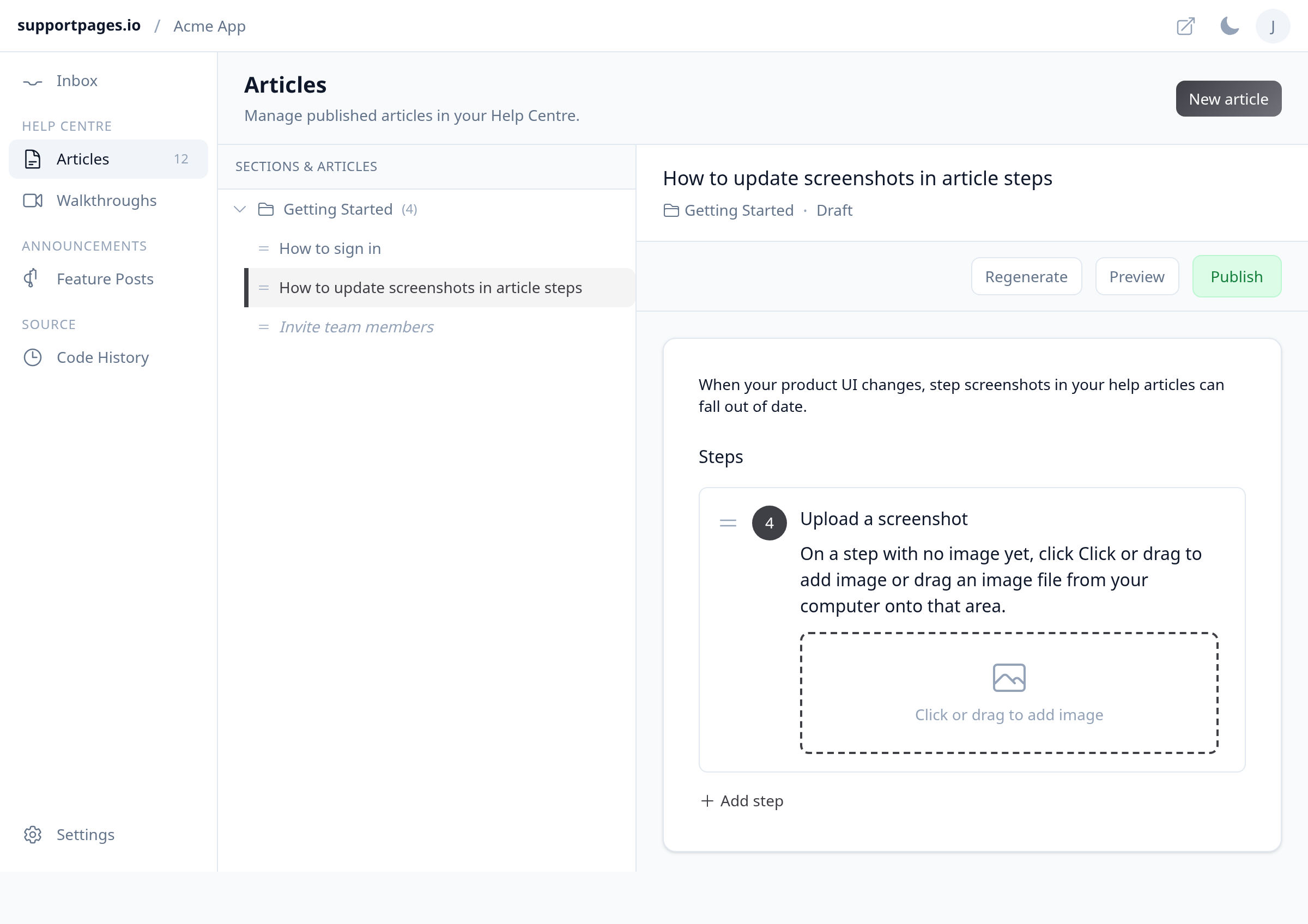
Upload a screenshot
On a step with no image yet, click Click or drag to add image or drag an image file from your computer onto that area. The image uploads automatically and appears below the step text.
Replace an existing screenshot
To swap an image, drag a new file onto the current screenshot. You can also hover over the image, click the remove button, confirm Remove this image?, then upload a new file using the placeholder.
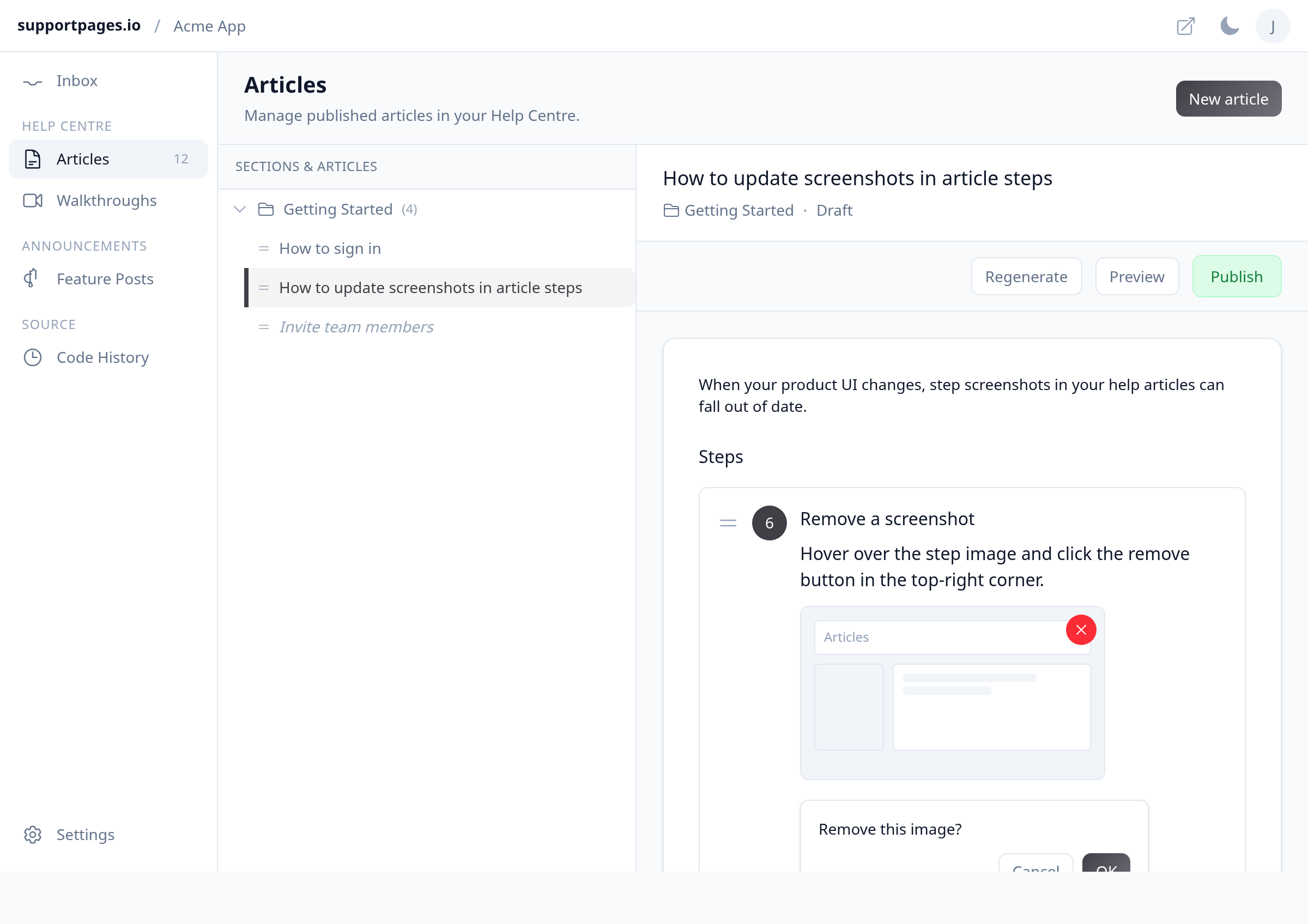
Remove a screenshot
Hover over the step image and click the × button in the top-right corner. When prompted, confirm Remove this image? to delete it from that step.
Tips
- PNG and JPG files work best for step screenshots.
- Changes save automatically — you do not need to click a separate save button.
- If a published article's screenshot changes, the live help centre updates after you upload or remove the image.
Summary
Open Articles, pick your guide, and use the image area under each step to upload, drag to replace, or remove screenshots. Your help centre stays in sync with the images you set.
Was this article helpful?
Powered by supportpages.io — help centre software for SaaS.
Have a question?
Search our articles, or ask and get an answer straight away.