
What to do when custom domain verification fails
Updated 4 months ago
Browse All
Your help centre stays on the default address until your custom domain finishes verifying. If verification stalls or shows an error, the fix is almost always in your DNS settings — here's how to check them and get unblocked.
Checks and fixes
Open the Custom Domain settings
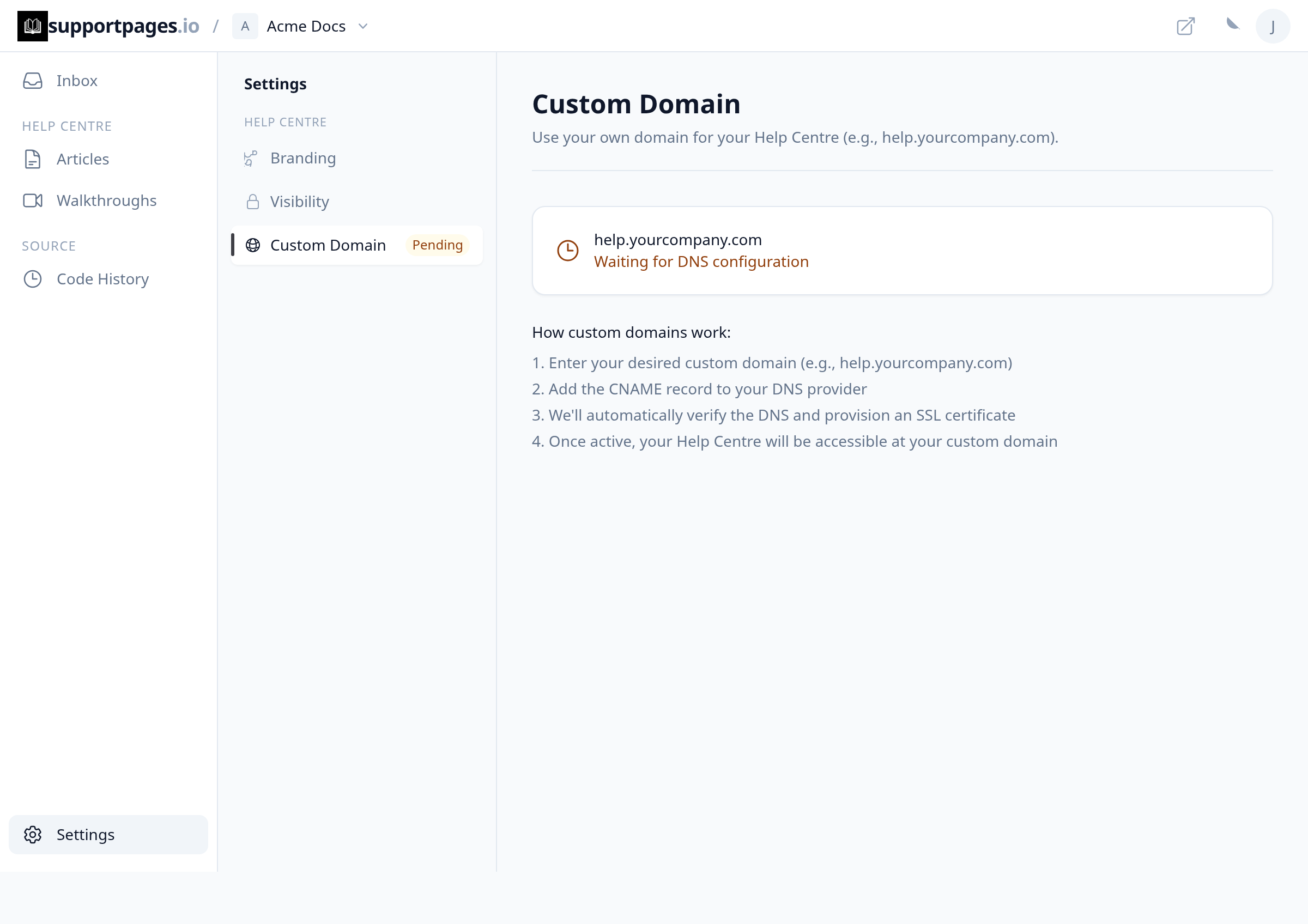
From your project, click Settings in the sidebar, then choose Custom Domain under Help centre. You'll see your domain and its current status here.
Check what status your domain shows
Waiting for DNS configuration means we haven't detected your DNS record yet. Verifying domain... means we found it and are finishing setup. Domain Setup Failed means something in DNS still isn't right.
Match your CNAME record to the table
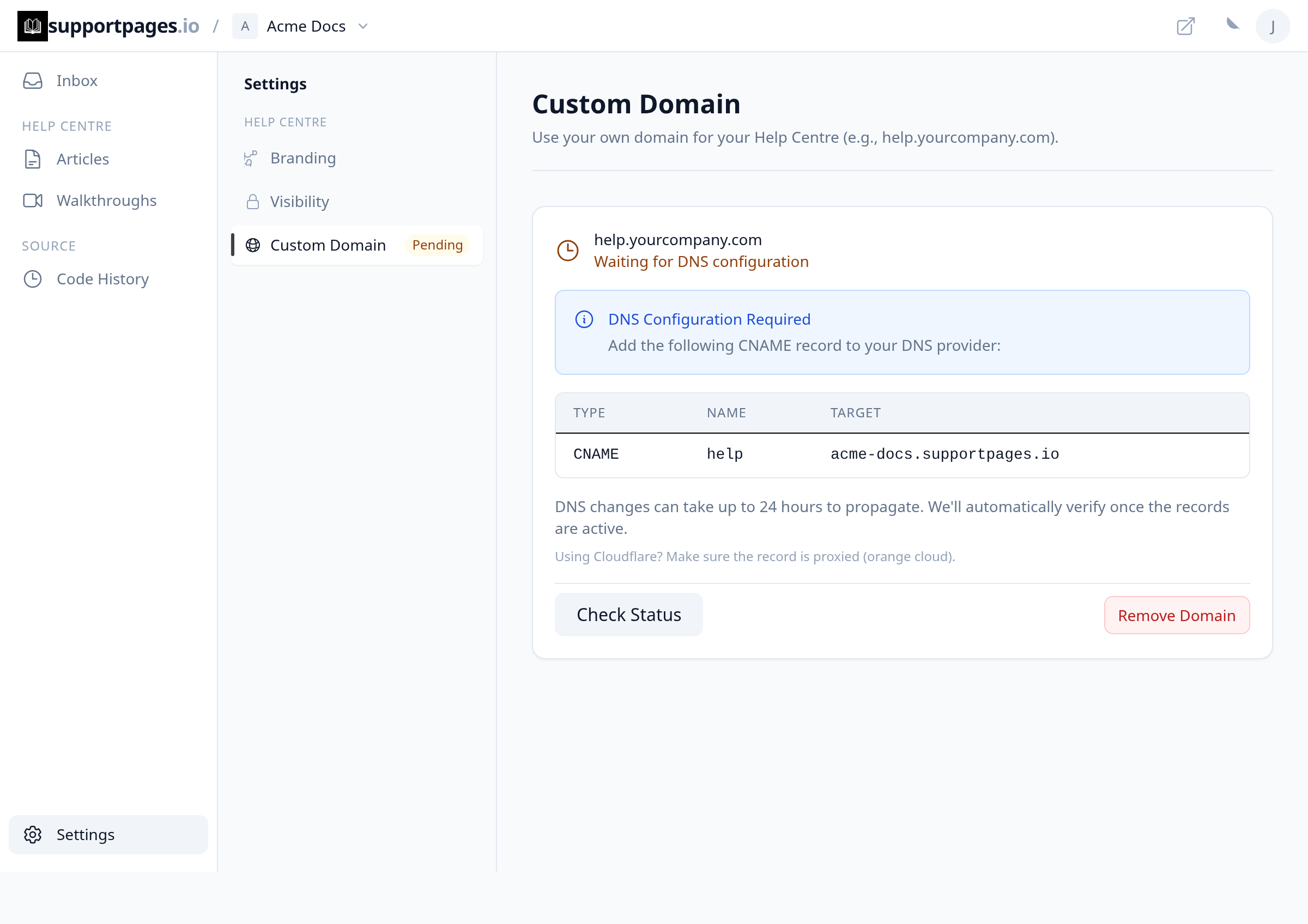
In the DNS Configuration Required section, compare the Type, Name, and Target values with the CNAME record at your DNS provider. The Name is only the subdomain part (for example, help), and the Target must match exactly — no extra paths or protocols.
If you use Cloudflare, turn on proxy
Cloudflare users should make sure the CNAME record is proxied — the orange cloud icon should be on, not grey. A DNS-only (grey cloud) record can block verification.
Wait, then click Check Status
DNS changes can take up to 24 hours to spread. After updating your record, click Check Status on the Custom Domain page. The page refreshes automatically while we re-check.
If verification failed, retry
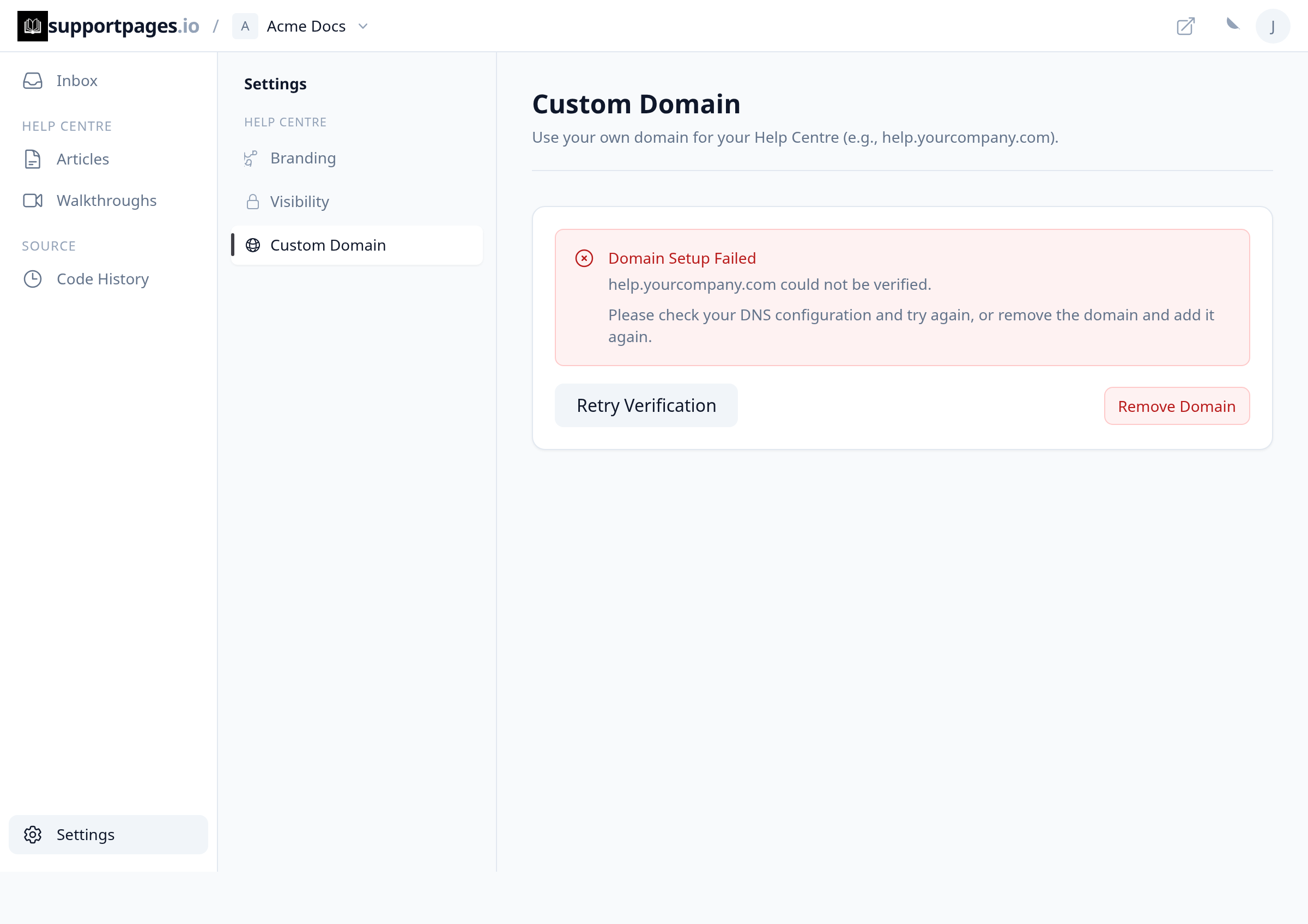
When you see Domain Setup Failed, read any error details shown, fix the DNS record, and click Retry Verification. You can also remove the domain and add it again if you need a clean start.
Watch for common setup mistakes
Use a CNAME record, not an A record. Point a subdomain like help.yourcompany.com — not your root domain or a SupportPages address. Enter the domain without https:// when you first add it.
Tips
- Add the CNAME at the DNS provider that actually serves your domain — changes at the wrong provider won't show up here.
- Lowercase your domain when you enter it; we normalize it automatically, but your DNS Target must match the value in the table exactly.
Summary
Open Settings → Custom Domain, confirm your CNAME matches the table, turn on Cloudflare proxy if you use it, wait for DNS to propagate, then use Check Status or Retry Verification. Once verification succeeds, your help centre goes live at your custom address.
Was this article helpful?
Kept in sync by supportpages.io — continuous documentation for your product.
Have a question?
Search our articles, or ask and get an answer straight away.