
How to publish all approved articles at once
Updated 4 months ago
Browse All
After a big release, you may have several finished articles waiting in your inbox. Use Publish all to approve and publish every ready article to your Help Centre in one go.
Prerequisites
- You are signed in and have access to the project
- At least one article has finished generating and has a section assigned
Steps
Open your project Inbox
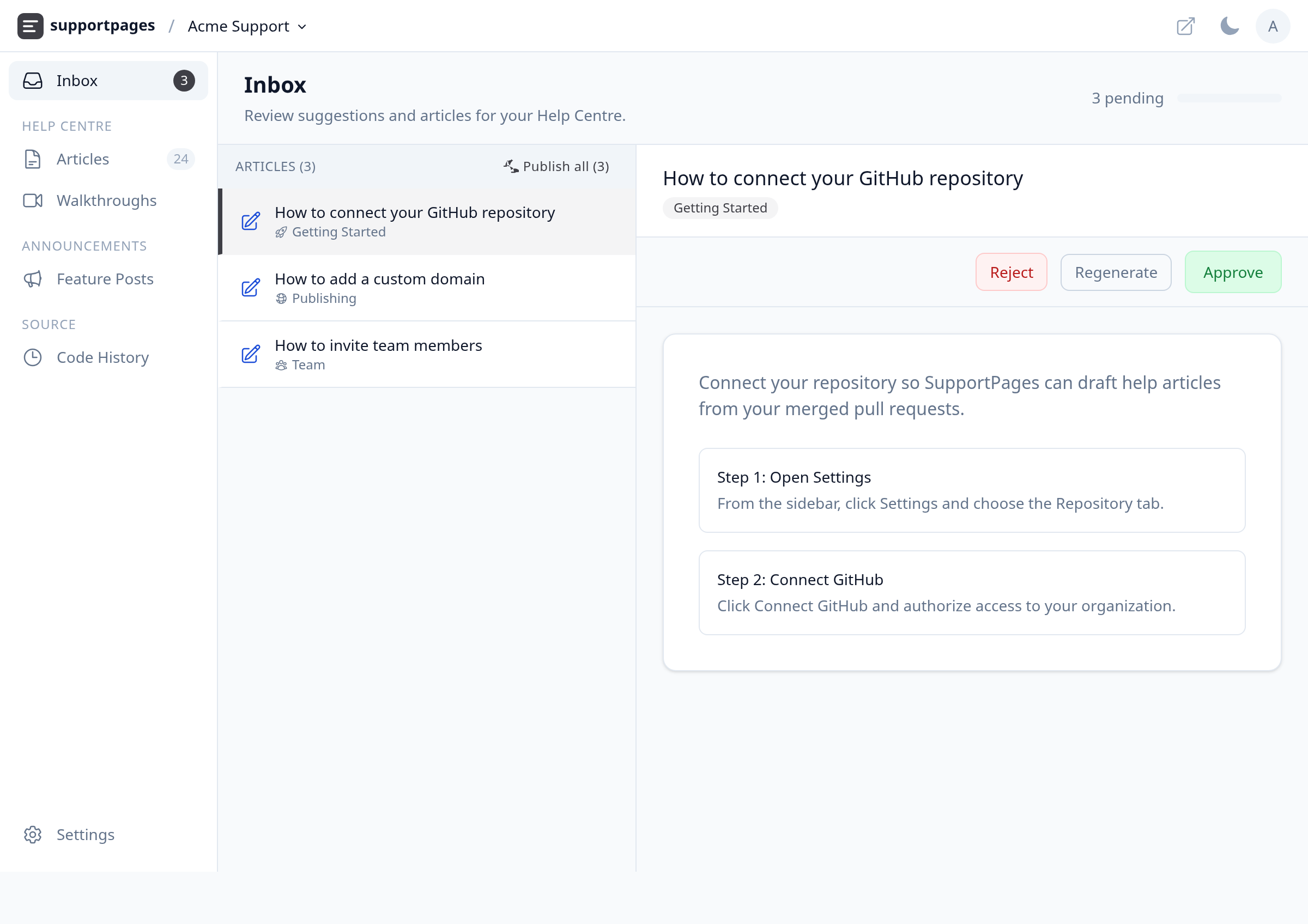
From the left sidebar, click Inbox. This is where new articles land for review before they go live.
Find the Publish all button
In the Articles list, look at the section header. When articles are finished and assigned to a section, you'll see Publish all with a count of how many are ready.
Click Publish all
Click Publish all at the top of the Articles list. SupportPages approves and publishes every ready article in that batch — no need to open each one individually.
Confirm the batch publish
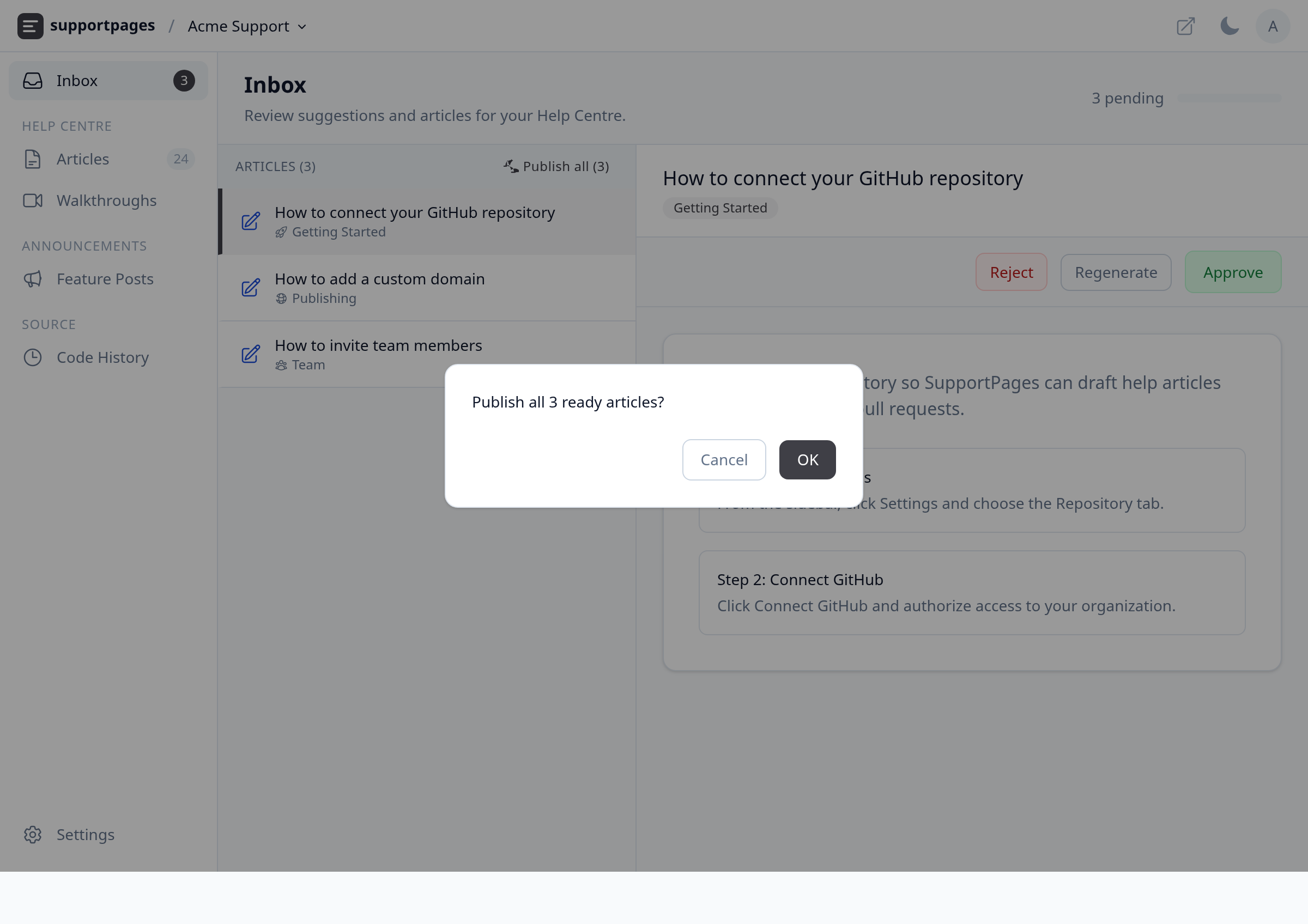
A confirmation asks how many articles you're about to publish. Click OK to push them all live to your Help Centre.
Check the result
You'll see a message like Published 3 articles. Articles without a section are skipped — assign a section to those individually, then publish them from the inbox.
Tips
- Articles still generating or missing a section won't be included in the batch — finish generation or pick a section first.
- Use the help-centre link in the top bar to spot-check articles after publishing.
Summary
Open Inbox, click Publish all when ready articles are waiting, confirm, and every eligible article goes live at once. It's the fastest way to ship a batch of guides after a release.
Was this article helpful?
Generated automatically by supportpages.io — AI knowledge base software for SaaS teams.
Have a question?
Search our articles, or ask and get an answer straight away.