
How to change who can access your help centre
Updated 4 months ago
Browse All
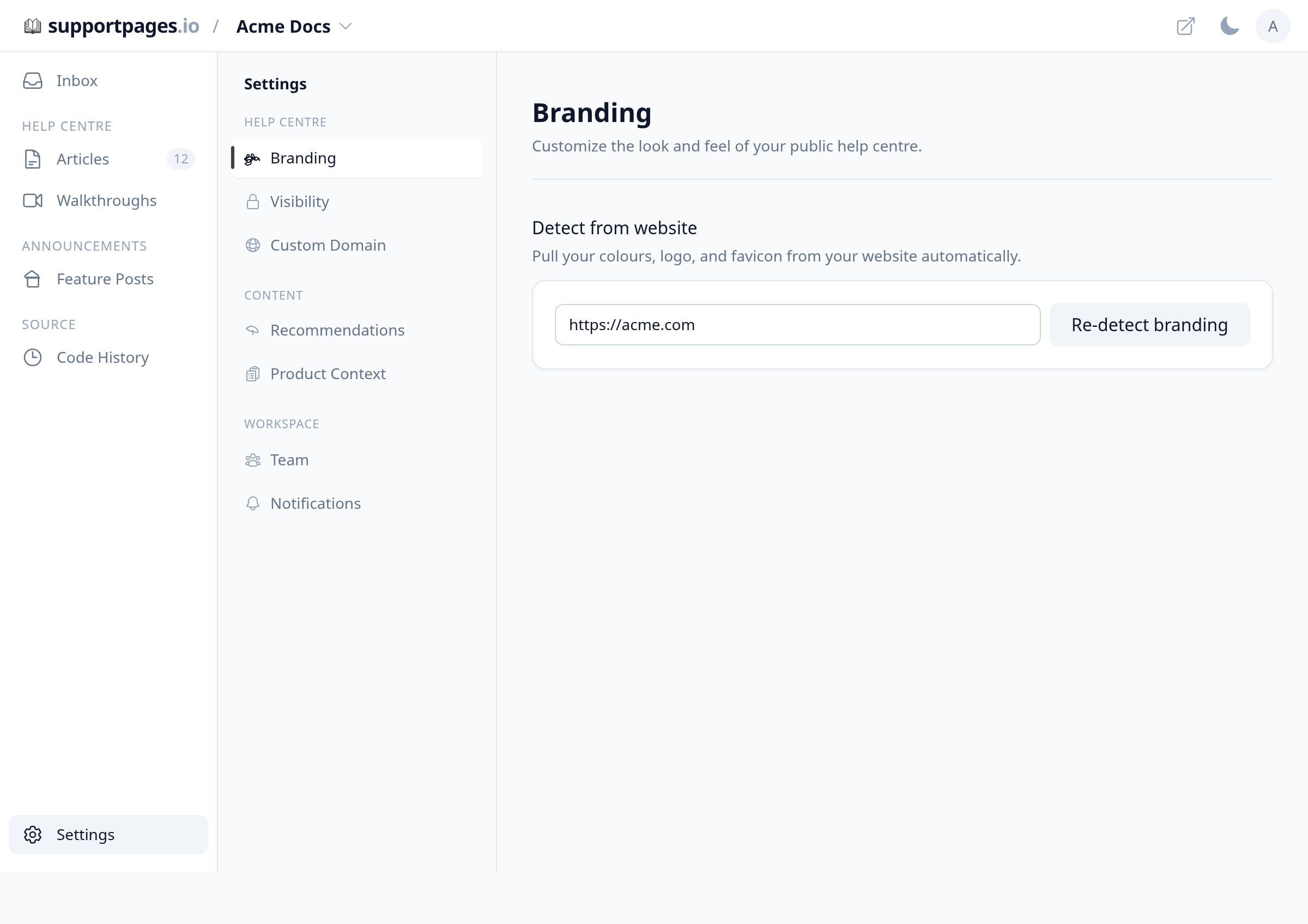
You can open your help centre to everyone, share it by link only, or limit access to specific email domains. These settings live in your project workspace under Settings → Visibility.
Prerequisites
- You are signed in to SupportPages with access to the project
- Your help centre has at least one published article (optional, but useful for testing access)
Steps
Open Settings
Open your project workspace and click Settings at the bottom of the left sidebar.
Go to Visibility
In the settings sidebar, under Help centre, click Visibility.
Choose who can access your help centre
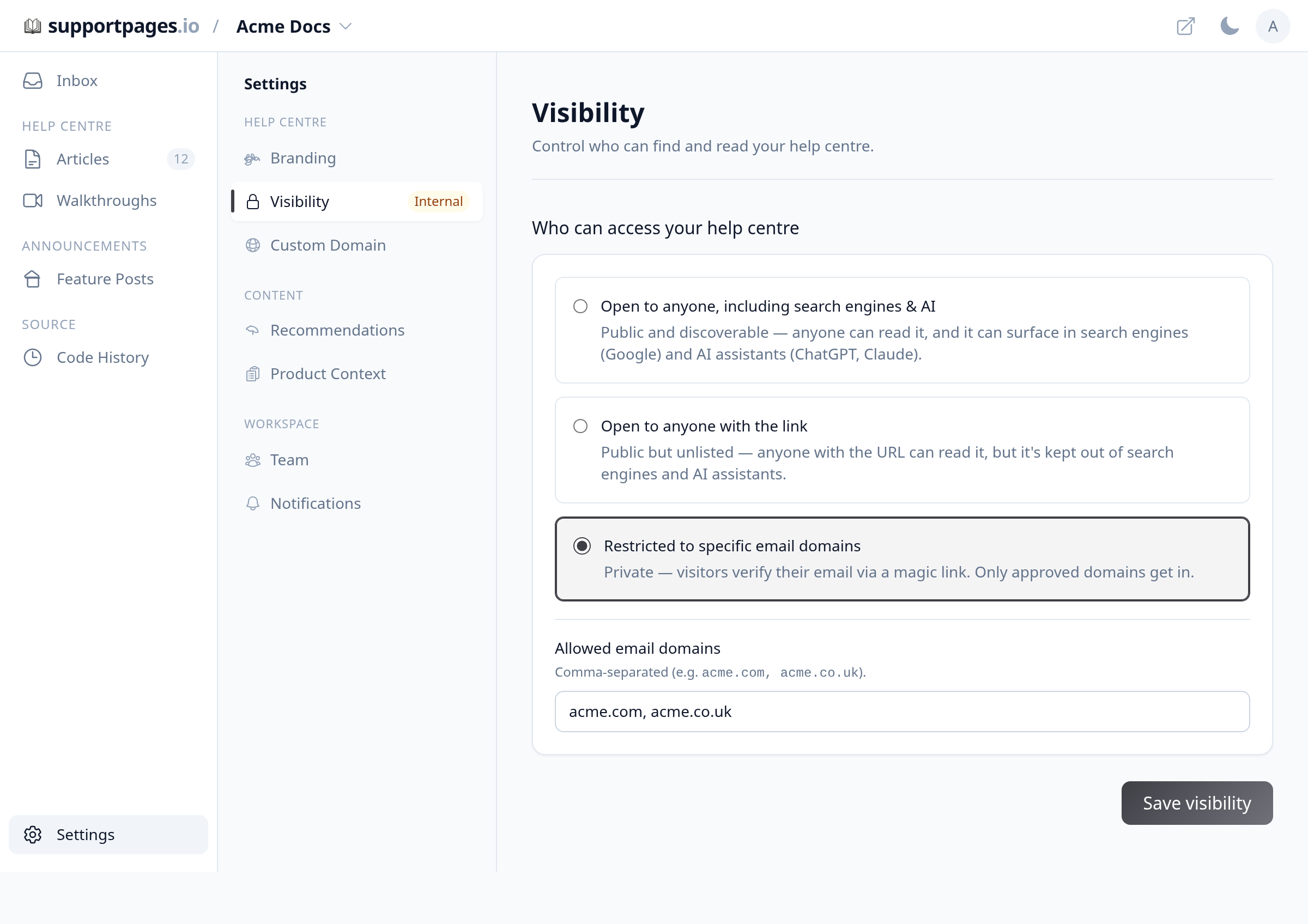
Pick one of the three access options: Open to anyone, including search engines & AI for a public, discoverable site; Open to anyone with the link for a public site that stays out of search engines and AI assistants; or Restricted to specific email domains to require a work-email sign-in for approved domains only.
Add allowed email domains (restricted only)
If you chose restricted access, enter your approved domains in Allowed email domains — comma-separated, like acme.com, acme.co.uk. Visitors verify their email with a magic link; only matching domains get in.
Save your changes
Click Save visibility at the bottom of the form. Your help centre access rules update right away.
Tips
- Use Open to anyone with the link when you want a public help centre that does not appear in Google or AI search results.
- Restricted access is a good fit for internal or customer-only docs — add every domain your readers use, including regional variants.
Summary
Open Settings, choose Visibility, pick the access level that fits your audience, add allowed domains if you chose restricted access, and click Save visibility. You can change this any time as your audience grows.
Was this article helpful?
Powered by supportpages.io — help centre software for SaaS.
Have a question?
Search our articles, or ask and get an answer straight away.