
How to add another project and switch between projects
Updated 4 months ago
Browse All
If your team ships more than one product, you can give each repo its own help centre and inbox under one account. This guide shows you how to add another project and jump between workspaces when you need to.
Prerequisites
- Signed in to your SupportPages account
- Permission to create projects on your plan
Steps
Open your projects list
Click the supportpages.io logo or open the account menu and choose Projects. You'll see every project you can access.
Start a new project
On the Projects page, click New Project. SupportPages starts the setup wizard so you can connect a repository for the new help centre.
Finish setting up the new project
Follow the setup steps to choose a repository, name your project, and complete onboarding. When setup is done, the new project appears on your Projects list like your other projects.
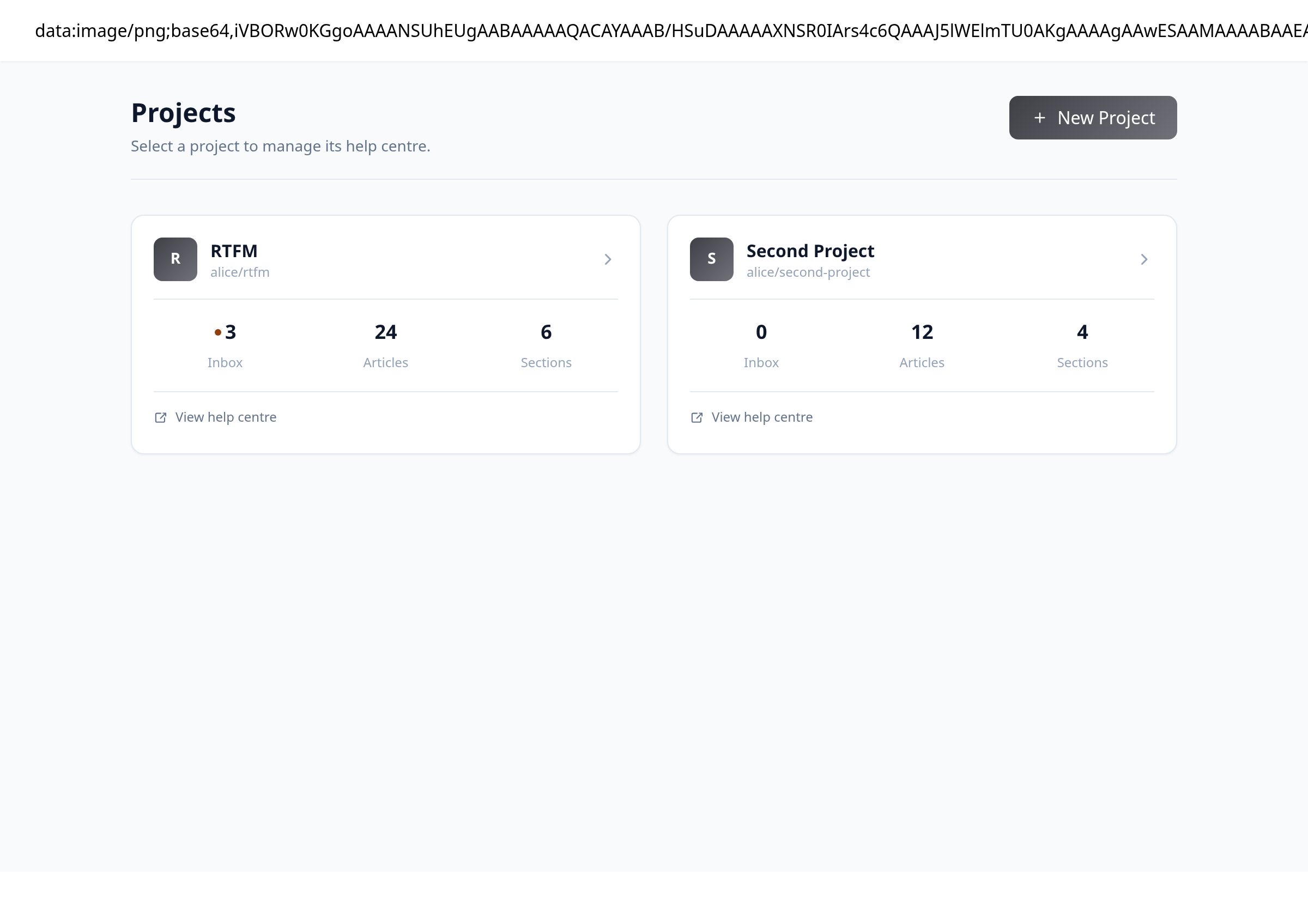
Switch to another project
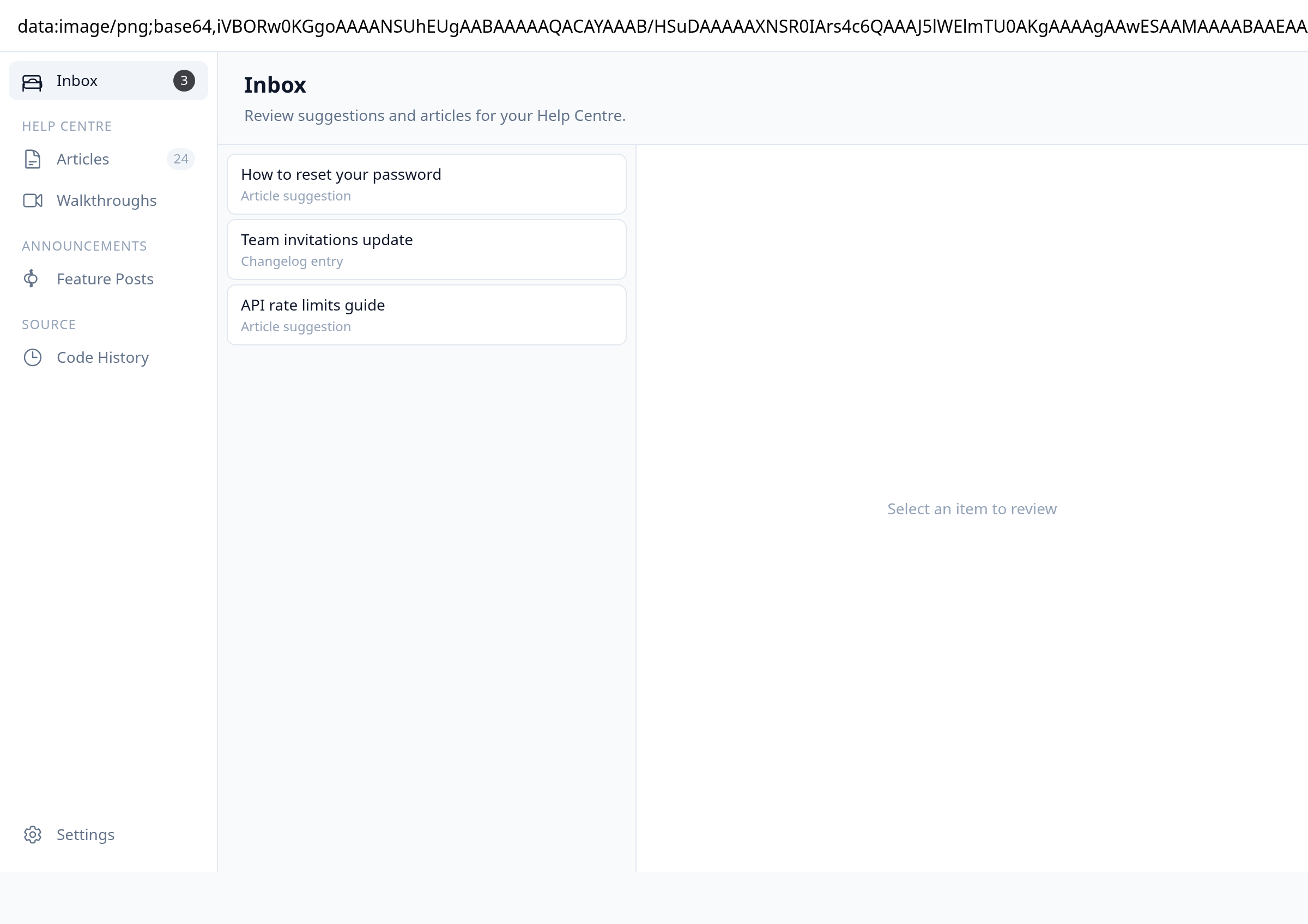
While you're in a project workspace, click the project name in the top bar. In the Switch project menu, select the project you want to work in.
Open a project from the list
You can also return to Projects and click a project card to open that workspace. Use View all projects in the switcher menu for a quick shortcut back to the list.
Tips
- Each project has its own inbox, articles, and help centre — switching projects keeps your work separated by product.
- If you hit your plan's project limit, visit Billing to upgrade before adding another project.
Summary
Add projects from the Projects page with New Project, then switch anytime from the project name menu in the workspace header. You're all set to manage multiple products from one account.
Was this article helpful?
Kept in sync by supportpages.io — continuous documentation for your product.
Have a question?
Search our articles, or ask and get an answer straight away.