
How to edit and preview an article before you publish it
Updated 4 months ago
Browse All
Polish a draft help-centre article before it goes live — tweak the title, update the body, adjust individual steps, and preview exactly how readers will see it on your public site.
Prerequisites
- A SupportPages project with at least one draft article in the Articles tab
Steps
Open the Articles tab
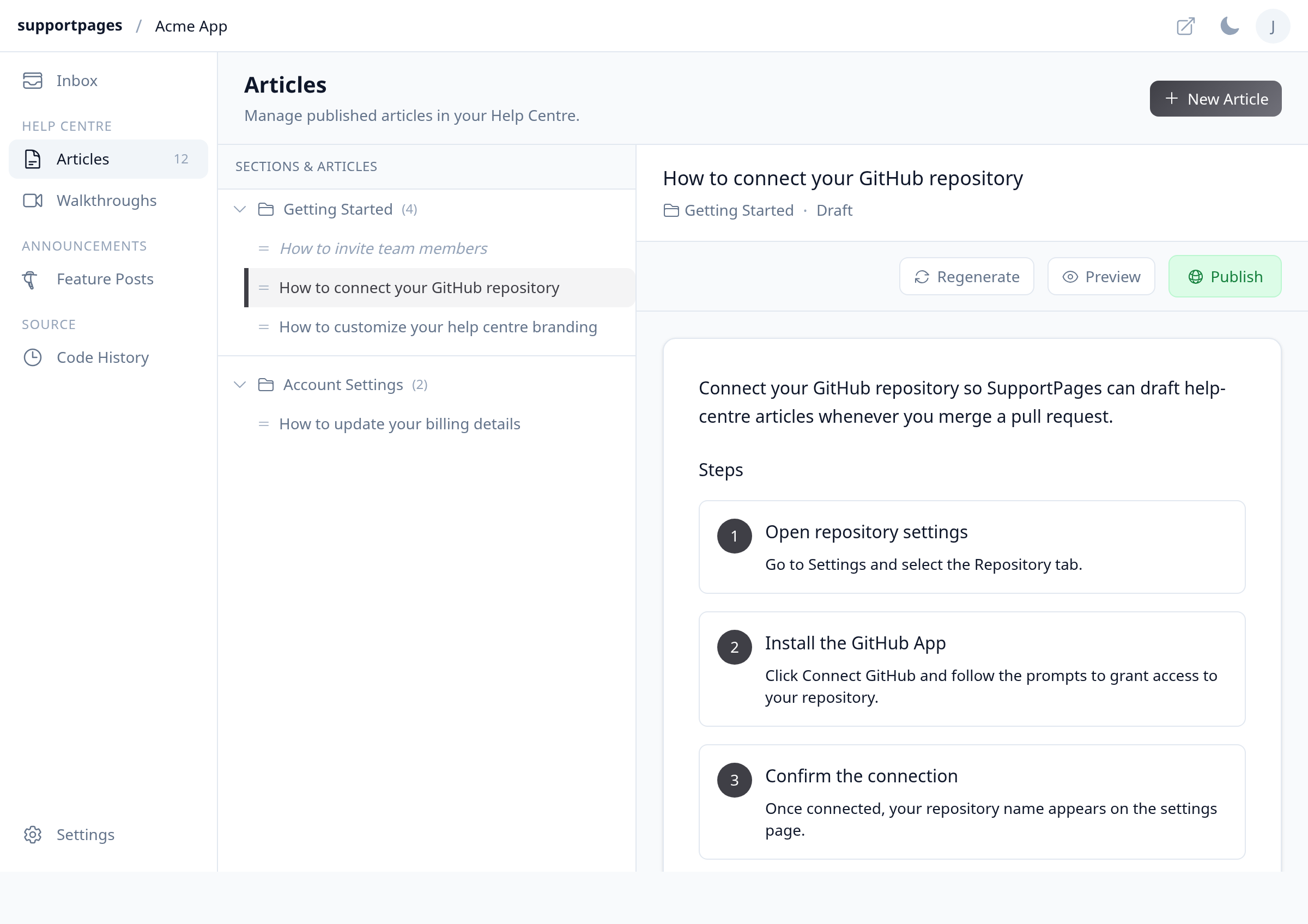
From your project workspace, click Articles in the left sidebar under Help Centre.
Select a draft article
In the Sections & Articles folder tree on the left, click the draft you want to work on. Its title appears in the editor on the right, with a Draft label below it.
Edit the title
Click the article title at the top of the editor. Type your changes and press Enter to save — updates save automatically.
Update the introduction and summary
Click the introduction paragraph or the summary at the bottom of the article card. Edit the text directly in place; your changes are saved when you click away.
Adjust step content
Scroll to the Steps section and click a step title or its body text to edit it. Use Add step to insert a new one, or drag the handle to reorder steps.
Open the preview
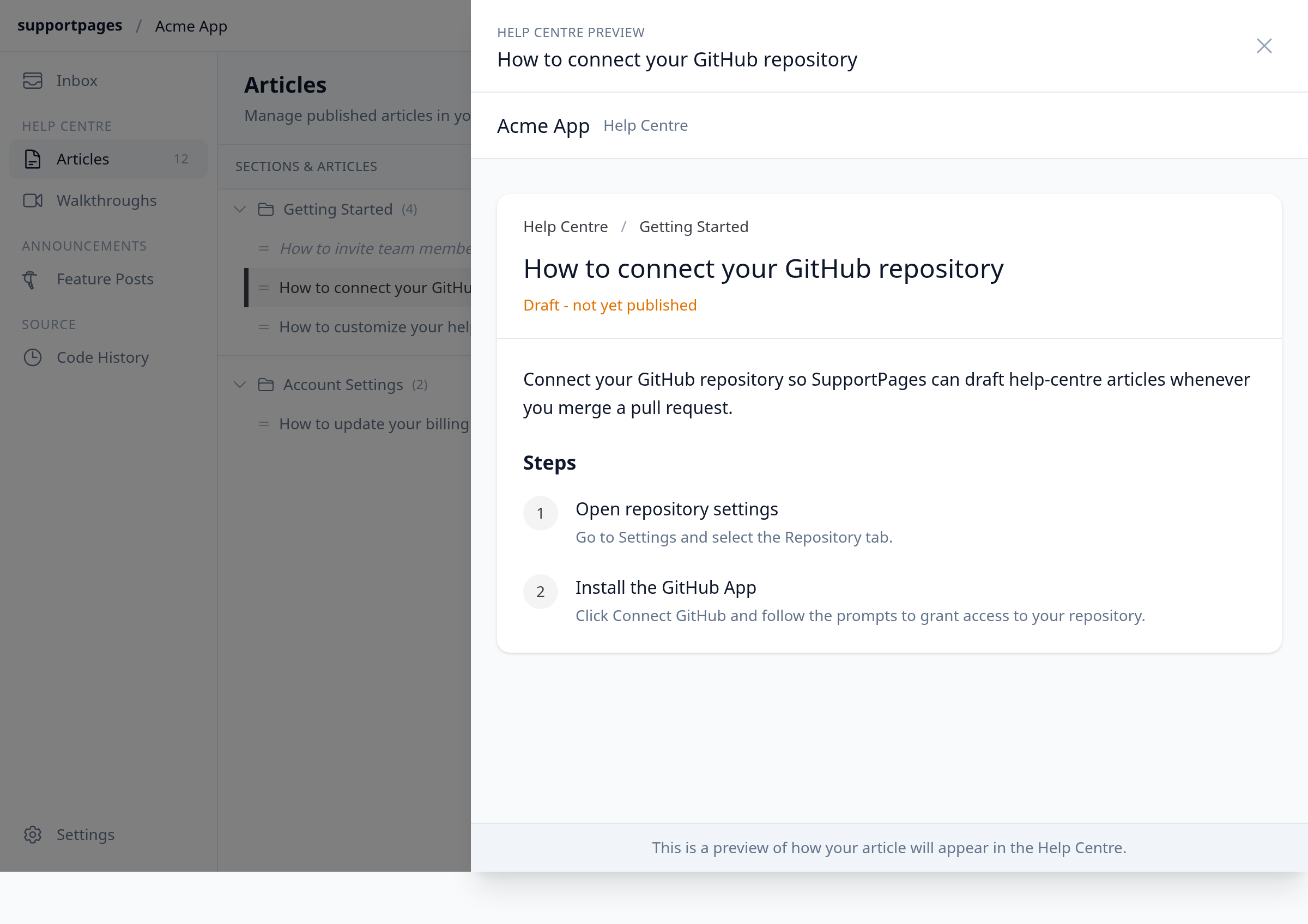
Click Preview in the toolbar above the article. A Help Centre Preview panel slides in from the right, showing how the article will look on your public help centre.
Publish when you are ready
Close the preview and click Publish in the toolbar. Your article goes live on your help centre for customers to read.
Tips
- Edits save automatically as you work — there is no separate Save button.
- Draft articles show Preview in the toolbar; published articles show View instead, which opens the live page in a new tab.
Summary
Select a draft in Articles, click any field to edit it inline, use Preview to check the reader-facing layout, then Publish when the wording looks right.
Was this article helpful?
Help centre by supportpages.io — AI-generated documentation for SaaS.
Have a question?
Search our articles, or ask and get an answer straight away.