
How to review your branding during onboarding
Updated 4 months ago
Browse All
After your repository is analysed, SupportPages detects brand colours from your codebase and pre-fills them for you. This step lets you confirm those colours, upload your logo, and see a live preview of your help centre before any articles are generated.
Prerequisites
- You have started project onboarding and finished the Analyse step
- You are signed in to your SupportPages account
Steps
Open the Add your branding step
When analysis finishes, you are taken to the Add your branding step automatically. You can also open it from the onboarding progress bar when Branding is highlighted.
Review the detected brand colours
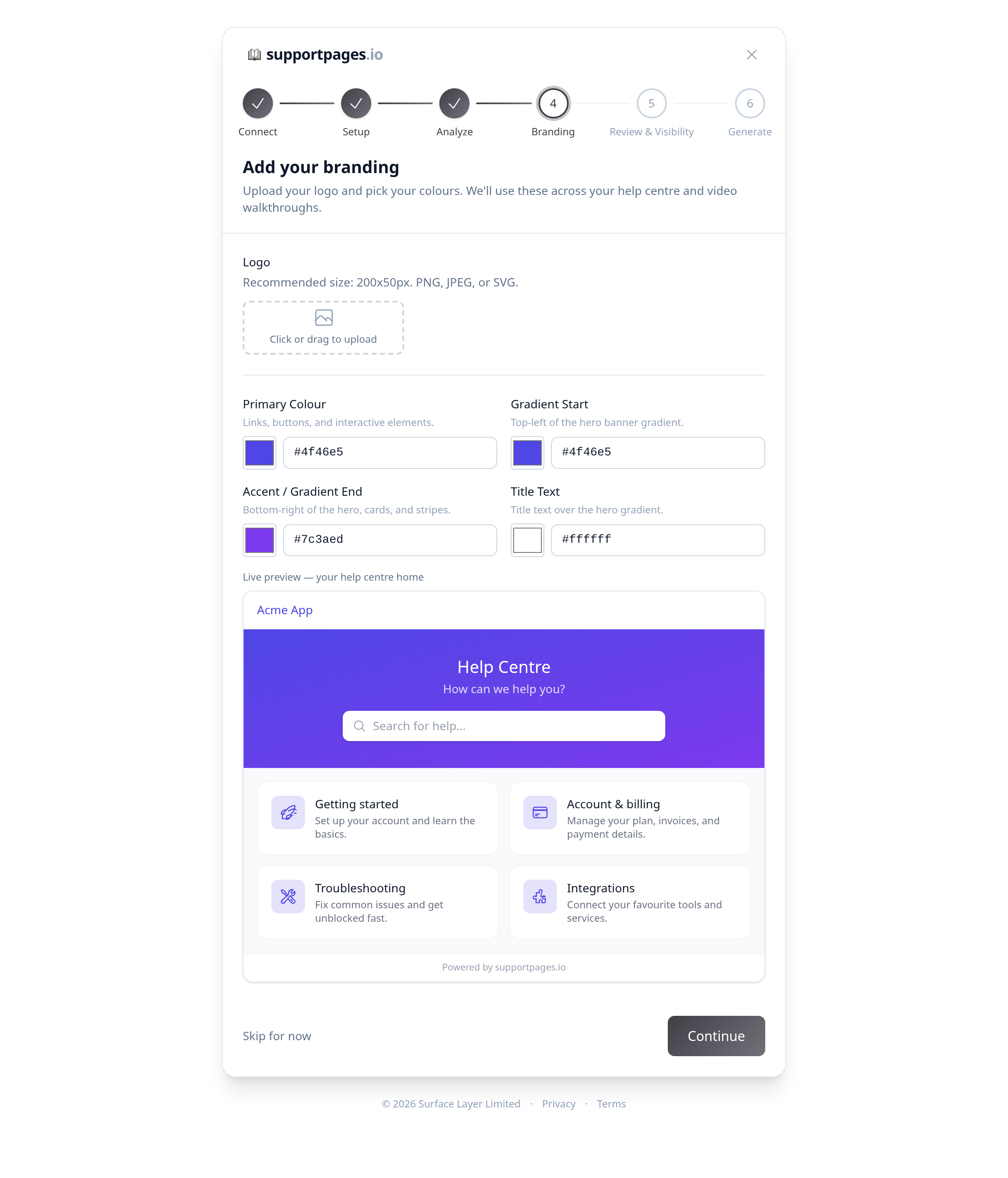
Check the Primary Colour, Gradient Start, Accent / Gradient End, and Title Text fields. SupportPages fills these from your repository so links, buttons, and your help centre hero match your product.
Adjust colours if needed
Click a colour swatch or edit the hex value next to it. Changes update the live preview right away so you can see how they look on your help centre home page.
Upload your logo
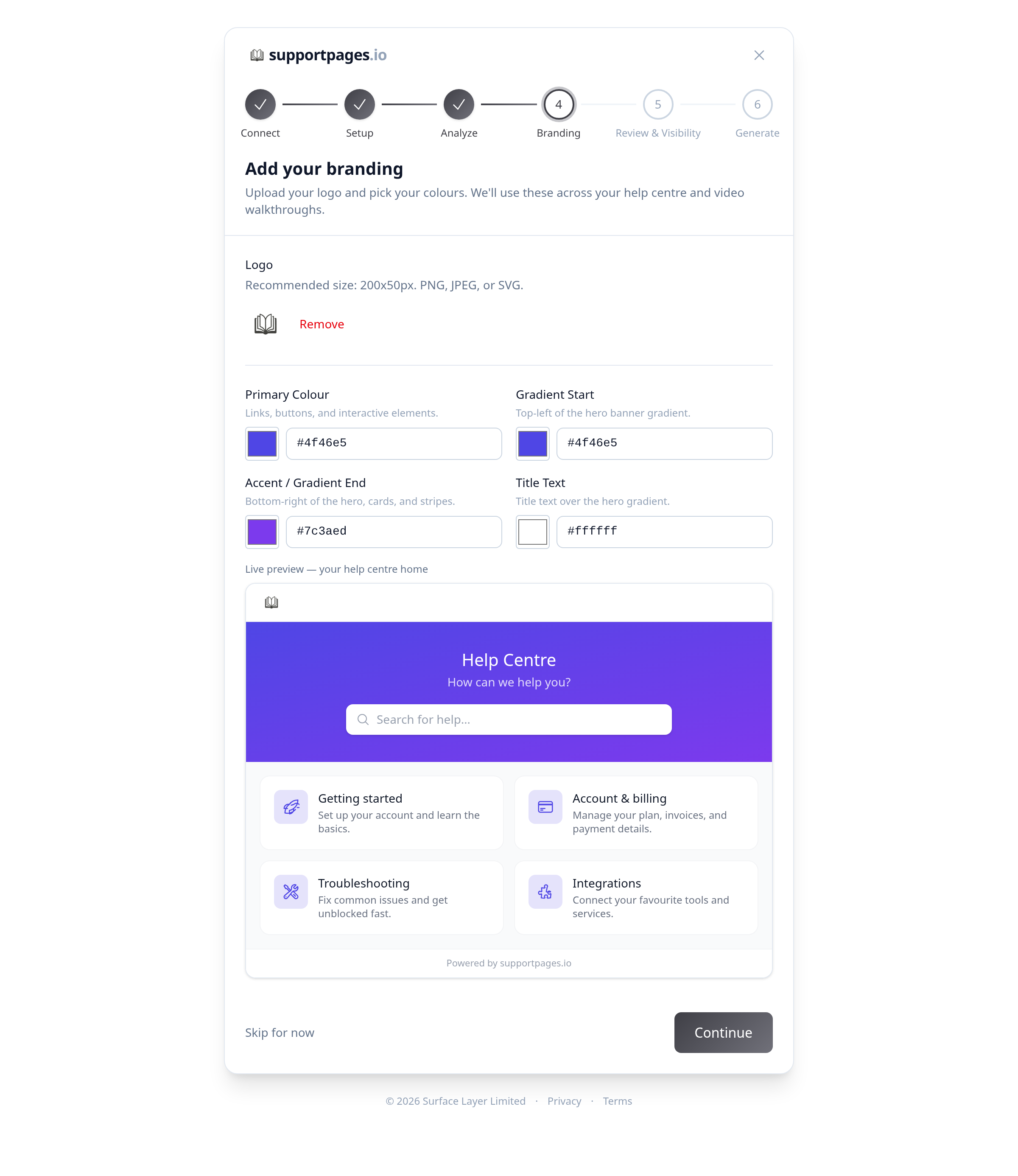
Under Logo, click Click or drag to upload and choose a PNG, JPEG, or SVG file (200×50px recommended). Your logo appears in the upload area and in the live preview header.
Check the live preview
Scroll to the live preview panel and confirm the gradient, title, and section cards look right. This is how customers will see your help centre once articles are published.
Save your branding
Click Continue to save your colours and logo and move on to reviewing sections. Choose Skip for now if you want to keep the detected defaults and add a logo later.
Tips
- If you entered a website URL during setup, SupportPages may also pull branding from that site.
- You can change branding any time later from your project Settings tab.
Summary
Confirm the detected colours, upload your logo, and check the live preview on the branding step, then click Continue so generated articles and walkthroughs match your product.
Was this article helpful?
Built with supportpages.io — an AI documentation generator.
Have a question?
Search our articles, or ask and get an answer straight away.