
How to review code history and analyze a specific change
Updated 4 months ago
Browse All
Use Code History when you need drafts for a particular merged pull request or commit — for example, something that landed before your repo was connected. You can browse your timeline and run analysis on just the change you care about.
Prerequisites
- A project with a connected GitHub or Bitbucket repository
- At least one merged pull request or commit in the repository
Steps
Open your project workspace
From the Projects list, open the project whose code history you want to review.
Open Code History
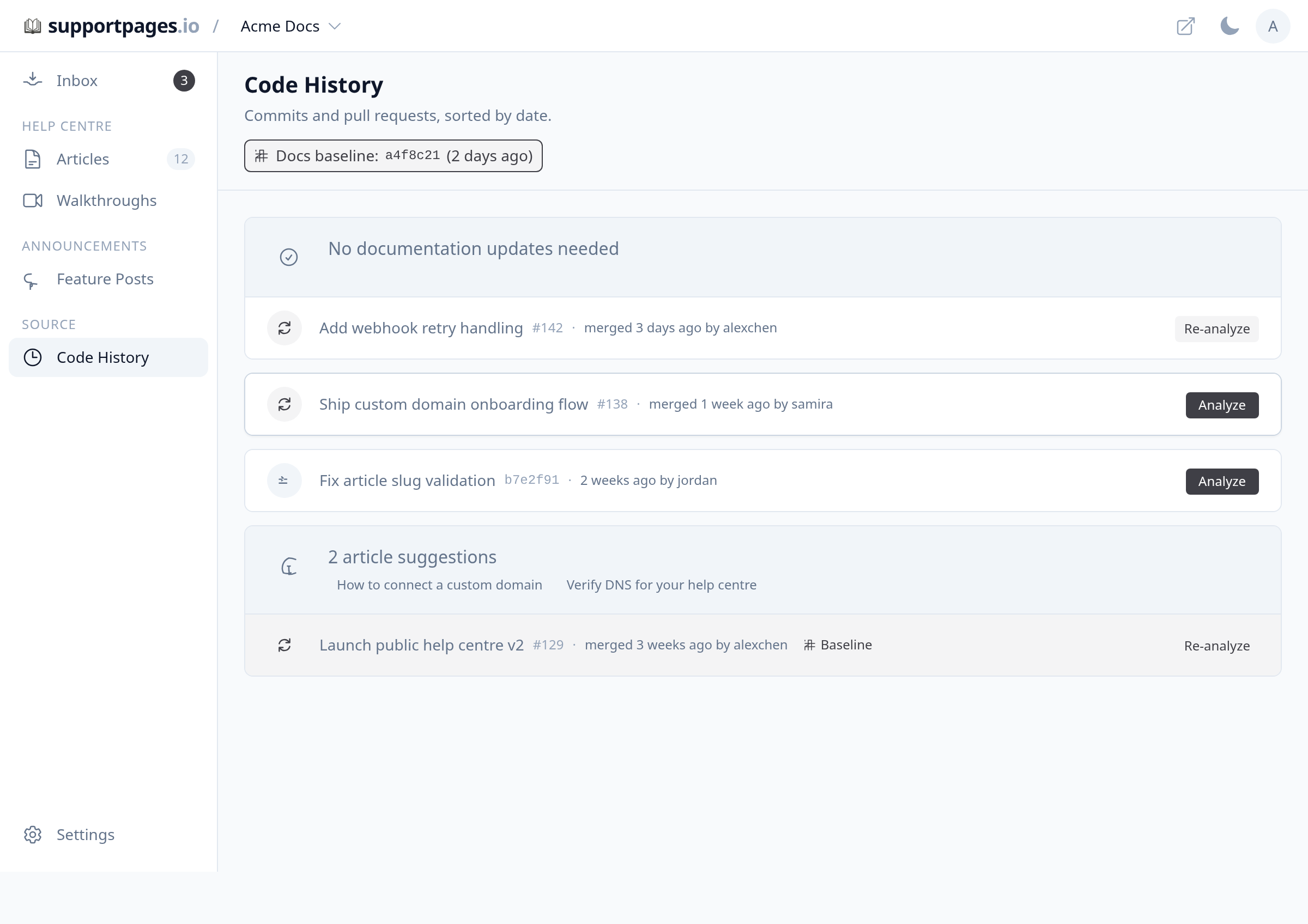
In the sidebar, under Source, click Code History. You will see merged pull requests and commits sorted by date, newest first.
Browse the timeline
Scroll through the list to review titles, authors, and dates. Pull requests show a merge icon; individual commits show a code icon. Click a title to open it on GitHub or Bitbucket in a new tab.
Pick the change you want drafts for
Find the pull request or commit you want article and changelog drafts for. Rows that have not been analyzed yet show an Analyze button on the right.
Run analysis on that change
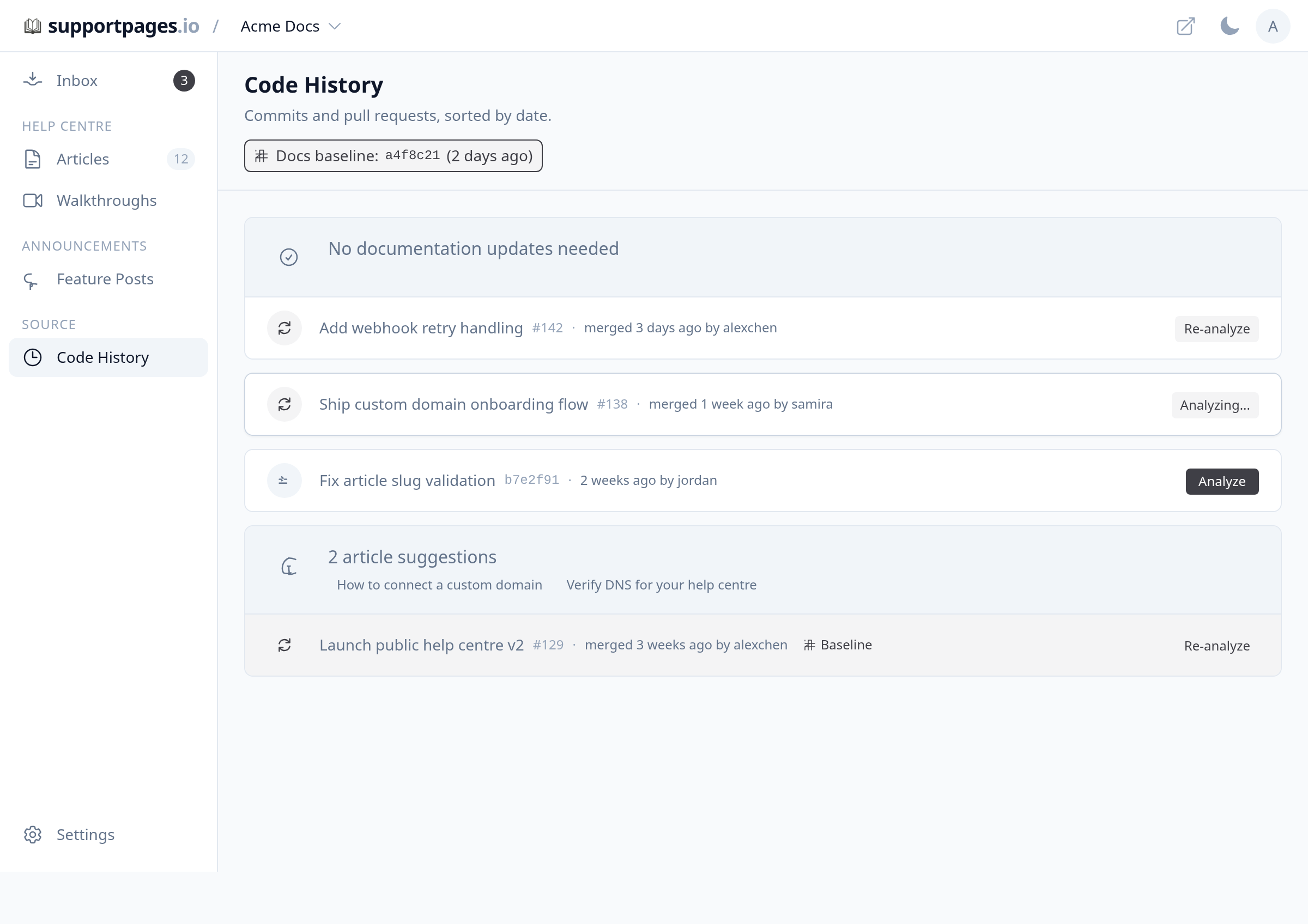
Click Analyze on the row for your chosen change. SupportPages starts drafting recommendations for that pull request or commit.
Review the results
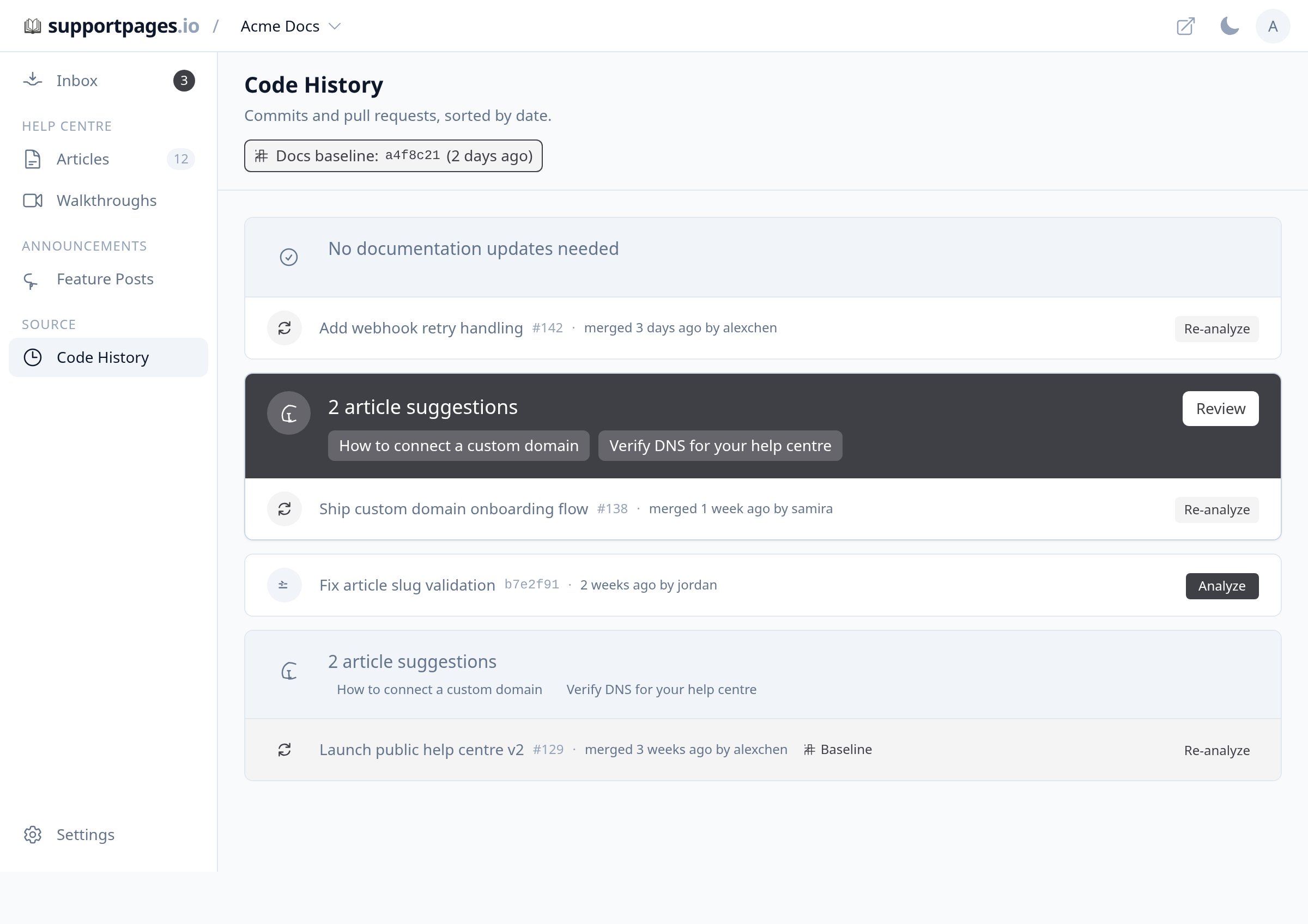
When analysis finishes, article suggestions appear above the change in the timeline. Click Review to open them in Inbox, or go to Inbox yourself to approve and publish drafts.
Tips
- If Analyze is greyed out on older changes, analyze newer items above it in the timeline first — items before your docs baseline unlock in order.
- Already analyzed a change? Use Re-analyze to replace the existing analysis with fresh drafts.
Summary
Code History gives you a dated list of merged work from your repo. Pick any change, click Analyze, and check Inbox when the drafts are ready.
Was this article helpful?
Built with supportpages.io — SaaS documentation software.
Have a question?
Search our articles, or ask and get an answer straight away.