
How to set up a custom domain for your help centre
Updated 4 months ago
Browse All
Use your own web address (like help.yourcompany.com) so customers see your brand when they read your docs. This guide walks you through adding the domain in SupportPages and confirming the DNS record.
Prerequisites
- A Pro plan (custom domains are not available on the free plan)
- A domain you control, such as help.yourcompany.com
- Access to your domain provider's DNS settings
Steps
Open Settings
From your project workspace, click Settings in the left sidebar.
Open the Custom Domain tab
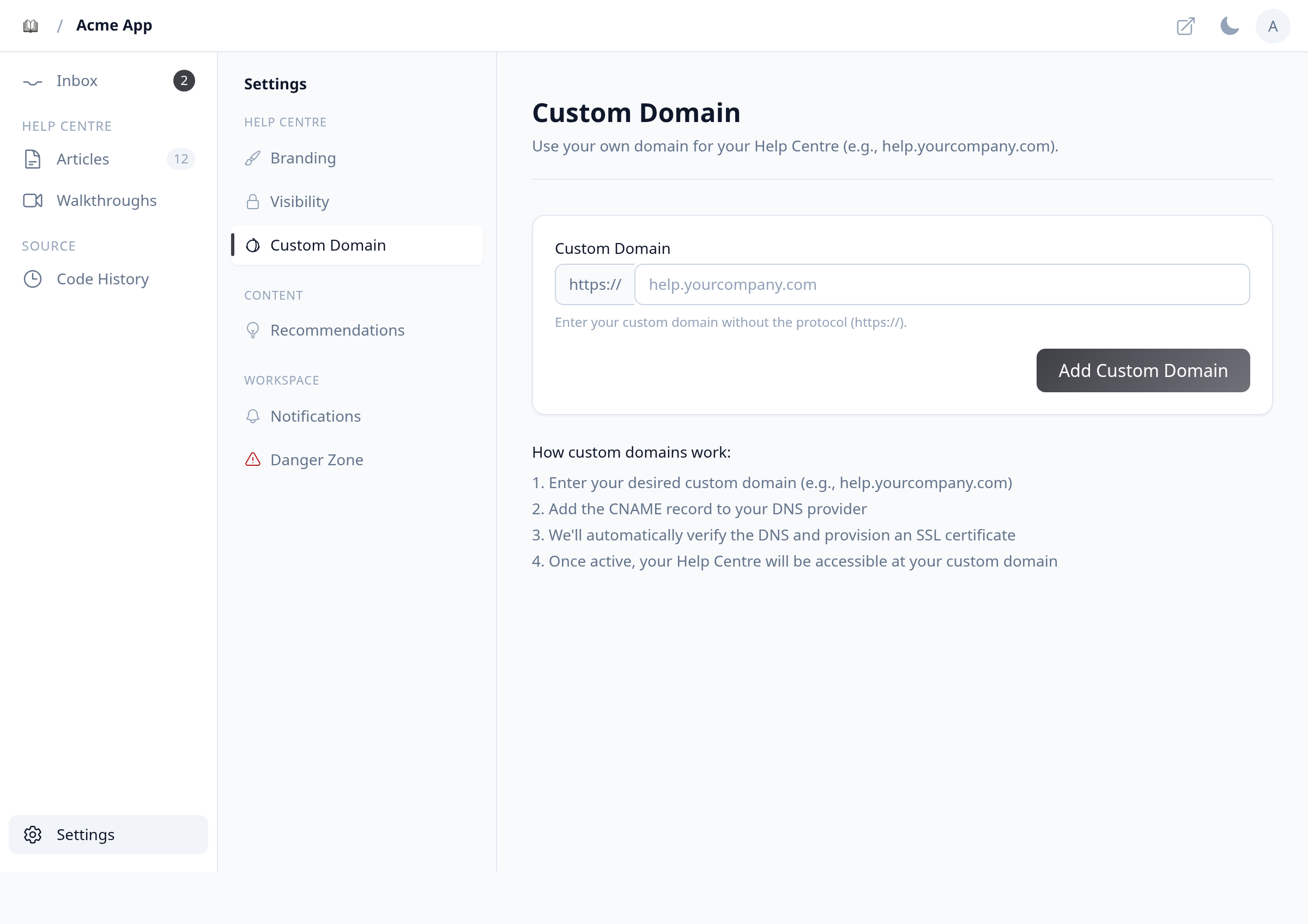
Under Help centre, select Custom Domain. You'll see a field where you can enter your domain.
Add your domain
Type your domain in the Custom Domain field (for example, help.yourcompany.com — no https://). Click Add Custom Domain.
Add the CNAME record at your DNS provider
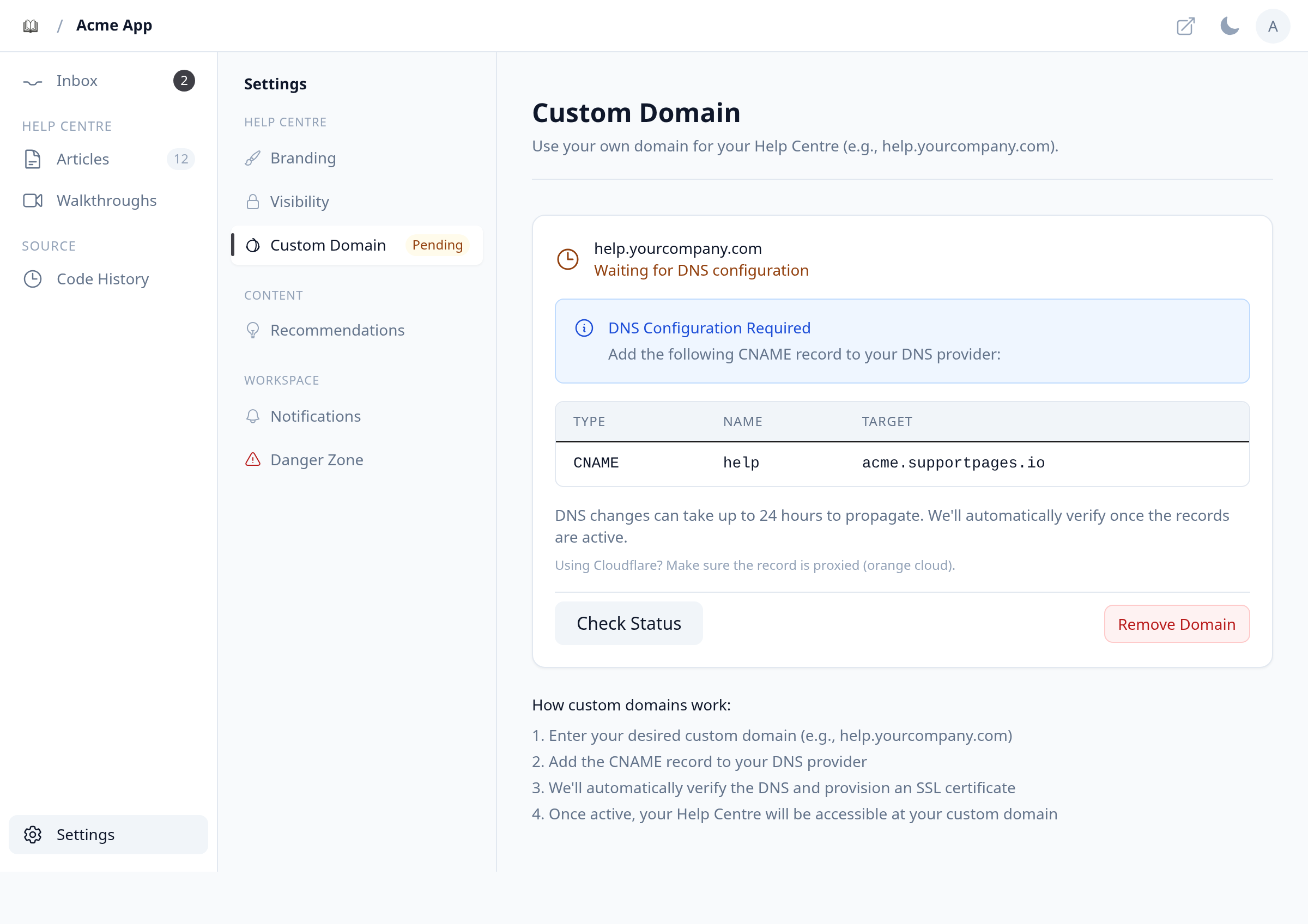
SupportPages shows a CNAME record in the DNS Configuration Required section. Sign in to your domain provider and create a CNAME with the Type, Name, and Target values from that table.
Check verification status
Back in SupportPages, click Check Status to run a check, or wait — we verify automatically once DNS propagates. DNS changes can take up to 24 hours.
Confirm your help centre is live
When the status reads Active and serving traffic, click Visit to open your help centre on your custom domain.
Tips
- If you use Cloudflare, turn on the orange-cloud proxy for the CNAME record.
- You cannot use supportpages.io or a subdomain of it as your custom domain — pick an address on a domain you own.
Summary
Your help centre is now reachable at your own domain. Changes to articles still publish automatically — visitors just see them under your brand's URL.
Was this article helpful?
Generated by supportpages.io, an AI changelog generator for SaaS teams.
Have a question?
Search our articles, or ask and get an answer straight away.