
What your users see when they visit your help centre
Updated 4 months ago
Browse All
When you share your help centre link, customers land on a branded site built from your project settings and published articles. Here is what they see at each level — the home page, category sections, and individual guides.
Prerequisites
- At least one published article in your help centre
Key concepts
The home page
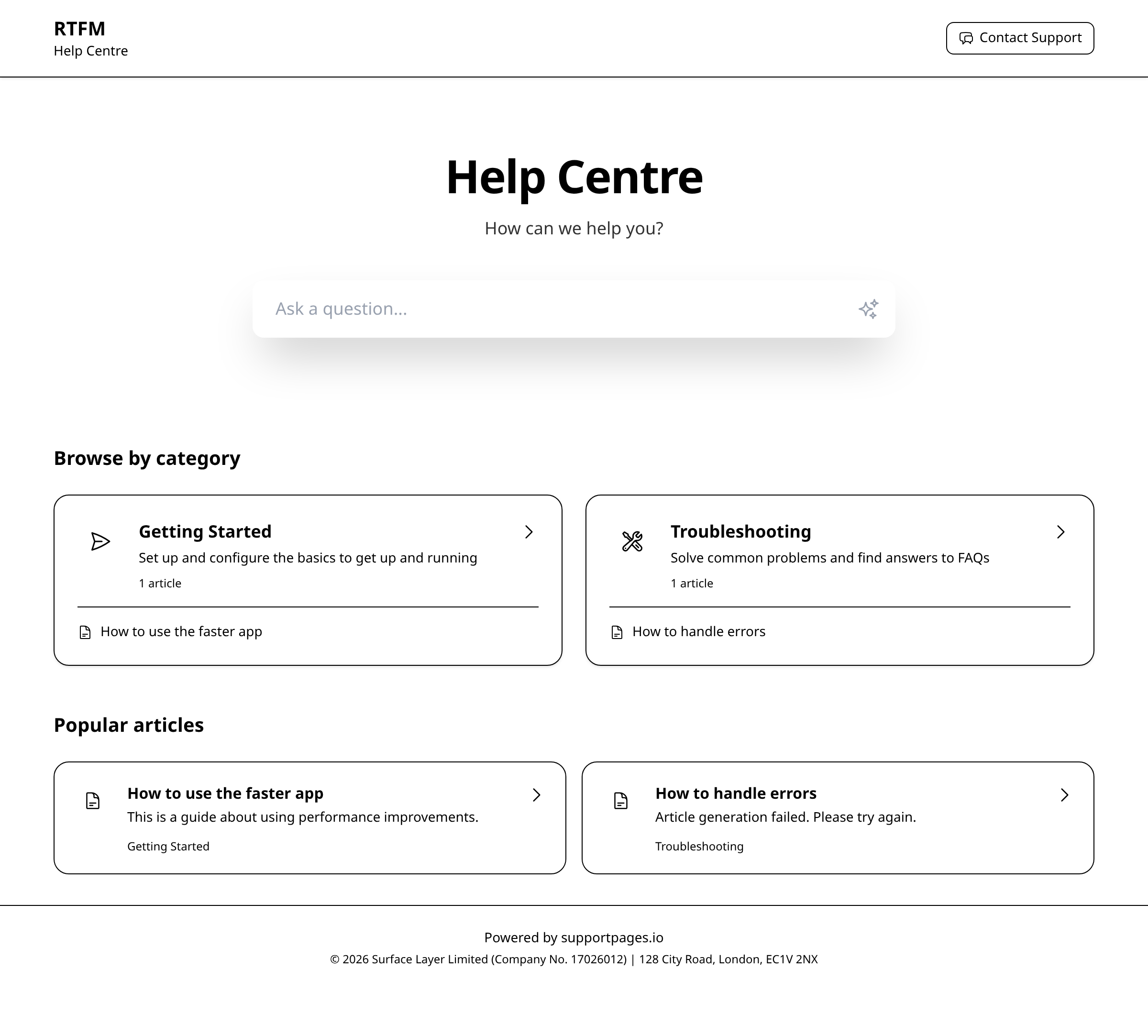
Your help centre opens with your project name or logo, a welcome headline, and a search field labeled Ask a question.... Below that, customers see Browse by category cards for each section that has published articles, plus a Popular articles grid for quick entry points.
Category sections
Each category page shows the section name, description, and how many articles it contains. Published guides appear as cards with the title, a short introduction, step count, and section label — customers pick one to read the full guide.
Article pages
Every guide shows breadcrumbs back to Help Centre and its section, the article title, and when it was last updated. Structured articles include an introduction, prerequisites, numbered Steps (with optional screenshots), tips, and a summary.
Navigation and feedback
On desktop, a sidebar lists every section and its articles so readers can jump around without going back to the home page. At the bottom of each article, customers can tap Yes, helpful or Not helpful to rate the guide.
Your branding throughout
Colours, logo, and fonts from your project settings carry through the header, hero gradient, links, and accents — so the help centre feels like part of your product, not a generic docs site.
Tips
- Preview any article from your workspace before sharing the link with customers.
- Sections without published articles are hidden from the home page until content goes live.
Summary
Share your help centre URL when you are happy with how the home page and key articles look. To change what customers see, publish or edit articles from the Articles tab in your workspace.
Was this article helpful?
Made by supportpages.io — turning pull requests into automated user documentation.
Have a question?
Search our articles, or ask and get an answer straight away.