
How to regenerate an article with AI
Updated 4 months ago
Browse All
When a help article is out of date or thin on detail, you can ask SupportPages to rewrite it using your latest project context and branding — no need to start from scratch.
Prerequisites
- A SupportPages project with at least one existing article
- Access to the project workspace
Steps
Open your project workspace
Sign in and open the project whose help centre you manage.
Go to Articles
In the sidebar under Help Centre, click Articles.
Select the article to refresh
In Sections & Articles, click the article you want SupportPages to rewrite. The editor opens on the right with the current draft or published content.
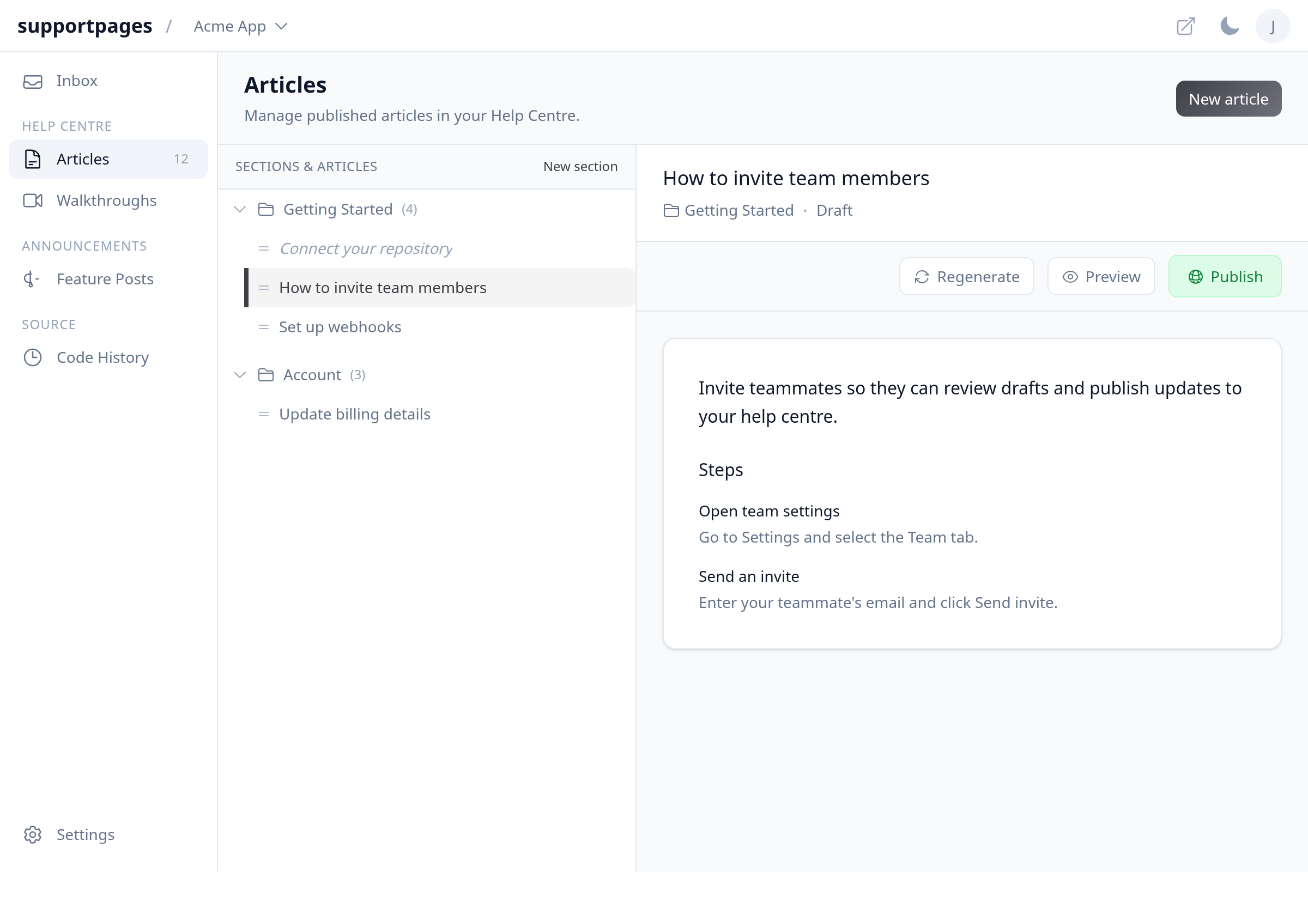
Open the regenerate dialog
Click Regenerate in the toolbar above the article content.
Add guidance and confirm
Optionally type notes in Guidance — for example, ask for a friendlier tone or more detail on a specific step. Turn on Use a more powerful model if screenshots or quality were off last time. Click Regenerate to start the rewrite.
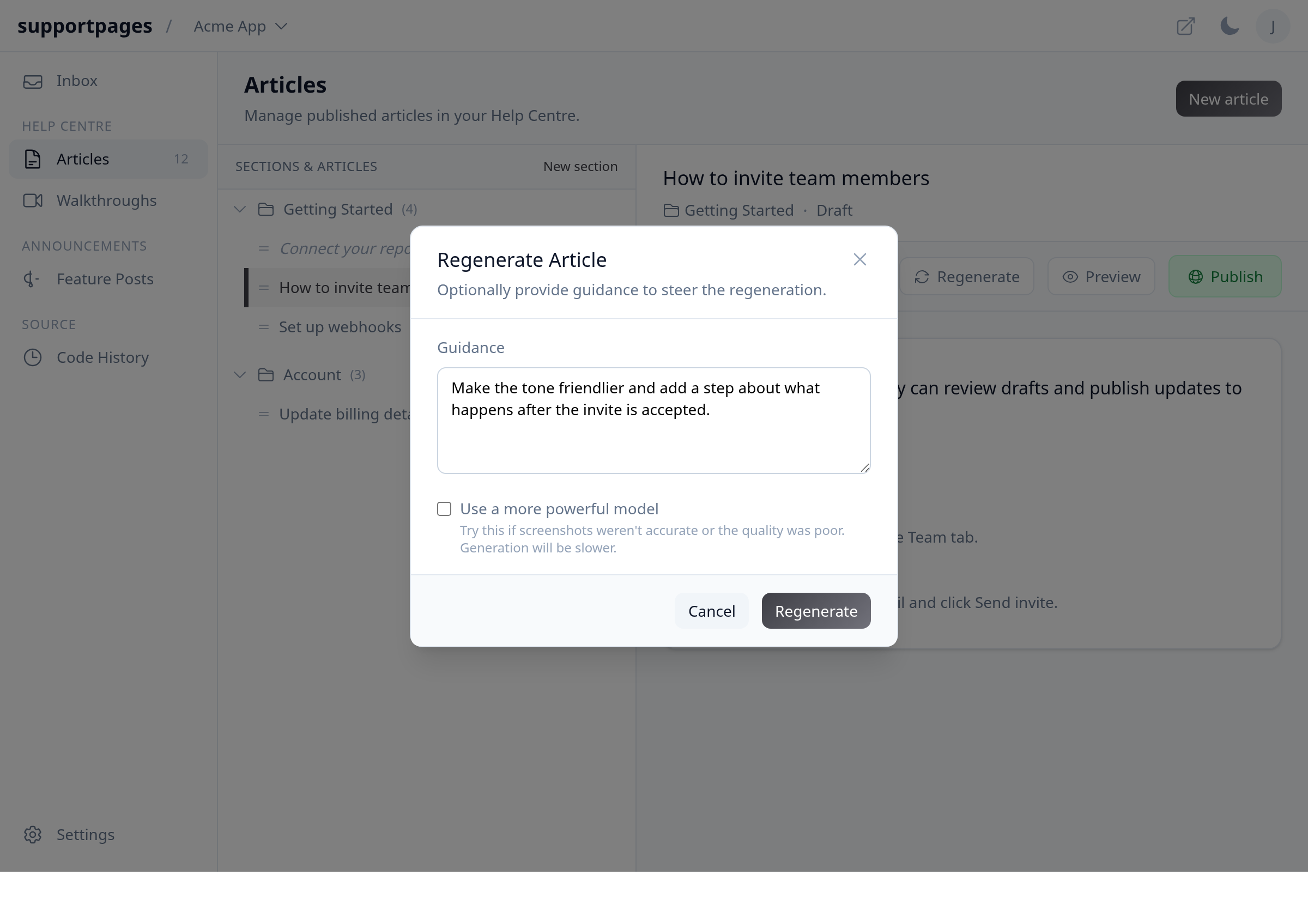
Review the updated article
Wait while the toolbar shows Generating... — this can take a few minutes. When generation finishes, the new content appears in the editor. Read through it, make any inline edits, then Publish when you are ready.
Tips
- Guidance is optional but helps when you know exactly what to fix — mention tone, missing steps, or audience (e.g. mobile users).
- Regeneration replaces the article content and screenshots; publish only after you have reviewed the new draft.
Summary
Open Articles, select the article, click Regenerate, add optional Guidance, and confirm. SupportPages rewrites the article from your latest project context so stale drafts stay current without manual rewrites.
Was this article helpful?
Generated by supportpages.io, an AI changelog generator for SaaS teams.
Have a question?
Search our articles, or ask and get an answer straight away.