
How to control when new drafts are created after merges
Updated 4 months ago
Browse All
When a pull request merges, SupportPages can draft changelog updates and article suggestions right away, once a week, or only when you ask. This guide shows you how to pick the schedule that fits how often you ship.
Prerequisites
- A project connected to a GitHub or Bitbucket repository
- Access to the project workspace and Settings
Steps
Open your project workspace
Sign in and open the project whose merge schedule you want to change.
Open Settings
In the left sidebar, click Settings at the bottom.
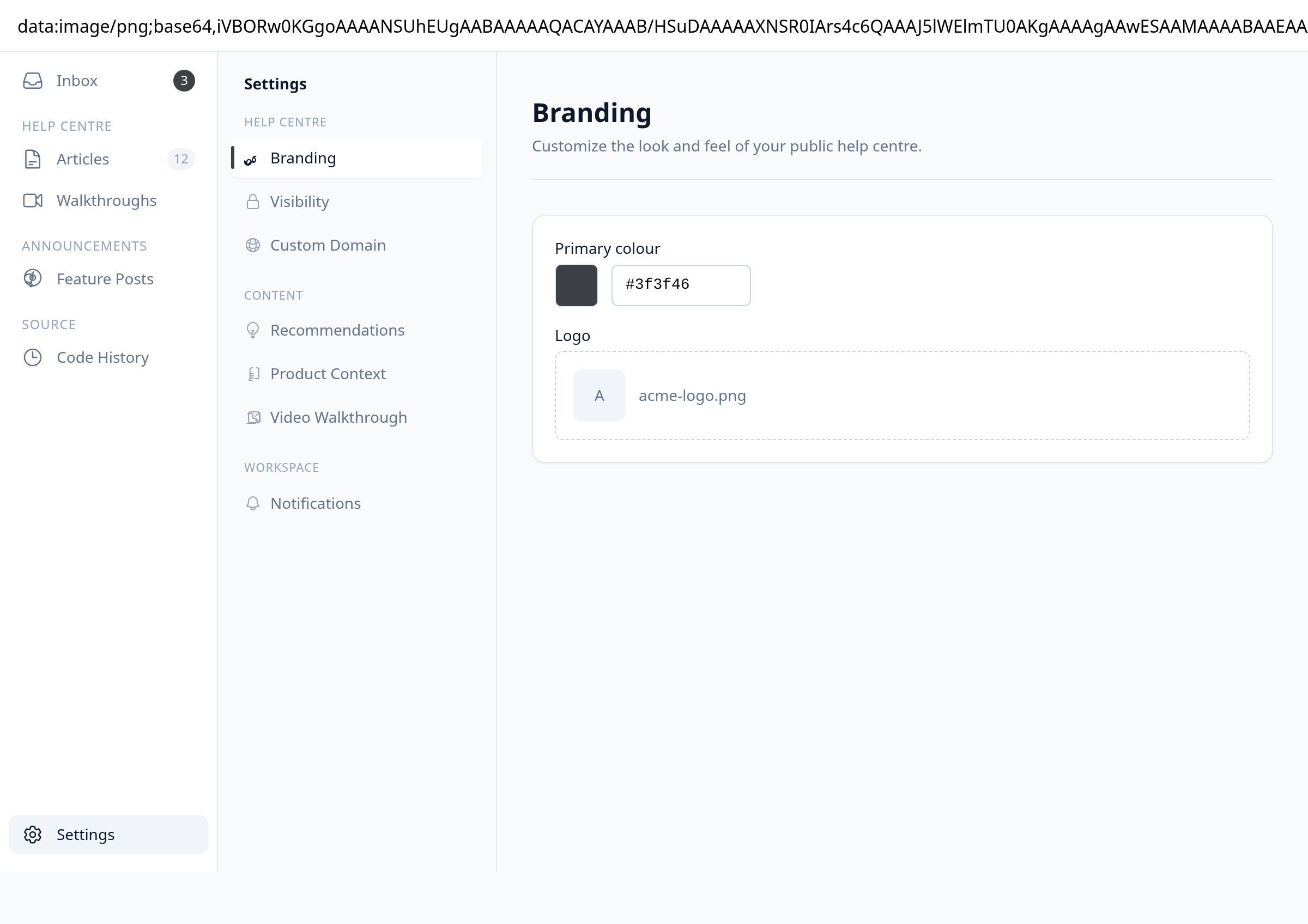
Open Recommendations
In the Settings sidebar, under Content, click Recommendations.
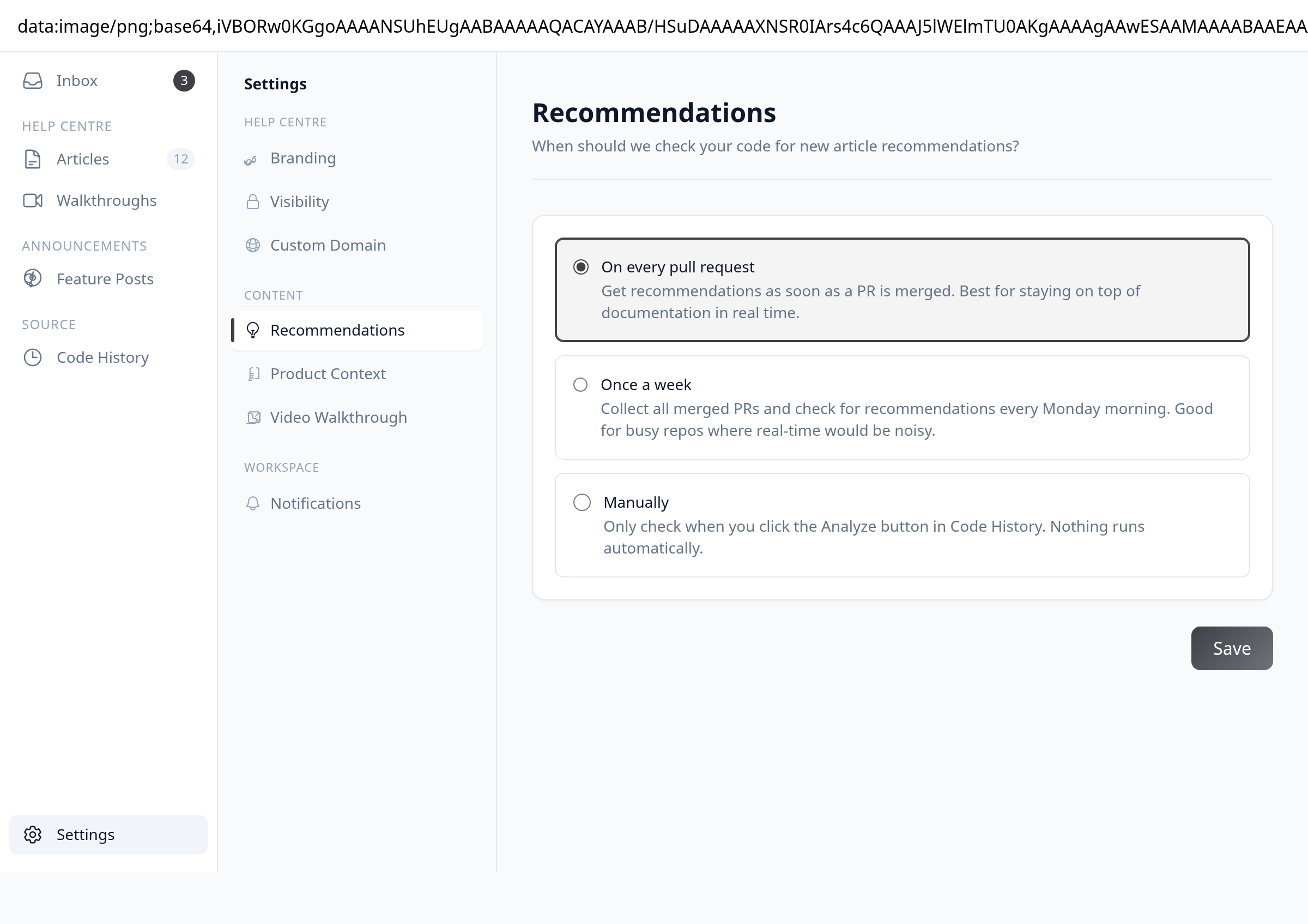
Choose your update schedule
Pick On every pull request to draft content as soon as merges land, Once a week to batch checks every Monday morning, or Manually if you only want drafts when you trigger them. Click Save.
Analyze merges manually (optional)
If you chose Manually, open Code History from the sidebar. Find a merged pull request and click Analyze when you want new drafts created.
Tips
- On every pull request works well when you ship often and want drafts in your Inbox right after each merge.
- Once a week reduces noise on busy repos by collecting merged pull requests and checking for recommendations together.
- With Manually, nothing runs on its own — use Analyze on Code History whenever you are ready to review new suggestions.
Summary
Your choice is saved immediately. SupportPages follows the schedule you set whenever new code merges into the connected repository.
Was this article helpful?
Built with supportpages.io — SaaS documentation software.
Have a question?
Search our articles, or ask and get an answer straight away.